
Parent Settings
The Settings page lets you update your contact information, manage notification preferences, and change your language.
How to Access
Open Settings from the profile menu (tap your avatar in the top-right corner), or navigate to it from any page in the Parent Portal.
Profile Tab
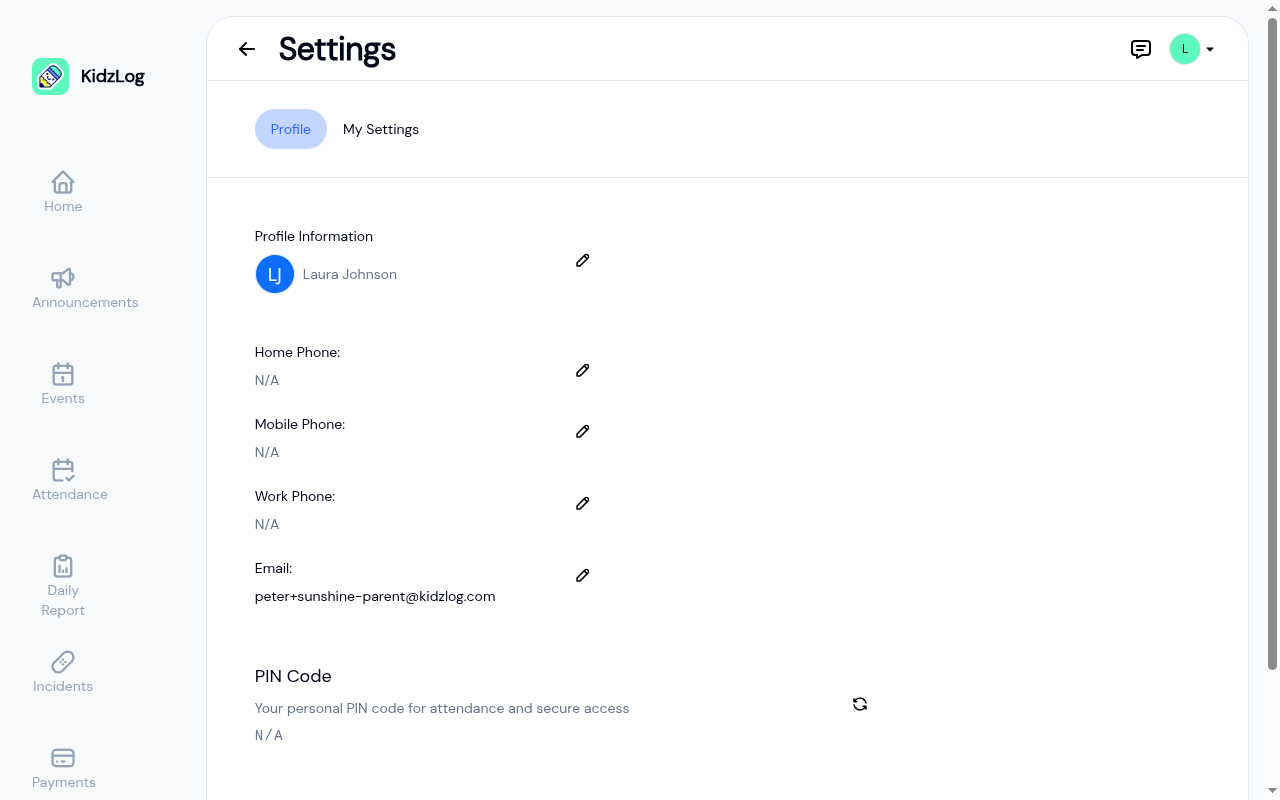
The Profile tab displays your personal information and lets you edit it.
Profile Information
Your name and avatar. Tap the pencil icon to update your name.
Contact Details
- Home Phone, Mobile Phone, Work Phone — Tap the pencil icon next to any field to add or update your phone number
- Email — Your email address. Tap the pencil icon to update it.
PIN Code
Your personal PIN code used for kiosk check-in/check-out. Tap the Reset PIN button to generate a new PIN if needed.
My Signature
Save a signature once and reuse it whenever you sign as yourself, so you don't have to redraw it every time you acknowledge an incident report or sign a document.
If you haven't saved one yet, you'll see an Add signature button. To add or replace your signature, you can either Draw it with your finger or mouse, or switch to Type and enter your name in a handwriting style (your name is filled in for you). Tap Clear to start over, then Save.
Once saved, your signature loads automatically with one tap wherever you sign. To remove it, tap Remove and confirm.
My Settings Tab
The My Settings tab lets you control your notification preferences and language.
Emails from KidzLog end with a manage your notification preferences link. It opens this page with the My Settings tab already selected, signing you in first if needed.
Notifications
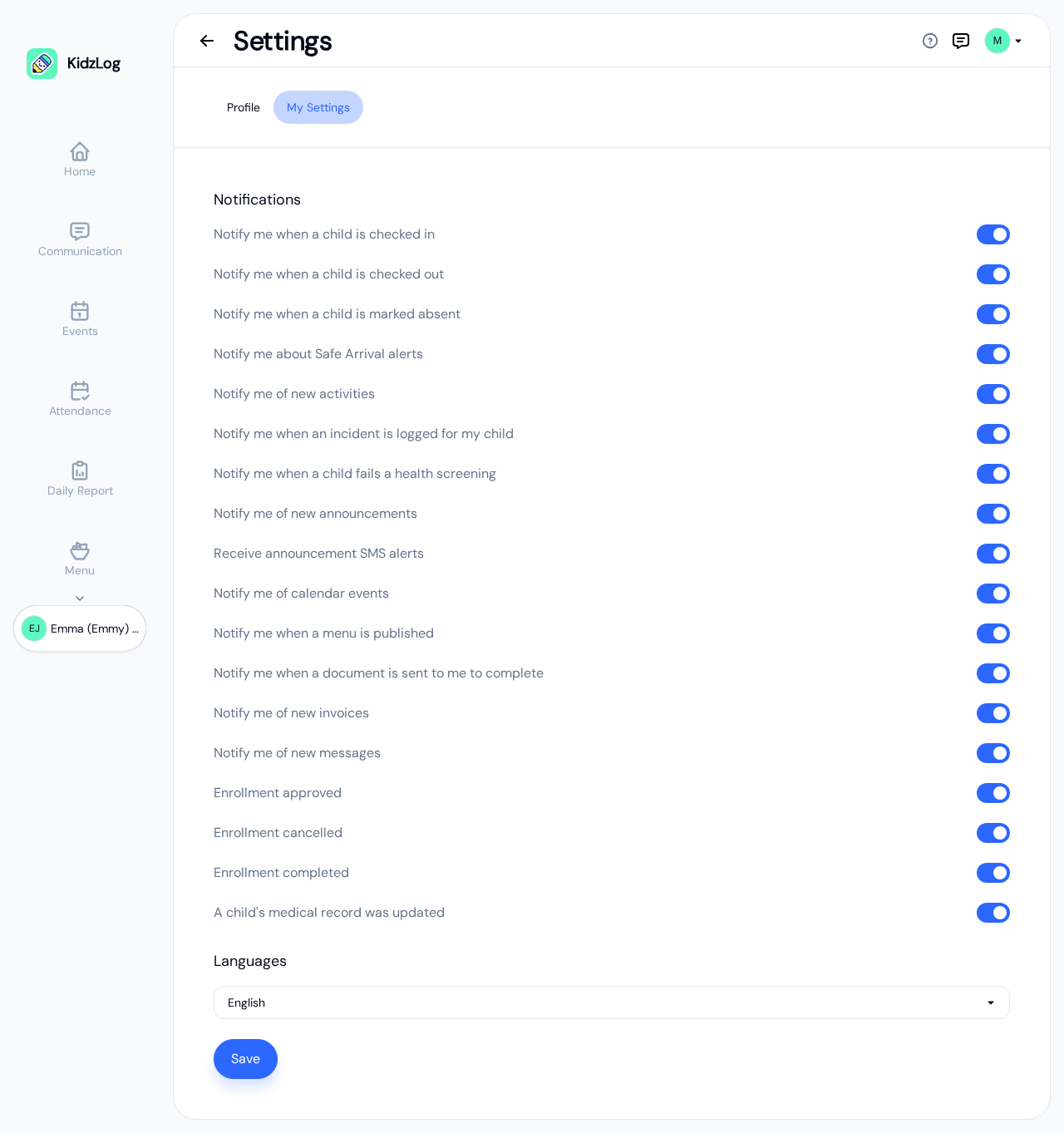
Each switch controls one kind of email. They all start on, so switch off any you would rather not receive. The list takes a moment to load. If it can't be loaded, you'll see "Your notification settings could not be loaded." with a Retry button.
| Switch | When it emails you |
|---|---|
| Notify me when a child is checked in | Your child arrives and is checked in at the center |
| Notify me when a child is checked out | Your child is checked out |
| Notify me when a child is marked absent | Your child is marked absent for the day |
| Notify me about Safe Arrival alerts | Your child has not arrived by the time the center expected them. Only sent if your center has chosen to alert families |
| Notify me of new activities | Staff log a new activity for your child |
| Notify me when an incident is logged for my child | An incident report about your child is approved and ready for you |
| Notify me when a child fails a health screening | Your child's health screening flags a concern |
| Notify me of new announcements | The center publishes an announcement |
| Receive announcement SMS alerts | The center sends an announcement by text message as well as email |
| Notify me of calendar events | A center event is coming up |
| Notify me when a menu is published | The center publishes a new meal menu |
| Notify me when a document is sent to me to complete | The center sends you a form or document to fill in or sign, and when it reminds you about one still waiting |
| Notify me of new invoices | The center sends you an invoice, or marks one as paid (your receipt) |
| Notify me of new messages | You receive a new message from the center |
| Enrollment approved | Your child's enrolment is approved |
| Enrollment cancelled | Your child's enrolment is cancelled |
| Enrollment completed | Your child's enrolment reaches its end date and is marked completed |
| A child's medical record was updated | Your child's allergies, medical conditions or immunizations are changed |
Click Save after changing any switch.
Your center can switch some kinds of notification off for every family at once. Where that has happened, the switch is greyed out with Disabled by your center administrator beside it, and turning it on here will not bring the email back. Ask your center if you think one has been switched off by mistake.
Language
Select your preferred language (English or French) from the dropdown, then save. The Parent Portal switches over straight away.
Your choice is kept on your account rather than in the browser, so it follows you to another device and is still there after you sign out and back in. The language switcher in the header is the same setting.
After making changes, tap Save to apply your preferences.
Frequently Asked Questions
Yes. Toggle each notification type off individually in the My Settings tab. There's no single "turn off all" switch — this ensures you don't accidentally miss important notifications like incident reports.
Go to the Profile tab in Settings and tap the Reset PIN button next to the PIN Code section. A new PIN will be generated automatically.