

Roll Call
Roll Call lets you quickly verify the presence of children in your classrooms. Use it for routine head counts, fire drills, excursions, or any situation where you need to confirm every child is accounted for.
How to Access
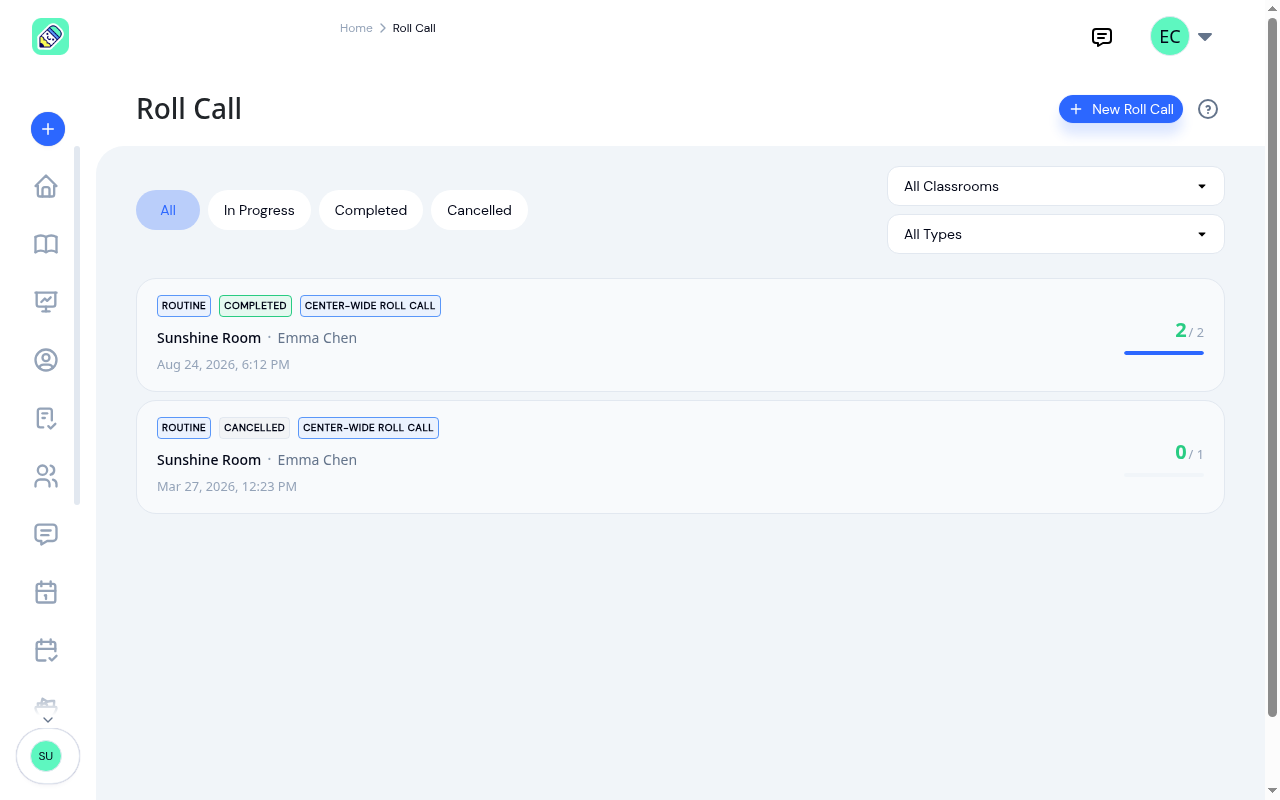
Navigate to Roll Call in the sidebar, or click the New Roll Call button on the Attendance page.
Starting a Roll Call
Click New Roll Call
Click the + New Roll Call button in the top-right corner.
Select the roll call type
Choose the type that best describes the situation:
- Fire Drill — emergency evacuation practice
- Excursion — a field trip or outing
- Routine — a regular daily head count
- Transition — moving between rooms or activities
- Custom — anything else. You'll be asked for a reason
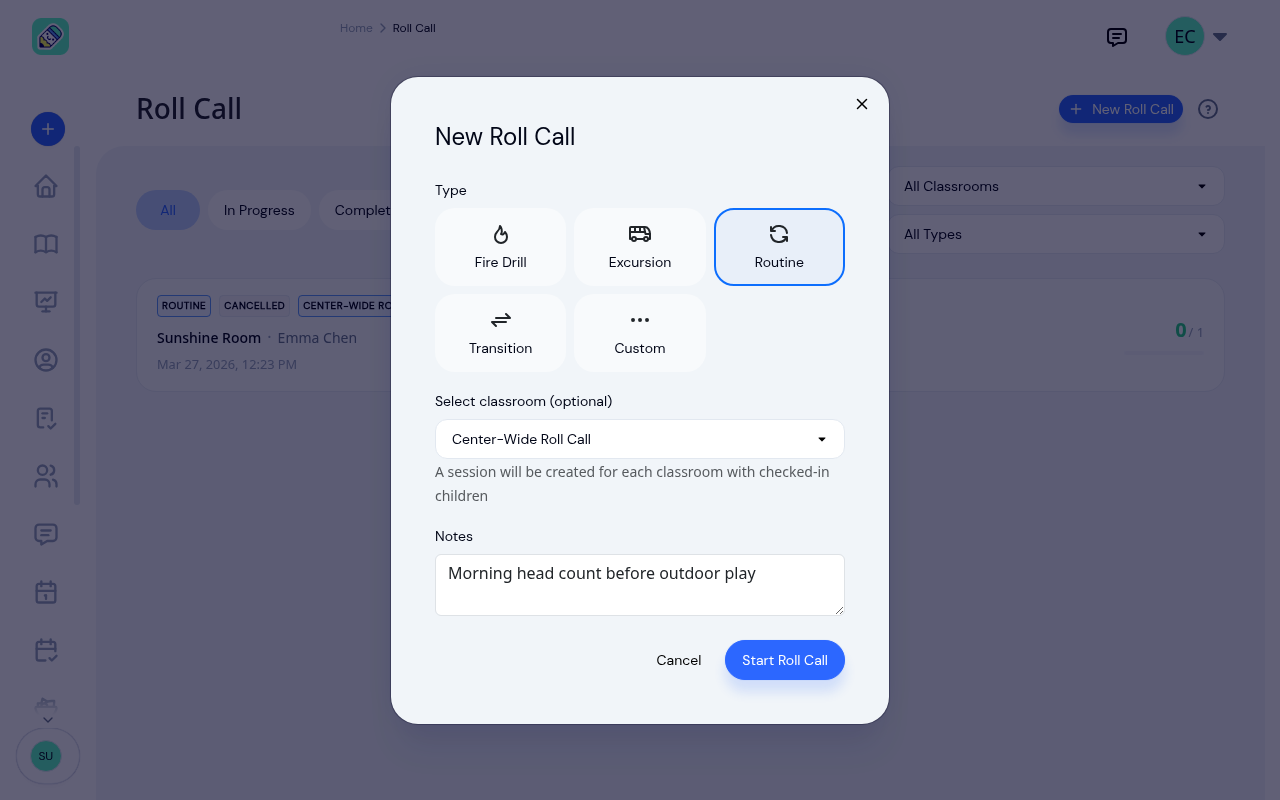
Select a classroom (optional)
Choose a specific classroom, or leave it as Center-Wide Roll Call, which creates a session for every classroom that has children checked in. Every one of your active classrooms is listed, however many you have.
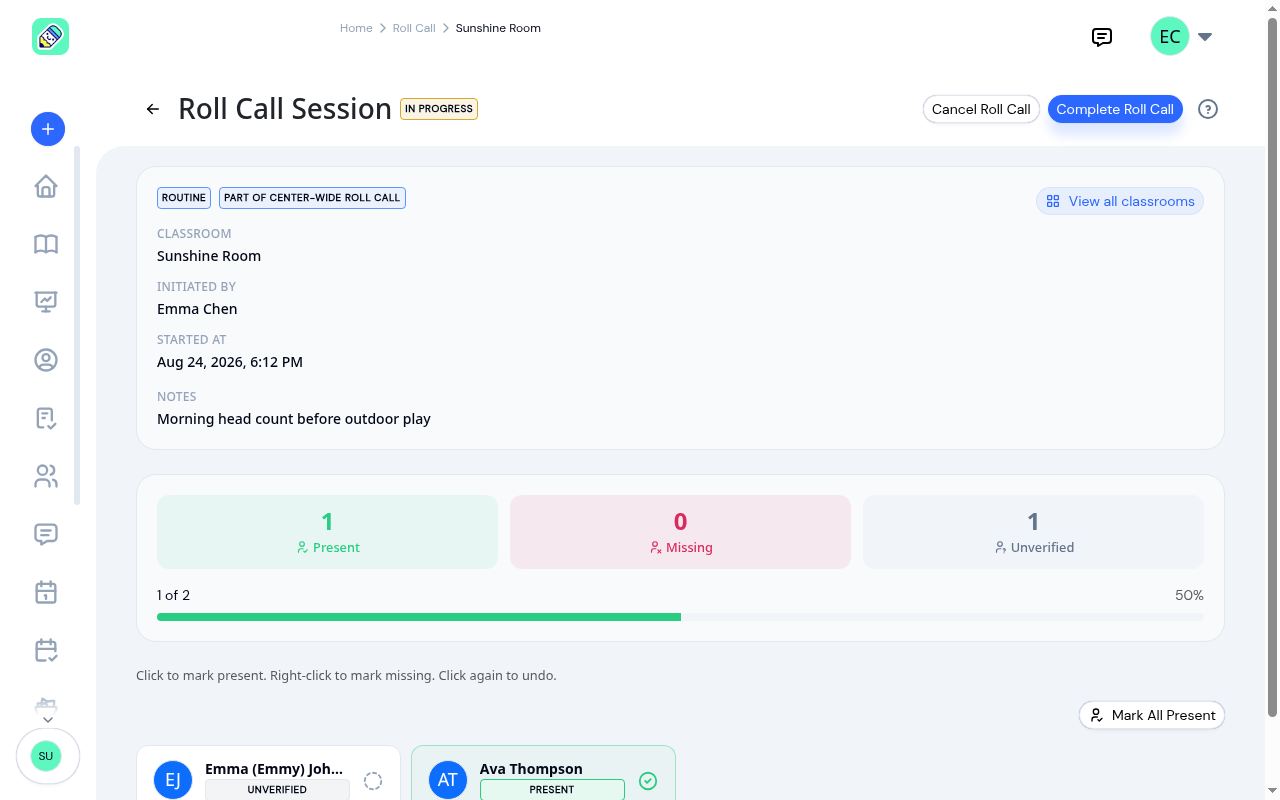
A center-wide roll call gives each room its own session, tagged Part of center-wide roll call. From any one of them, View all classrooms takes you to the others.
Add notes (optional)
Enter any relevant context for this roll call.
Click Start Roll Call
The session begins and you're taken to the verification screen.
Verifying Children
Once a roll call is started, you see each checked-in child as a card. For each child:
- Click to mark as Present
- Right-click to mark as Missing
- Click again to undo and return to Unverified
The progress counters at the top update in real time showing Present, Missing, and Unverified counts.
Completing or Cancelling
Once every child is accounted for, click Complete Roll Call to finalize the session.
If the roll call was started in error, click Cancel Roll Call instead and confirm.
Completed sessions can't be changed. They become a permanent record you can review in Roll Call Reports.
Filtering Sessions
Use the status tabs to filter the session list:
- All — Every roll call session
- In Progress — Sessions still being verified
- Completed — Finalized sessions
- Cancelled — Sessions that were cancelled
You can also filter by classroom and roll call type using the dropdown filters.