

Sending & Tracking Documents
Once your library is set up, you send documents to families and follow their progress from one screen. The Requests tab shows everything you have sent, grouped by child, with a clear status for each document.
Sending documents to a family
You send documents from a child's enrolment, so the paperwork is always tied to the right child and family.
Open the child's enrolment
Go to Enrolments, select the child, and open their enrollment details.
Select Send documents
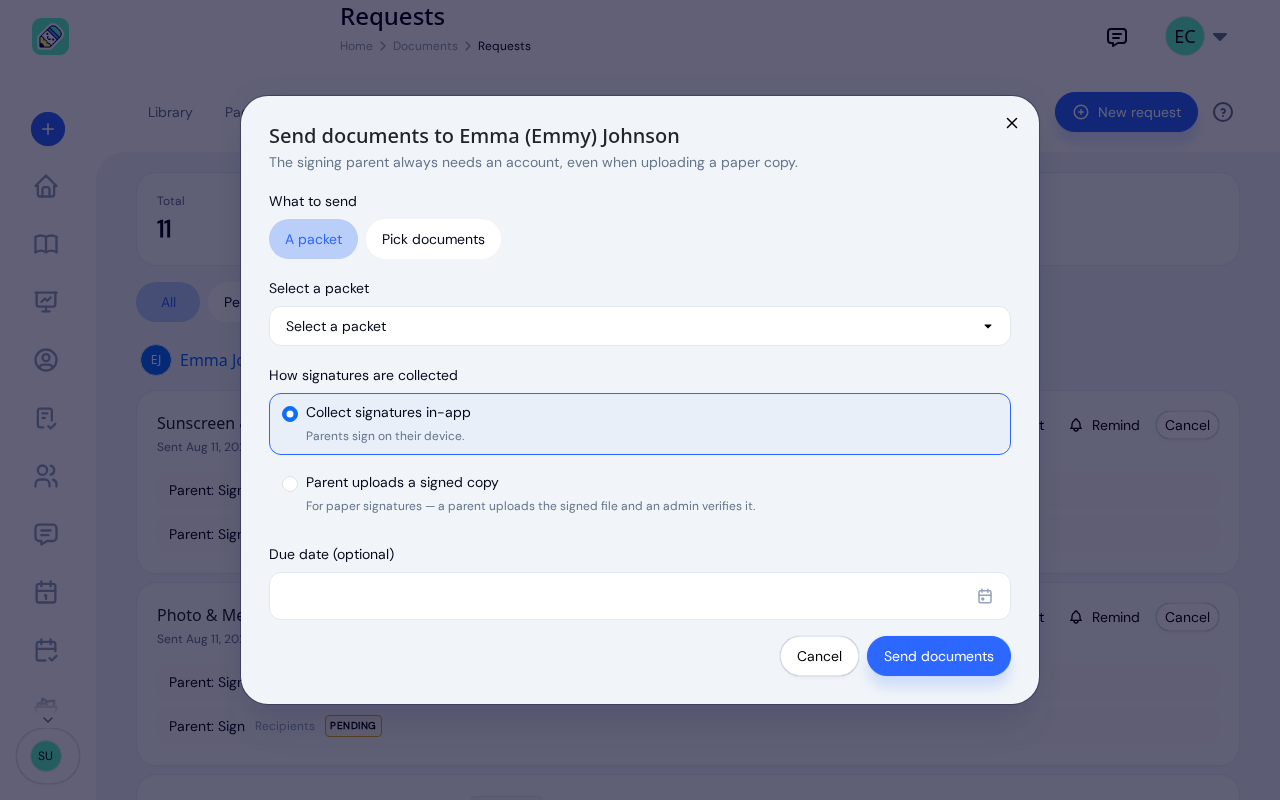
On the enrollment page, choose Send documents. A window opens where you choose what to send and how.
Choose what to send
Under What to send, pick either:
- A packet — send a ready-made bundle, then choose it from the list.
- Pick documents — hand-pick one or more documents from your library.
Choose how signatures are collected
Under How signatures are collected:
- Collect signatures in-app — parents sign on their own device.
- Parent uploads a signed copy — for forms that must be printed and signed by hand. The parent uploads the signed file and a staff member verifies it.
Set a due date and send
Add an optional Due date, then select Send documents. Each guardian with an account is notified that they have a document to complete.
Starting a request from the Requests tab
You can also start a request without opening an enrolment. On the Requests tab, click New request, choose who the request is for, then select Continue. The same send window opens, already set to those children.
The same Request a document button is available on each child's profile, under their Documents tab.
Sending to more than one child
The New request window starts by asking who the request is for, and you don't have to go one child at a time.
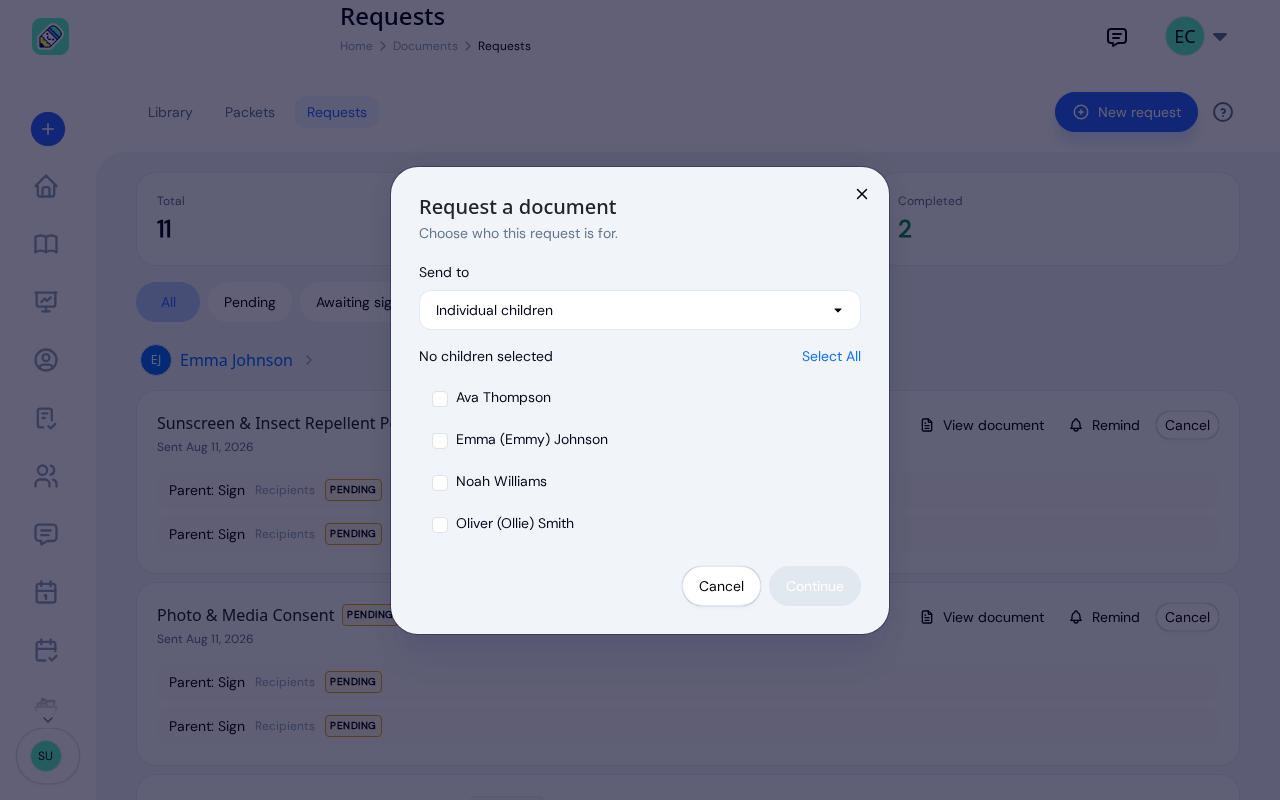
Send to offers four ways to choose:
- Individual children — tick the children you want
- A classroom — pick a room, and every child enrolled in it is selected
- A program — pick a program, and every child enrolled in it is selected
- Everyone at the center — all children at once
Whichever you pick, the group is expanded into a tickable list of the actual children before anything is sent, so you can see exactly who it covers and untick anyone who shouldn't be included. Select All ticks or clears the whole list at once.
When you send, KidzLog confirms how many families it will email, for example "This emails 12 families". Afterwards it tells you how it went, reading "Sent to 12 of 14, 2 waiting on a guardian account".
Tracking progress
The Requests tab gives you the full picture. Three counts sit at the top, followed by filters and the list of requests grouped by child.
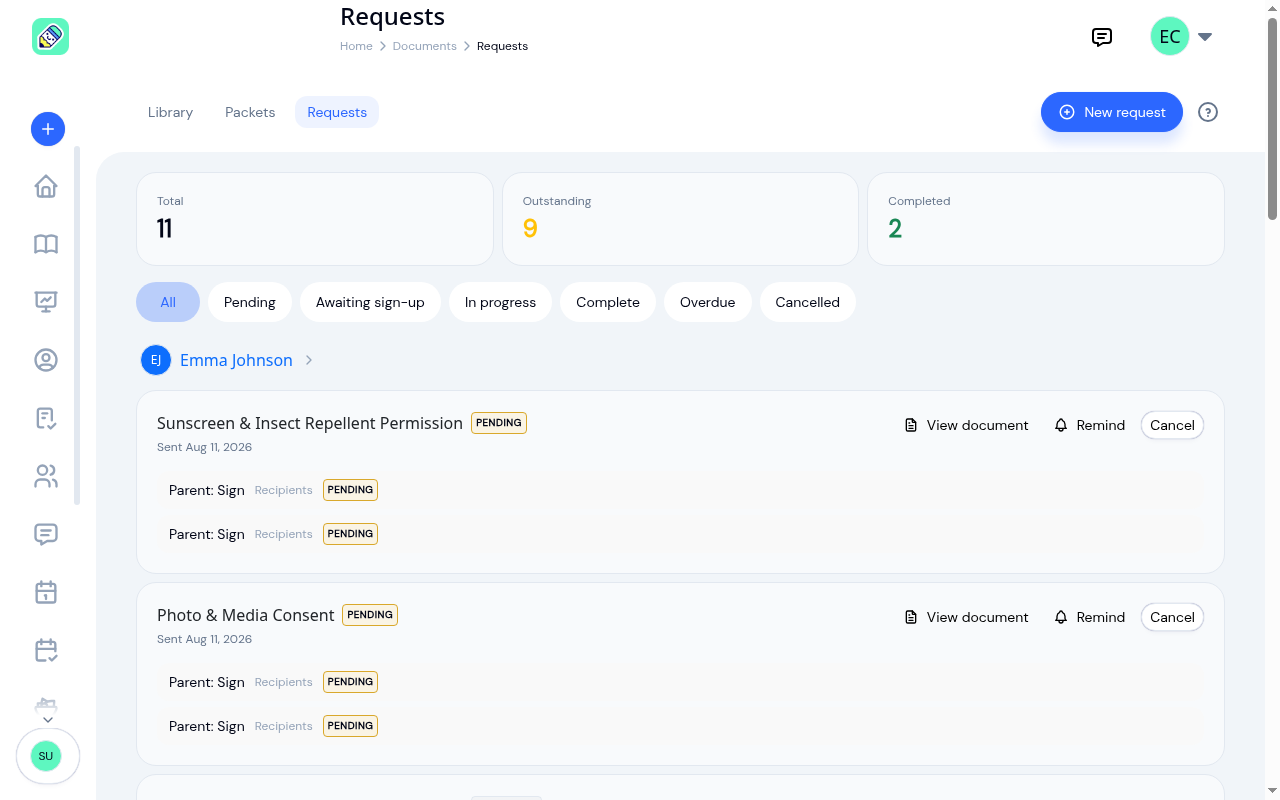
The three counts are:
- Total — every document you have sent that is still active.
- Outstanding — documents still waiting on someone.
- Completed — documents that are fully finished.
Use the filters to narrow the list to a single status: All, Pending, Awaiting sign-up, In progress, Complete, Overdue, Cancelled.
The three counts and the filters cover every request at your center, not just the ones on screen, so filtering to Overdue tells you how many are overdue across the whole center. Longer lists page in the standard way. See How lists work.
What each status means
- Pending — sent, but no one has acted yet.
- In progress — at least one person has acted, but the document still needs someone else. This is common when a document has two guardians or a staff step that comes after the family signs.
- Complete — every step is finished.
- Overdue — past its due date and not yet complete.
- Awaiting sign-up — waiting on a guardian who does not have an account yet.
- Cancelled — withdrawn before it was completed.
Reading a request
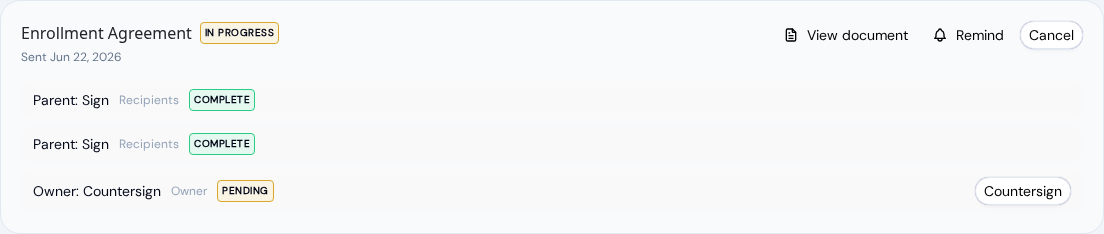
Each document shows its status, the date it was sent, and a row for every person who needs to act. Those rows tell you exactly who you are waiting on. A guardian's row is marked Recipients, and each one shows Complete or Pending, so you can see when one parent has signed and the other has not.
Documents that only need to be read, such as a welcome letter, show as Complete as soon as they are sent, since there is nothing for the family to sign.
Actions on each request
- View document opens the original PDF.
- View signed copy appears once a document is complete and opens the finished copy with its signatures.
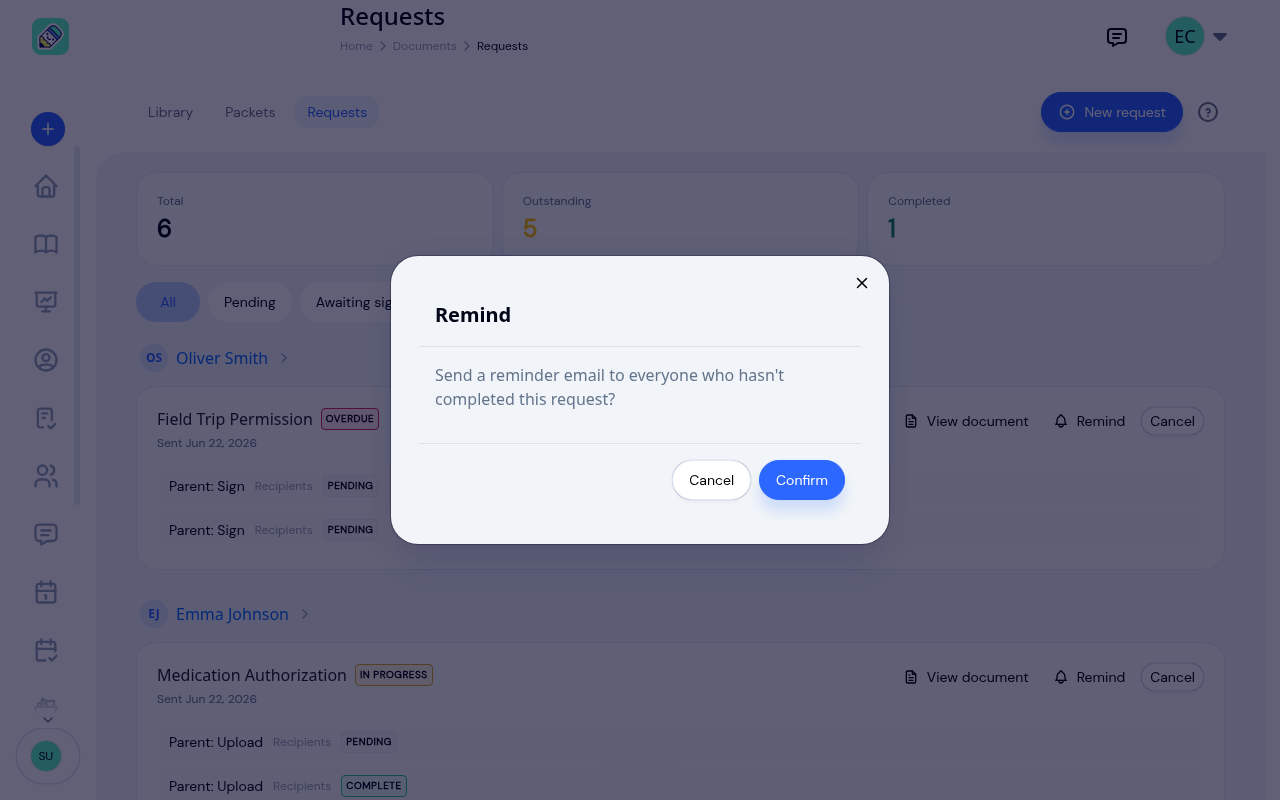
- Remind emails the guardians who still haven't completed the request, instead of waiting for the next automatic reminder. It appears only while the request is still live and someone is pending. You'll be asked to confirm first, and KidzLog then tells you how many people were emailed. Reminders only go to guardians: when the only step left is a staff one, the count reads 0, because that step is finished on this screen (see below), not by email.
- Cancel withdraws a document that is no longer needed.
Completing a staff step
Some documents include a step for an admin or owner, set up in the Document Library. That step appears on the request as its own row, such as Owner: Countersign or Admin: Verify, and you complete it right here on the Requests tab.
The step's button appears once it is the staff member's turn, which means every earlier step is finished. Until then, the row just reads Pending. In this example both guardians have signed, so the owner's Countersign button is showing:
Countersigning
Select Countersign
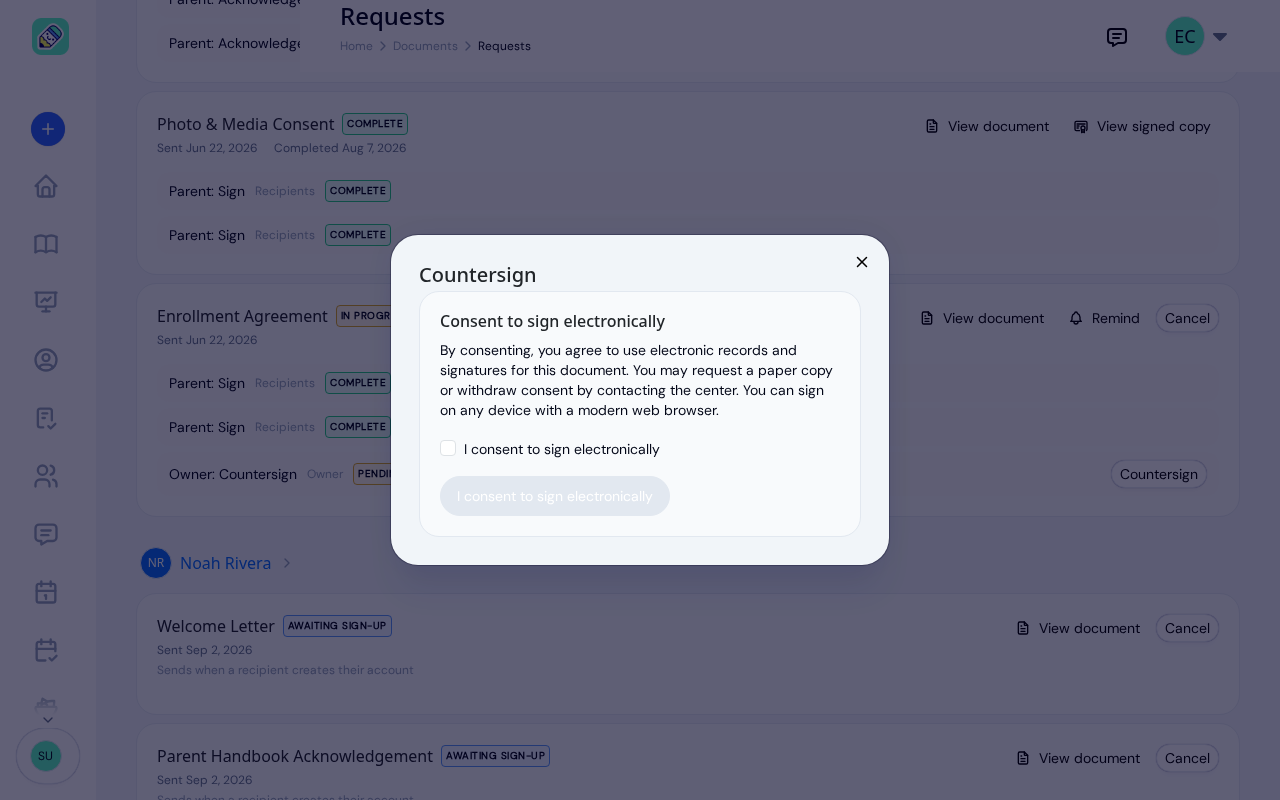
Click Countersign on the staff row. A Countersign window opens.
Consent to sign electronically
Before the signature pad appears, KidzLog asks for your consent to sign electronically, with the same wording parents see when they sign. Tick I consent to sign electronically, then click the I consent to sign electronically button. This is asked once for each request you countersign.
Sign and submit
Under Sign below, draw your signature, or switch to Type and type your name. If you've saved a signature before, it's already filled in. If you'd like to reuse it next time, tick Save this signature for next time. Then click Countersign.
When your countersign is the last step, the request reads Complete once it's added, and View signed copy appears on it.
Verifying an upload
When a parent returns a document on paper, they upload the signed copy and a staff step checks it. Click Verify upload on that row. The window has a View document link that opens what the parent uploaded. Review it, then click Mark verified to accept it.
Awaiting sign-up
When you send a document to a family whose guardian has not created their account yet, the document waits with an Awaiting sign-up status. As soon as that guardian accepts their invitation and signs in, the document is sent to them automatically. You do not need to send it again.
Frequently Asked Questions
A document is only Complete when every required person has acted. If a child has two guardians, or the document has a staff step after the family signs, it stays In progress until the remaining people finish. The recipient rows show exactly who you are still waiting on.
Find the request on the Requests tab and click Verify upload on the staff row. Open the file the parent sent with View document, then click Mark verified. The document moves to complete once it has been verified. See Verifying an upload.
Yes. Click New request on the Requests tab and choose several children, a classroom, a program, or everyone at the center. See Sending to more than one child. Each child still gets their own request, tracked under that child, so you always know which family it belongs to.
Reminder emails only go to guardians. A countersign or verify step is completed by an owner or admin on the Requests tab, so a request waiting only on a staff step reports that 0 people were reminded.
The document is withdrawn and the family is no longer asked to complete it. Cancelling does not remove the document from your library, and you can send it again later.