

How Parents Sign Documents
When your childcare center needs a form signed, you complete it right inside the KidzLog parent app. There is no printing, scanning, or email back and forth. This page walks parents through finding documents, signing them, and keeping a copy for your records.
Finding your documents
Open Documents in the parent app menu to see My documents. It has two tabs:
- Action needed — documents waiting on you.
- Completed — documents you have finished.
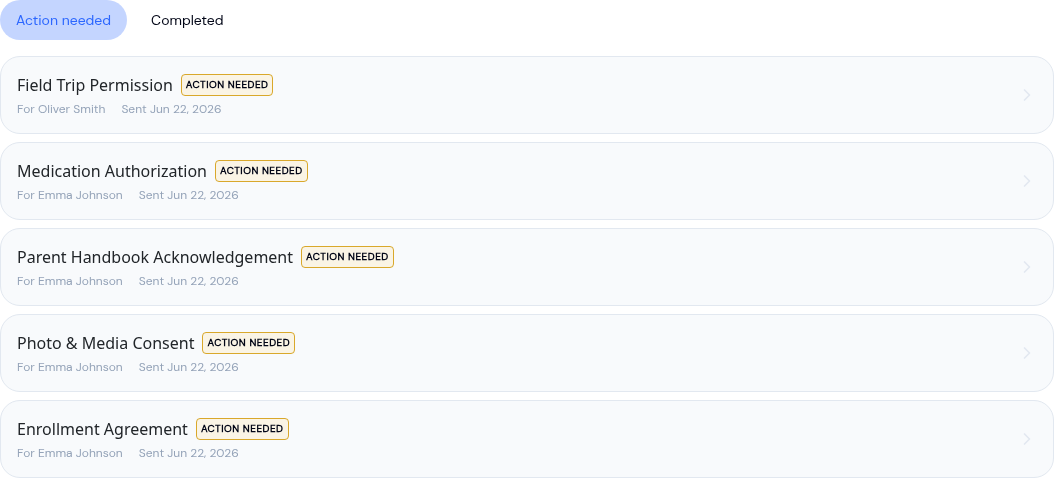
Each item shows the document name, which child it is for, and the date it was sent. Tap any document to open it. At the top of every document you can select View the document (PDF) to read the full form before you act.
From the email
When your center sends you a document, or reminds you about one, you get an email. If the email is about a single document, its link opens that document so you can complete it straight away. If it covers several, the link opens your My documents list. If you have children at more than one center, the link opens the right one. If you're signed out, sign in and you'll land in the same place.
Signing a document
Some documents ask for your signature. The first time you sign, you are asked to agree to sign electronically.
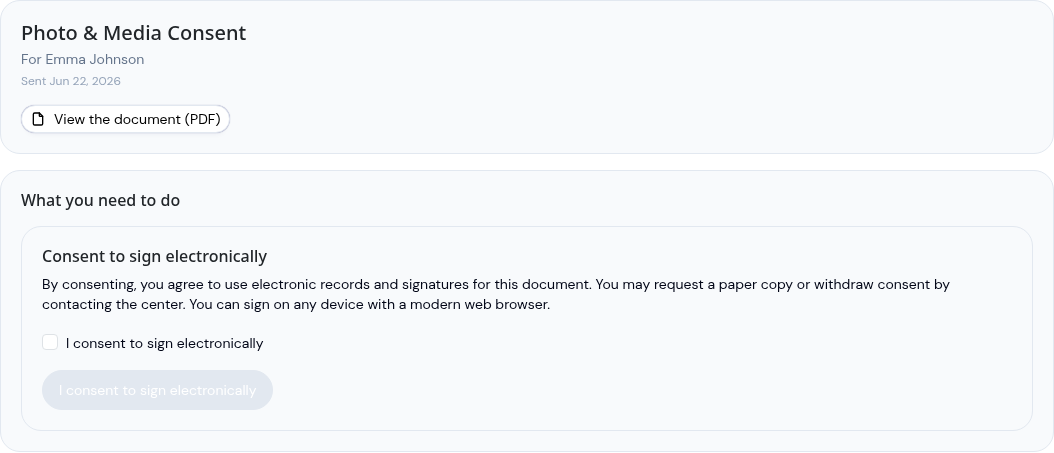
Tick I consent to sign electronically and continue. You can request a paper copy or withdraw consent at any time by contacting your center.
Next, under Sign below, draw your signature in the box using your finger, trackpad, or mouse, or switch to Type and type your name. Use Clear if you want to start over. To have it ready next time, tick Save this signature for next time. Then select Submit signature.
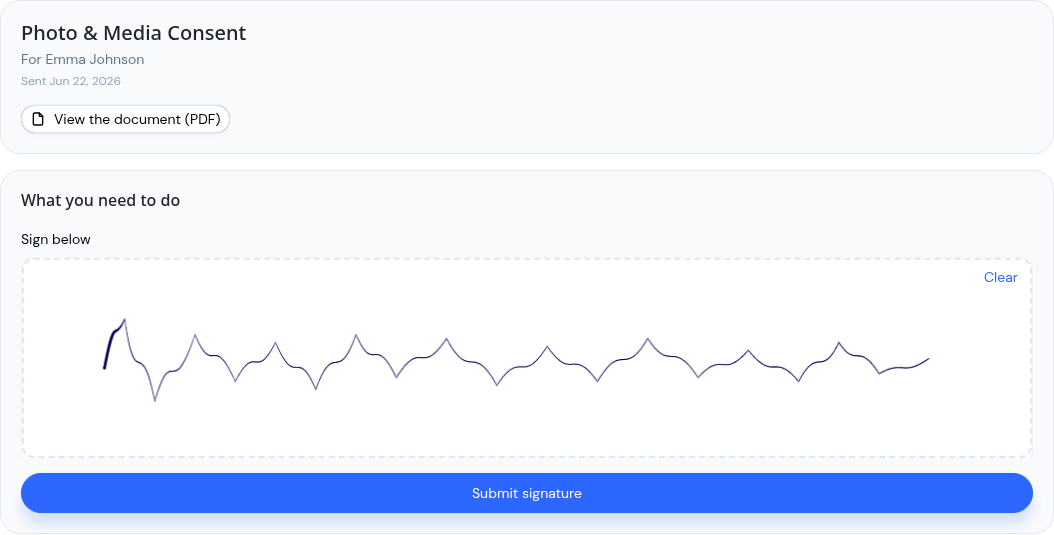
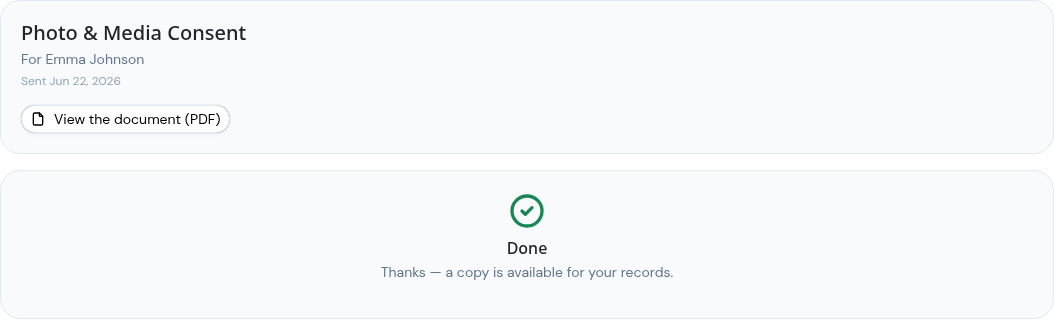
Once you submit, you see a confirmation that your part is done and a copy is kept for your records.
Filling in a document
Some documents ask you for more than a signature. When your center has marked out boxes on the form (see Placing Fields on a Document for the staff side of this), the document appears on the page and you fill it in where the answers belong, rather than signing a separate page at the end.
The boxes that are yours are outlined and can be tapped. Boxes meant for someone else are still visible so you can read the whole form, but you can't change them.
Tap one of your boxes and a small window opens for the answer. Depending on the box, you'll be asked to type some text, pick a date, choose from a list, or tick a box. Each answer saves as you enter it, so nothing is lost if you're interrupted and come back later.
A line at the top keeps count, reading something like "3 required field(s) still to complete", and changes to "All required fields are complete" once you've finished them.
Tapping a signature box takes you to the signing screen described above.
If the document can't be shown on the page for any reason, you'll see View the document (PDF) so you can still read it.
When a form has two signature lines
If a form has a line for each guardian, whoever signs first takes the first free line and the other guardian takes the next one. Neither of you needs to sign in a particular order or wait for the other to go first.
If only one of you is asked to sign, the second line simply stays blank. The document isn't held up waiting for someone who was never asked.
Acknowledging a document
Some documents only ask you to confirm that you have read them, such as a parent handbook. These show a single button.
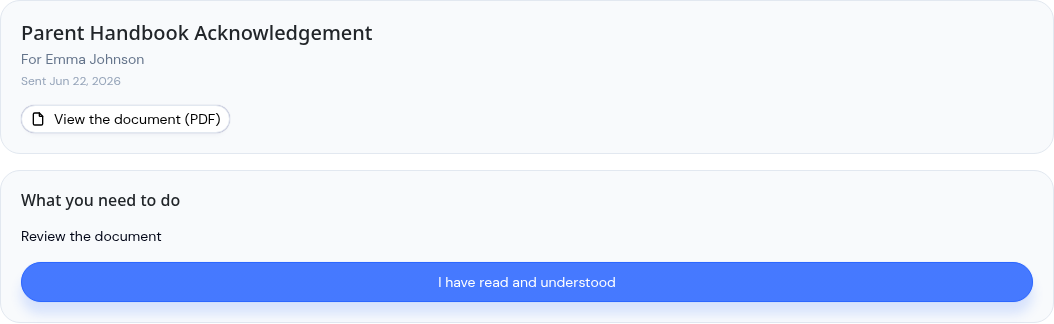
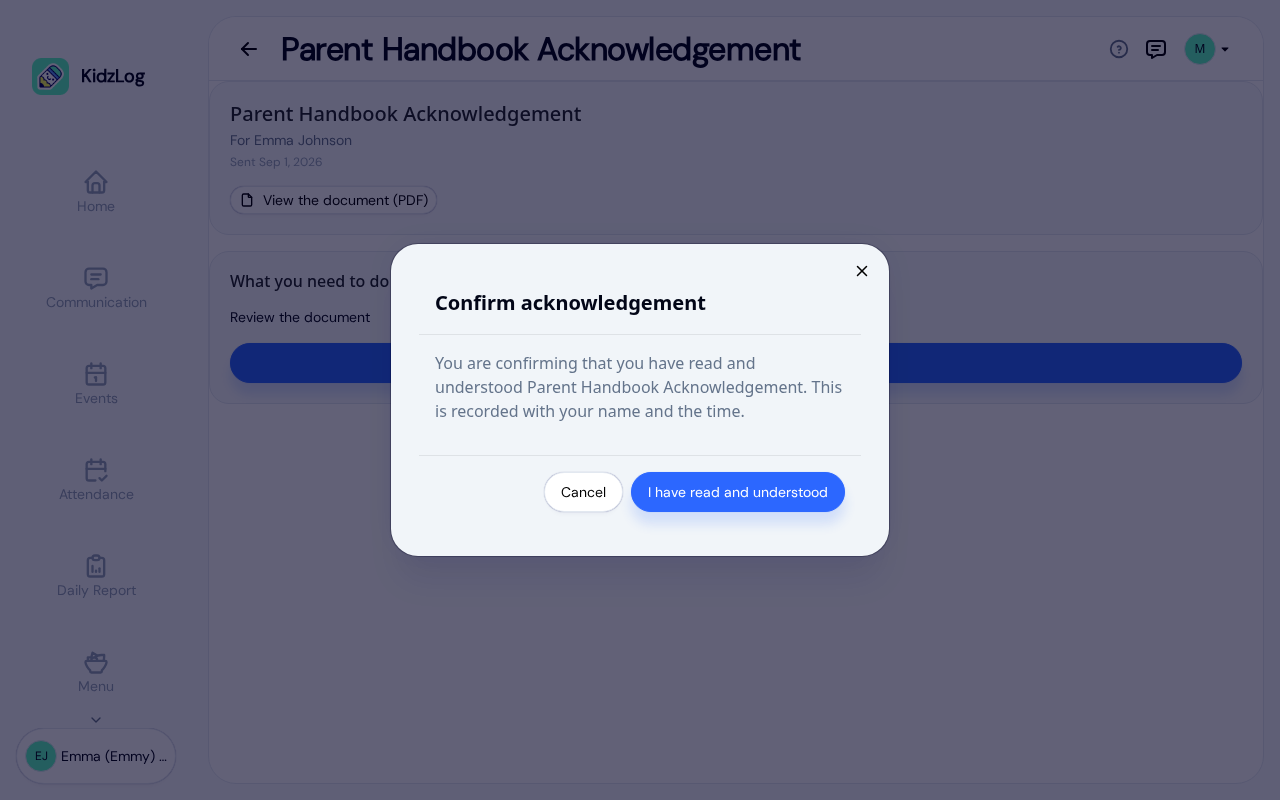
Select I have read and understood. You are asked to confirm, since your name and the time are recorded with the acknowledgement.
Uploading a signed copy
Some forms need to be printed and signed by hand, such as a medication authorization. For these, the center asks you to upload the signed form back to them.
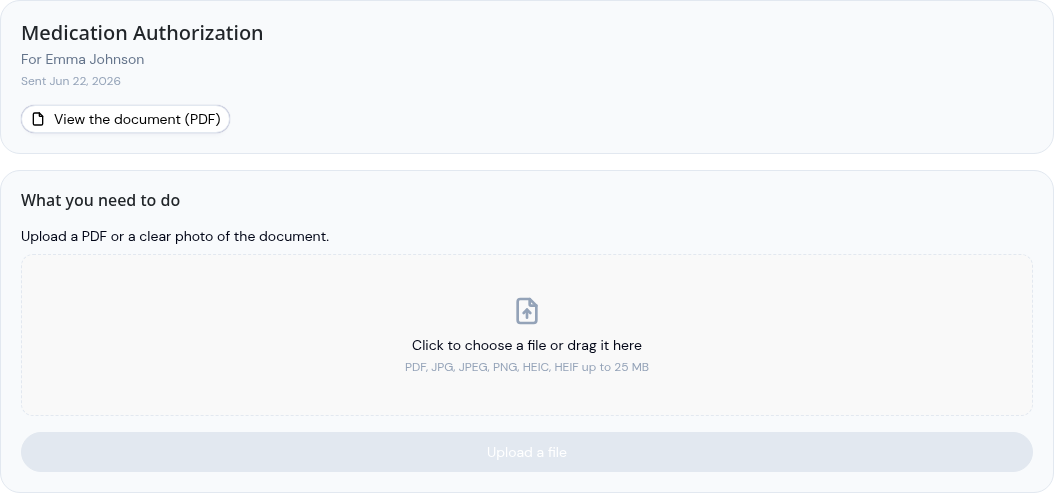
Print the document, sign it, then upload a PDF or a clear photo. You are asked to confirm before it is submitted, since submitting hands it to your center for review. A staff member then checks your upload and confirms it. You can send a PDF, JPG, PNG, or HEIC file up to 25 MB.
Documents to read
A few documents, like a welcome letter, are shared just for you to read. There is nothing to sign or send back. Once it has been shared with you, it appears in your Completed tab.
Keeping your copies
Everything you finish moves to the Completed tab, so you always have a record of what you have signed.
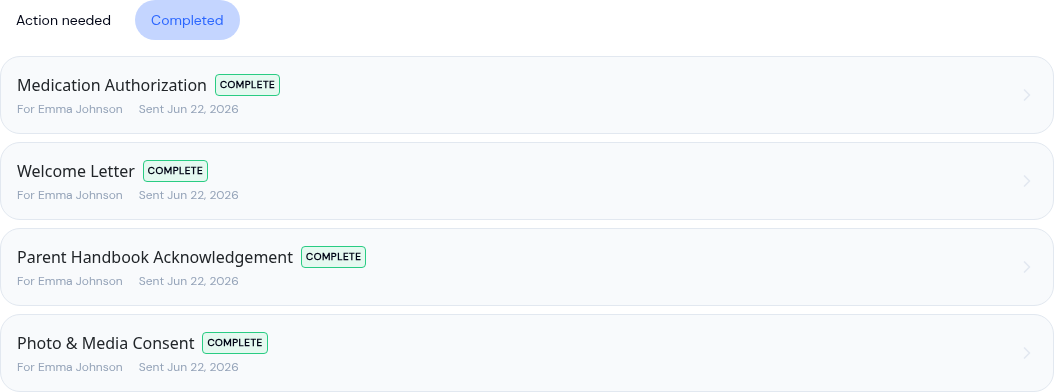
When a document is fully finished, you can open it again to view the completed copy, which includes the signatures that were collected.
Frequently Asked Questions
Yes. Documents are tied to a specific child, so a form for one child is separate from the same form for another. Each one shows which child it is for.
Some documents need more than one person, such as a second guardian or a staff member who signs after you. Your part is done; the document finishes once everyone else has acted.
Yes. Select View the document (PDF) at the top of any document to read the full form first.
It means your typed or drawn signature is legally recorded along with your name and the time. You can ask your center for a paper copy or withdraw your consent at any time.