
Your Profile
Your profile page lets you manage your personal information, notification preferences, and language settings. All changes apply to your account across every center you belong to.
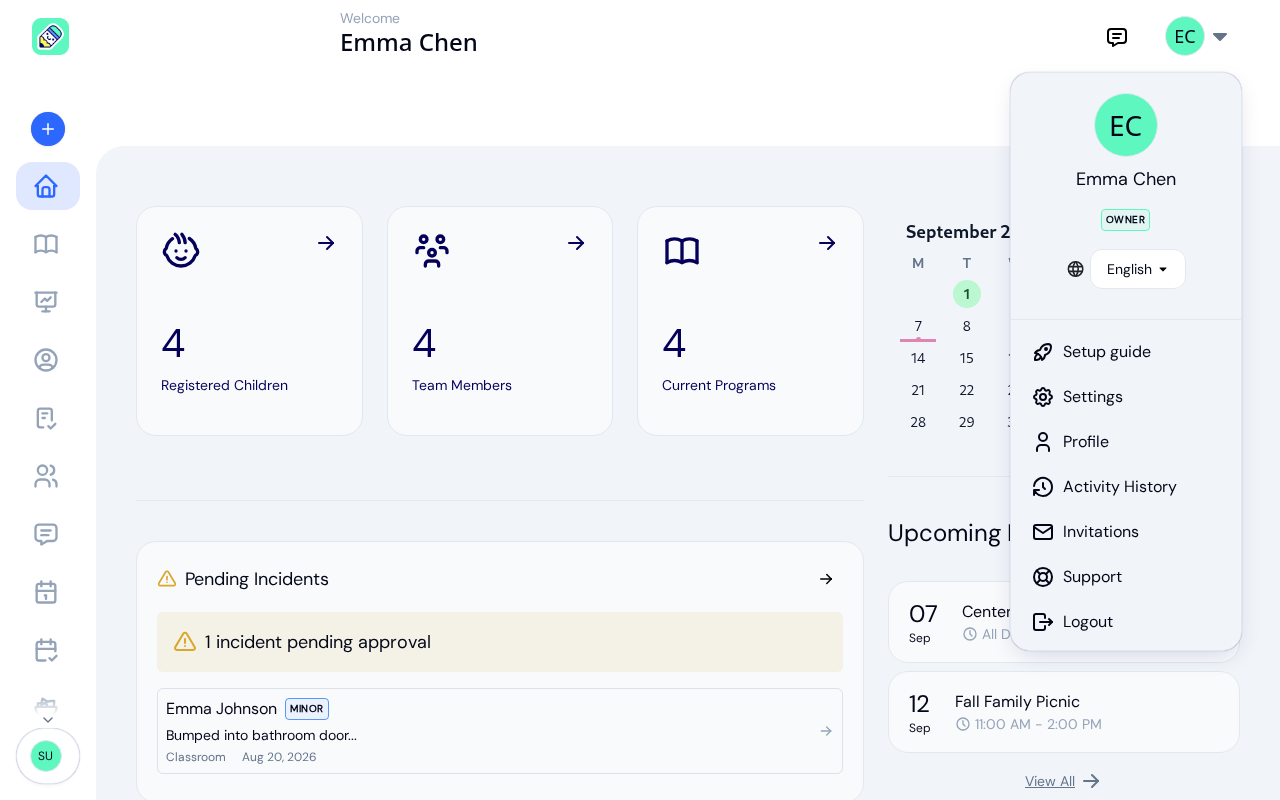
How to Access
Click your avatar (or initials) in the top-right corner of the header, then select Profile from the dropdown menu.
Profile Overview
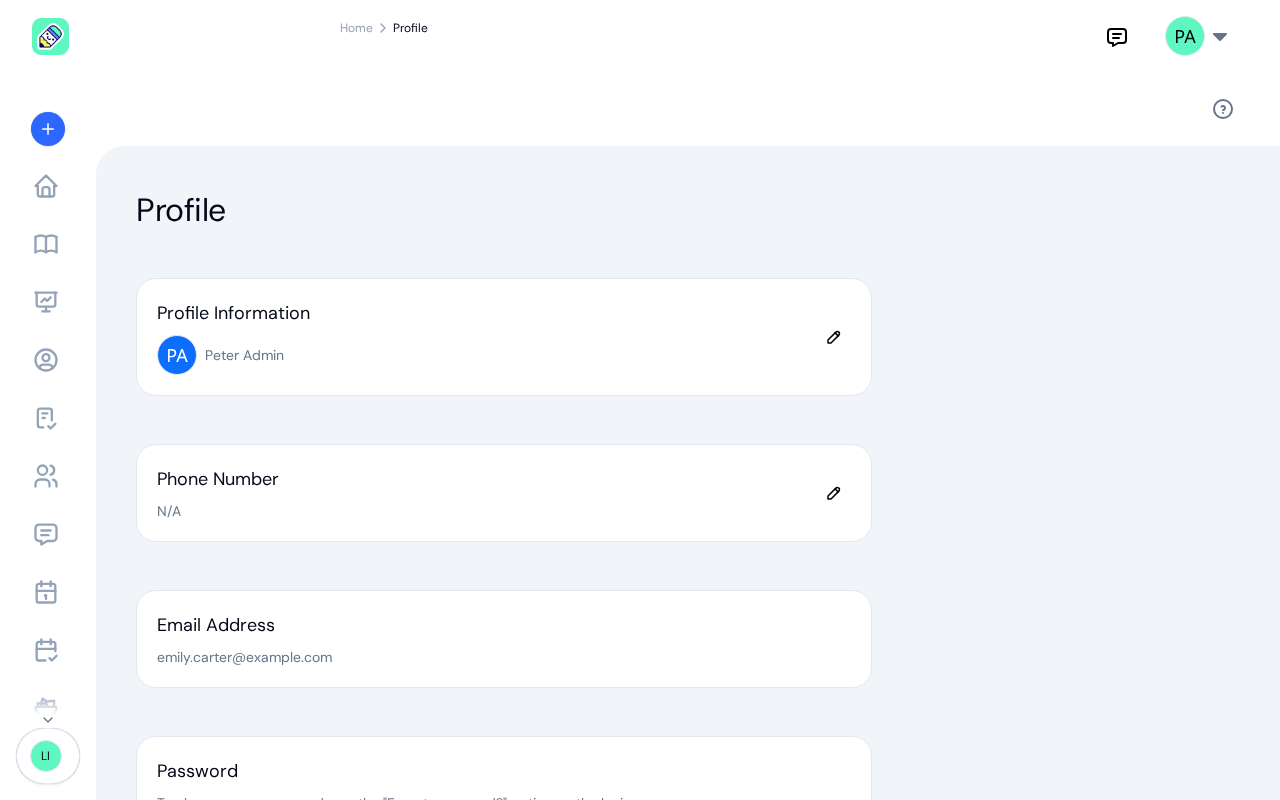
Your profile page includes the following sections:
Profile Information
Your name and avatar. Click the pencil icon to edit your first name and last name.
Phone Number
Your contact phone number. Click the pencil icon to update it.
Email Address
The email address associated with your account. This is read-only and cannot be changed from the profile page.
Password
Your password cannot be changed directly from the profile page. To update your password, use the Forgot password? option on the login page. See Password Reset for the full steps.
PIN Code
Your personal PIN code is used for attendance kiosk access. You can:
- Click the eye icon to reveal your PIN
- Click the reset icon to generate a new PIN
My Signature
Save a signature once and reuse it whenever you sign as yourself, so you don't have to redraw it every time you sign an incident report or a document.
If you haven't saved one yet, this section shows You have not saved a signature yet. with an Add signature button. Once you save a signature, it shows a preview with Replace and Remove options.
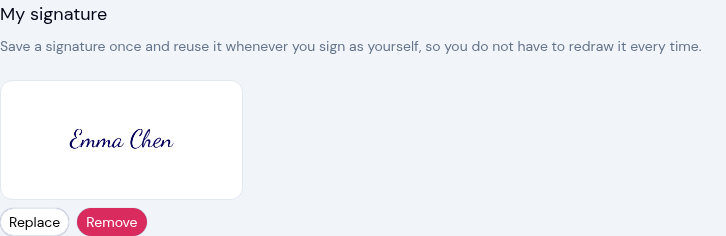
When you add or replace your signature, you can either Draw it with your finger or mouse, or switch to Type and enter your name. In Type mode your name is filled in for you, and you can pick a handwriting Style. Use Clear to start over, then click Save.
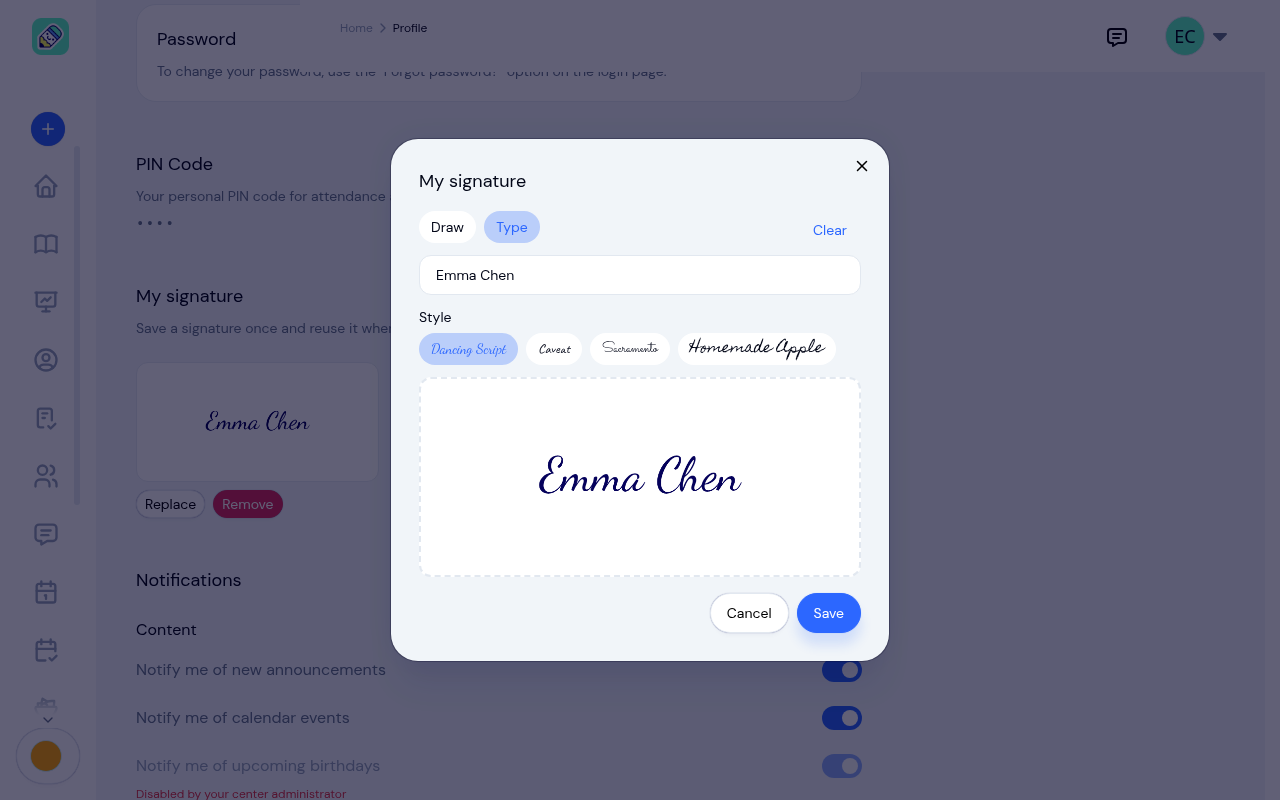
Once saved, your signature loads automatically with one tap wherever you sign as yourself, so you don't have to redraw it each time.
Notifications
Control which emails you receive. Each switch is yours alone: it changes what lands in your inbox, not what the center sends to anyone else. Click Save after changing any of them.
The manage your notification preferences link at the bottom of every KidzLog email brings you straight here.
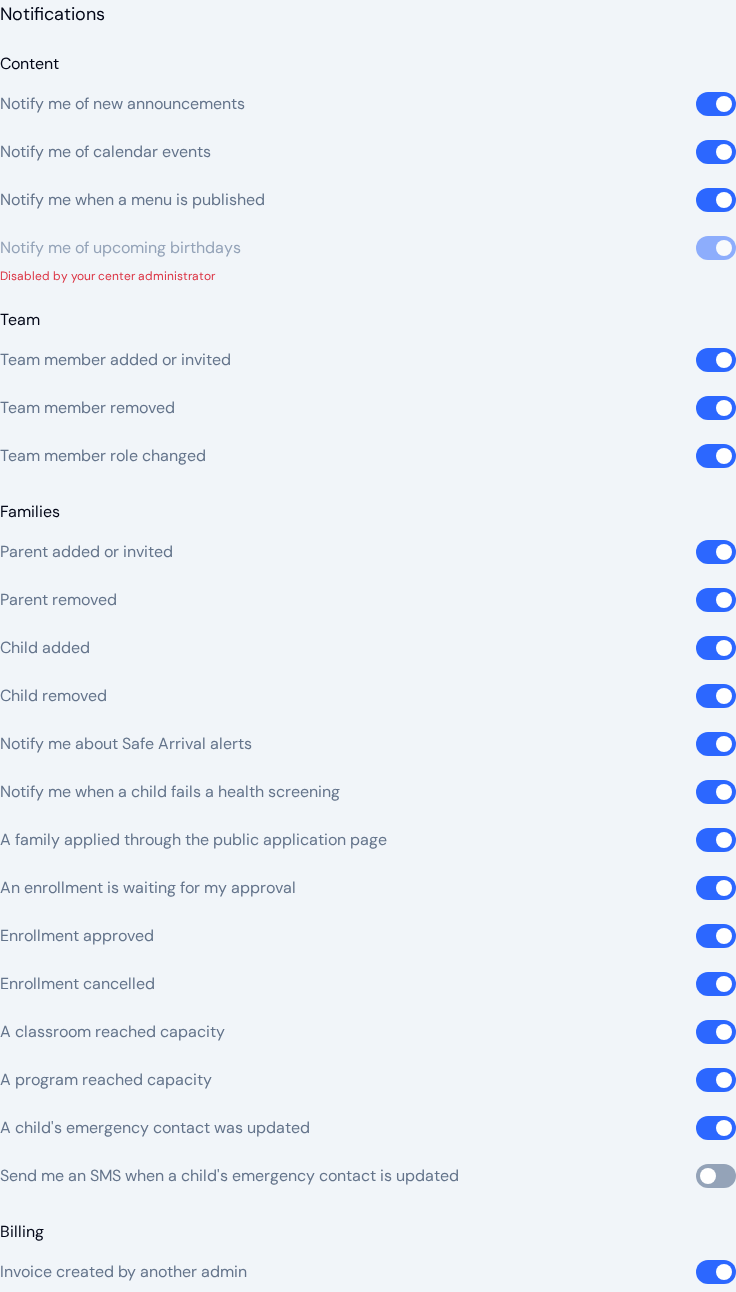
Owners and admins see four groups:
- Content — new announcements, calendar events, a published menu, and upcoming birthdays
- Team — a team member added or invited, removed, or given a different role
- Families — a parent added or invited or removed, a child added or removed, Safe Arrival alerts, a child failing a health screening, a family applying through the public application page, an enrolment waiting for your approval, an enrolment approved or cancelled, a classroom or program reaching capacity, and a child's emergency contact being updated. The last one also has an SMS switch, which starts off
- Billing — an invoice created by another admin
A family applied through the public application page and An enrollment is waiting for my approval have no matching switch on the center's Notifications tab, so the switch here is how you stop those emails.
Teachers see a single list: announcements, calendar events, a published menu, upcoming birthdays, being assigned to or removed from a classroom, and a child's medical record being updated (by email, and optionally by SMS).
Some switches are greyed out, with Disabled by your center administrator underneath. Your center has turned that kind of email off for everyone on its Notifications tab, and switching it on here has no effect until the center switches it back on. In the example above, birthday reminders are off for the whole center.
Language
Choose your preferred language from the dropdown. KidzLog currently supports English and French.
After making changes to notifications or language, click Save at the bottom of the page. The interface switches over as soon as you save.
Your choice is kept on your account rather than in the browser, so it follows you to another computer or phone and is still there after you sign out and back in. The language switcher in the header is the same setting: change it in either place and both agree.