

QR Code Check-In
QR code check-in lets parents check their children in and out from their own phone. You print your center's QR code and put it up at the entrance. A parent scans it with their phone's camera, enters their PIN, and picks their children. There's no app to install and no sign-in.
It works alongside the kiosk: the same PIN, the same health screening and signature rules, just on the parent's phone instead of a shared tablet. Every check-in and check-out made this way shows up on the Attendance page like any other, attributed to the parent.
Setting It Up (Staff)
Owners and Admins turn QR check-in on and print the code from Settings → Attendance.
Turn on QR check-in
Open Settings, choose the Attendance tab, and switch on Enable QR Code Check-In in the QR Code Check-In section. Your center's QR code and its Check-in link appear underneath.
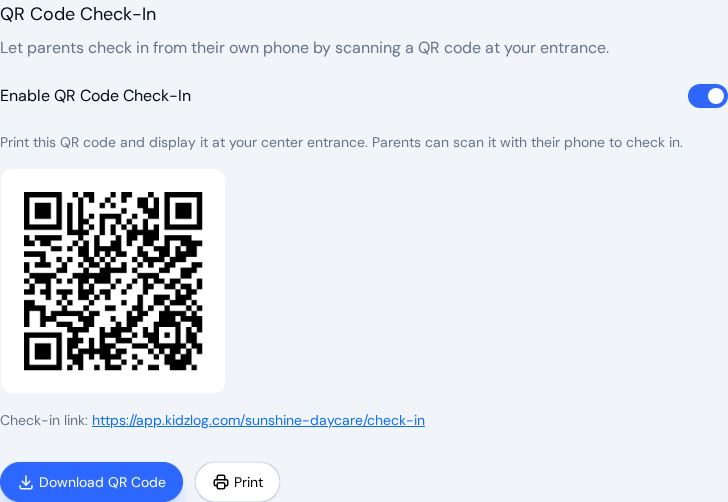
Print or download the code
Click Print for a print-ready page, or Download QR Code to save the image for a sign or a newsletter. Put the printed code where parents arrive, at a height they can reach with a phone.
Make sure parents have a PIN
Parents check in with the same 4-digit PIN they use at the kiosk. A parent with a KidzLog login finds theirs under Settings → Profile → PIN Code (see Parent Settings). For a parent without a login, you can see and copy their PIN on their page under Parents (see Kiosk PIN).
Health screening and signatures follow your other attendance settings: if health screening is on, parents answer the questions before checking in, and if Digital Signatures are optional or required, they sign on their phone.
Checking In from a Phone
This is what a parent sees after scanning the code. The page opens in the phone's browser and shows your center's name and logo at the top.
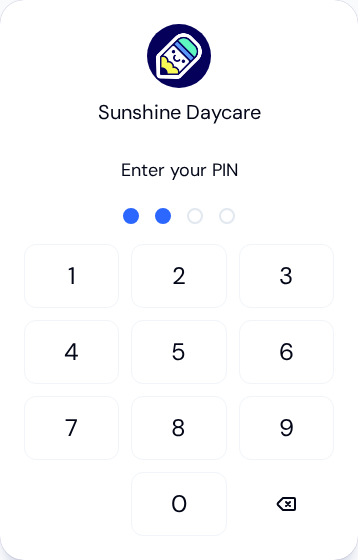
Enter the PIN
The parent taps their 4-digit PIN on the keypad. It's checked as soon as the fourth digit is entered.
Choose the children
The parent sees the children linked to them who are enrolled at your center, and taps each one they're dropping off or picking up. A tick marks each selected child.
Each child also shows where they stand today: Checked-In, Checked-Out, or Absent. A child who hasn't been marked yet has no label. That way a parent can see that a partner has already dropped someone off before tapping anything.
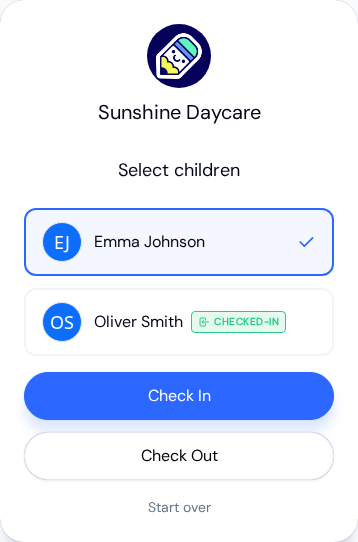
They then tap Check In or Check Out. Start over clears the PIN and goes back to the keypad.
Answer the health check
If your center uses health screening, checking in asks the questions for each selected child. The parent taps No or Yes for every question, then Review answers. Checking out never asks them.
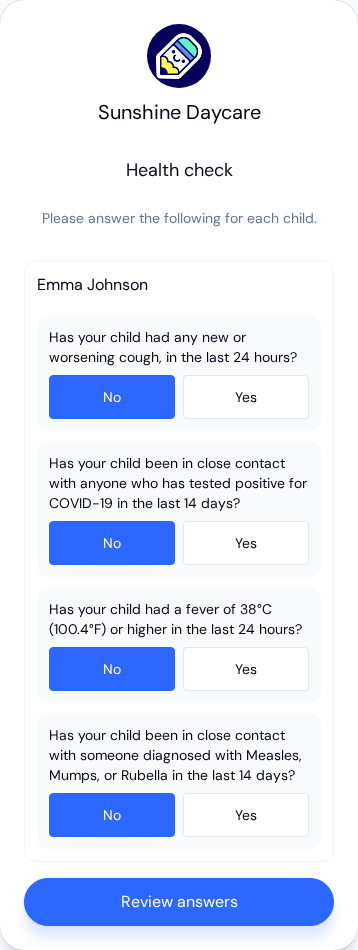
The next screen lists the answers back so a mis-tap can be caught. Confirm & continue submits them; Edit answers goes back to change one.
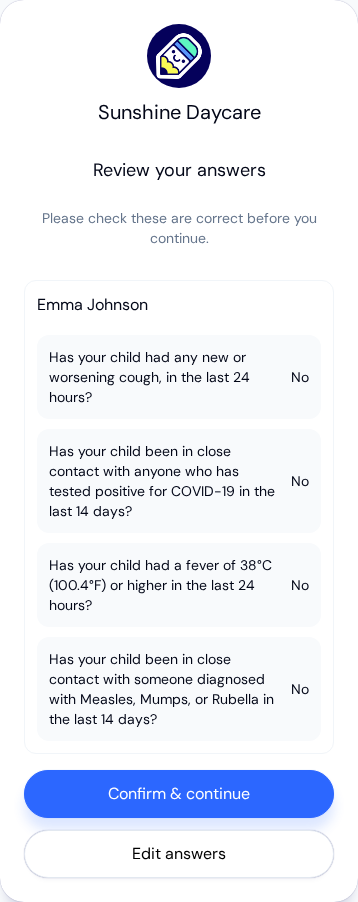
If any answer means a child doesn't pass, the parent sees Health screening not passed and nobody in that group is checked in, including children who passed. They can Edit answers if they answered by mistake, or Start over and check in the other children without that child. Staff see the result on the Attendance page, where the child shows Needs Review (see Health Screening at Check-In).
Sign, if your center asks for it
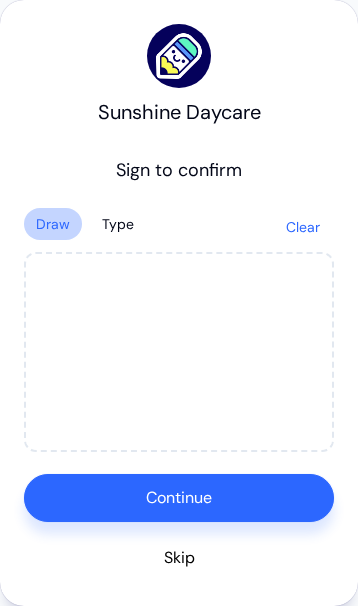
When signatures are turned on, the parent signs on the screen (Draw) or types their name (Type), then taps Continue. When signatures are optional, a Skip button lets them go straight on. Clear wipes the signature to try again.
Done
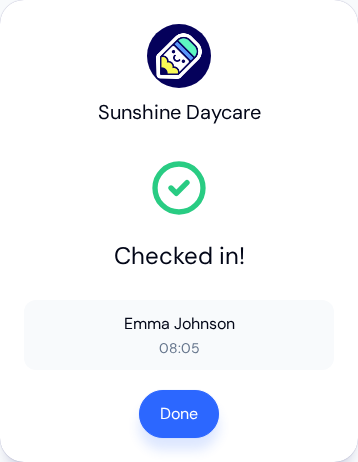
A confirmation lists each child with the time they were checked in or out, in your center's time zone. The parent taps Done, or the screen goes back to the keypad on its own after about ten seconds, ready for the next person if the phone is shared.
When Something Goes Wrong
- "We couldn't find any enrolled children for that PIN." The PIN was mistyped, or it belongs to someone with no enrolled children at your center. The parent can try again or check in with staff.
- "Too many attempts." After repeated wrong PINs, the page stops accepting them for a while. The parent should check in with staff in the meantime.
- Check-in unavailable. The page shows This center has not enabled QR check-in. when Enable QR Code Check-In is off, and asks the parent to check the QR code when the link doesn't match a center (usually a code printed before the center was renamed).
Frequently Asked Questions
No. The QR code opens a web page in the phone's browser. All a parent needs is their PIN.
Yes. They select every child they're dropping off before tapping Check In. If health screening is on, they answer the questions for each child on the same screen.
No. The tablet kiosk keeps working either way. Turning QR check-in off only stops check-ins from parents' own phones, including from any codes already printed.
Yes, as long as your center hasn't been renamed since. Older printed codes that use an earlier form of the link still open the check-in page.