

Menu Management
Menu Management replaces repetitive free-text meal entry with a shared monthly plan. Build a library of the foods your centre serves, assemble them into a monthly menu, and share that menu with teachers and parents — complete with allergy alerts for enrolled children.
How to Access
Admins and Owners open Meals & Menus in the sidebar. The page has two tabs:
- Food Library — the list of foods and drinks your centre uses
- Menus — monthly menu plans built from those food items
Teachers and parents see a read-only Menu item in their sidebar showing the current month's published menu.
Food Library
The food library is where you capture every meal, snack, and drink your centre serves. Items you add here become selectable when you build a menu or log a meal.
First-time setup with Quick Start
When your library is empty, you can skip straight to a curated list of common foods — complete meals, snack items, and drinks — with icons and allergens pre-filled.
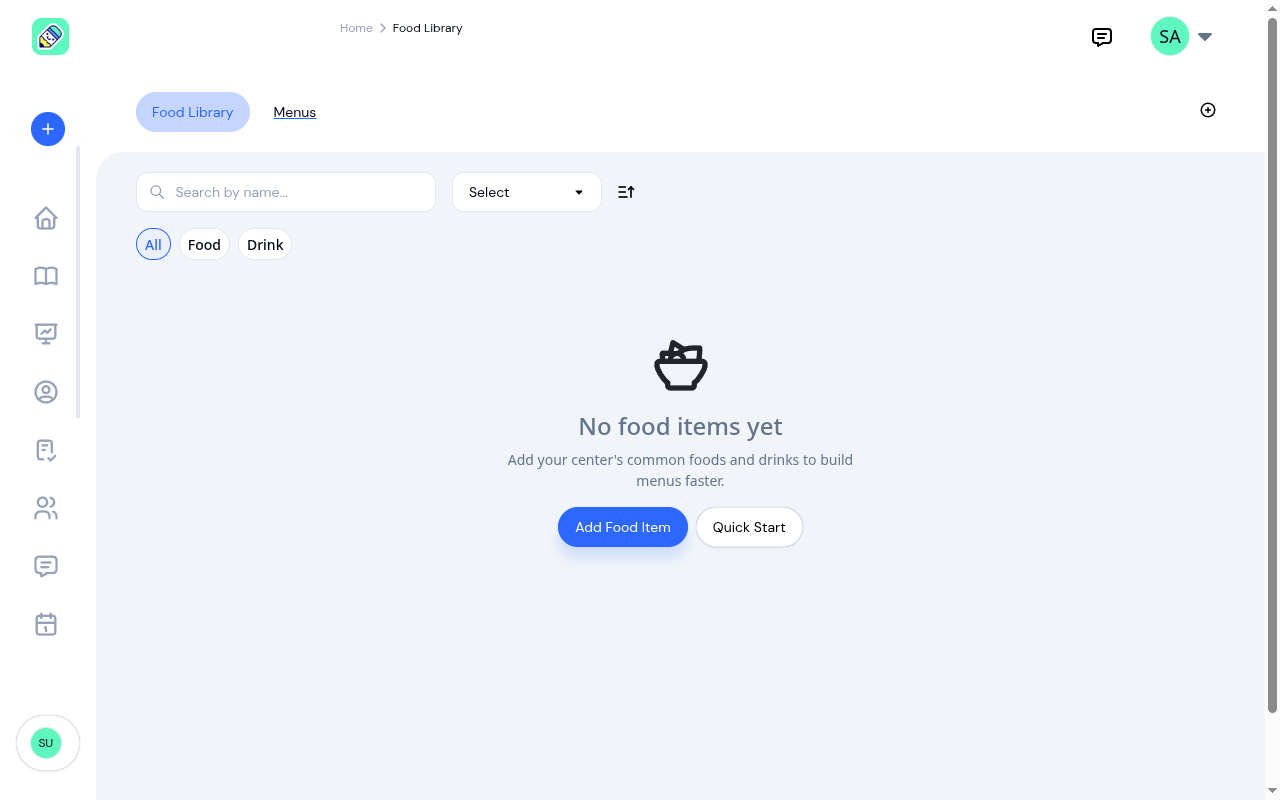
Click Quick Start to seed the library, then edit or remove items as needed. You'll have a working library in seconds.
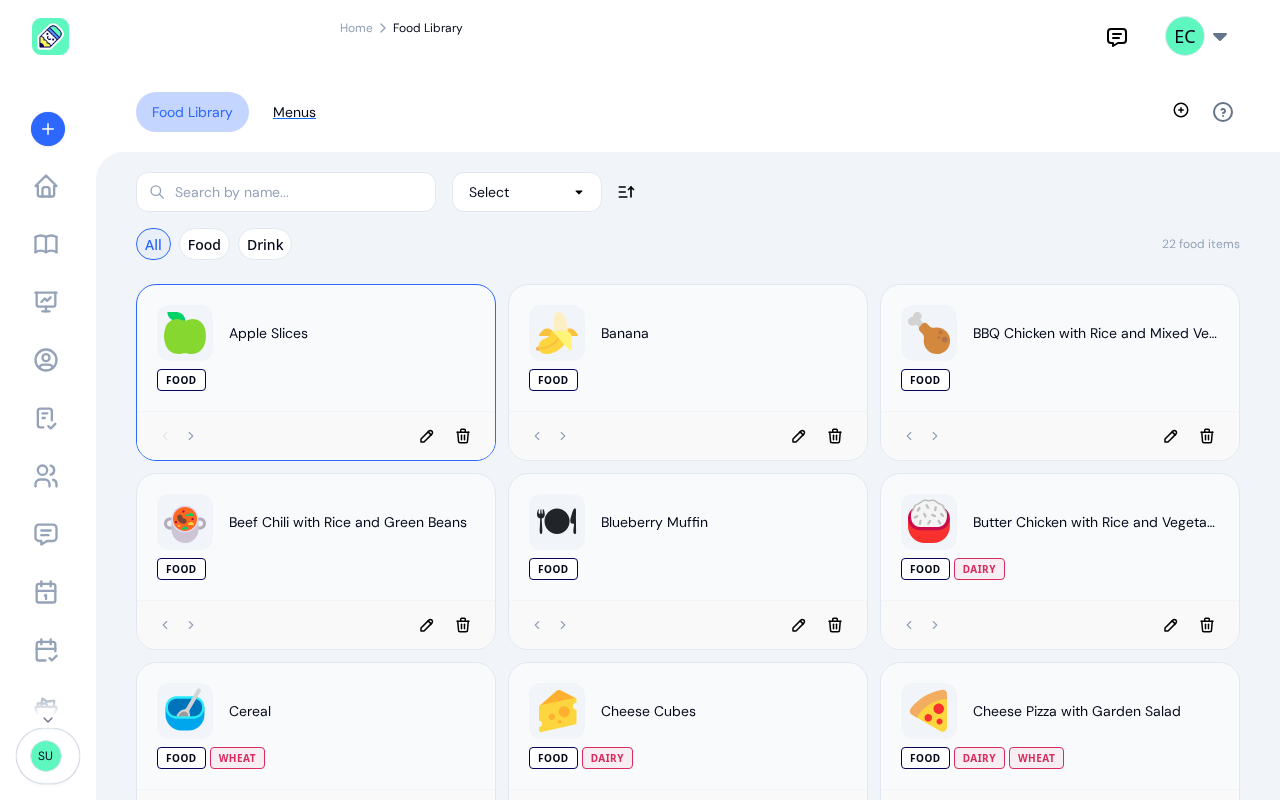
Adding food items manually
Click the + button in the top-right to add an item.
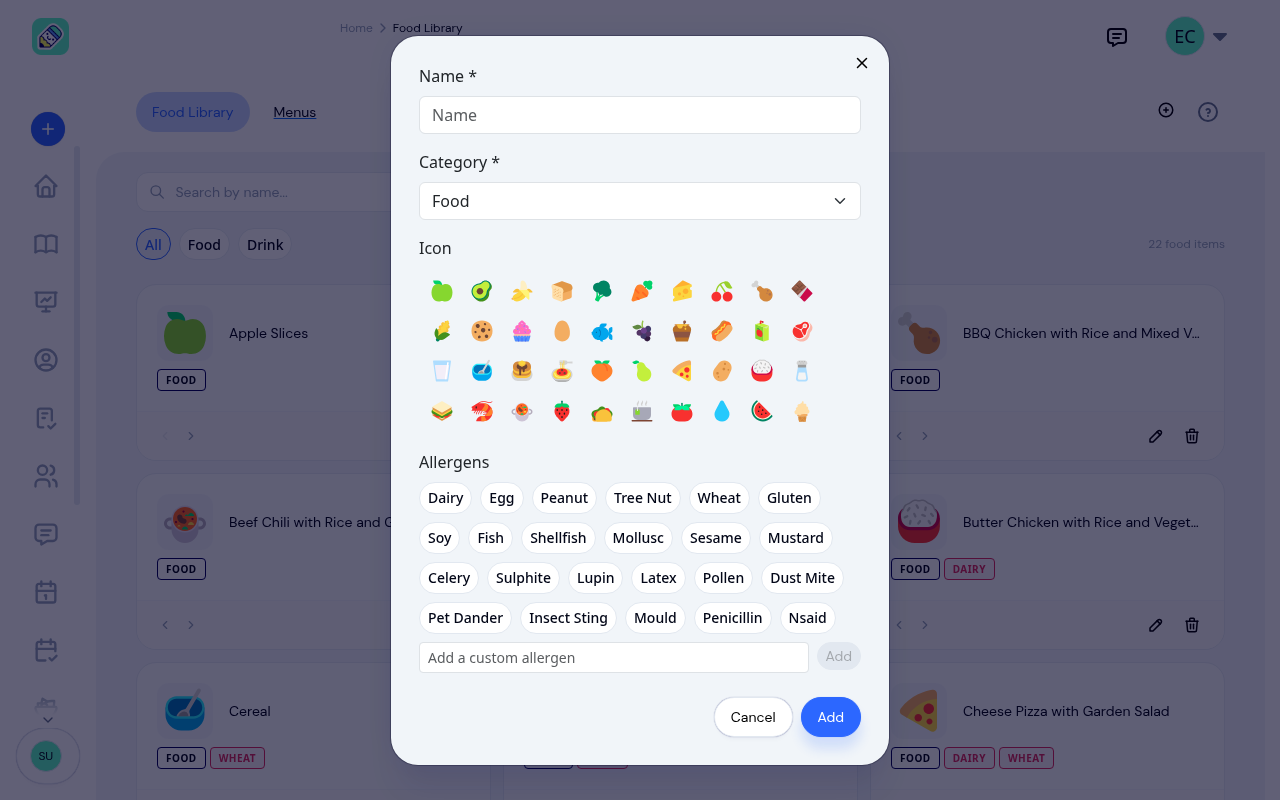
Fill in the details:
- Name — what the food or drink is called. KidzLog auto-suggests an icon based on the name (for example, typing "Apple Slices" suggests the apple icon).
- Category — Food or Drink. Drinks appear separately in the meal logger.
- Icon — pick from 40 Fluent Emoji food icons. Leave blank to fall back to a generic food emoji.
- Allergens — tap the pills for every common allergen the item contains. If the one you need isn't a pill, type it into Add a custom allergen and click Add. These drive the allergy alerts elsewhere in the app.
Sorting, filtering, and searching
Use the All / Food / Drink filter chips to narrow the grid. The search box matches on name. Sort by name or date created using the dropdown. Drag-free reordering: click the left/right chevrons on a card to move it earlier or later in the list — that same order is used when teachers pick items during meal logging.
Menus
A menu is a dated plan — typically one calendar month — mapping food items to specific days and meal types. Switch to the Menus tab on the Meals & Menus page.
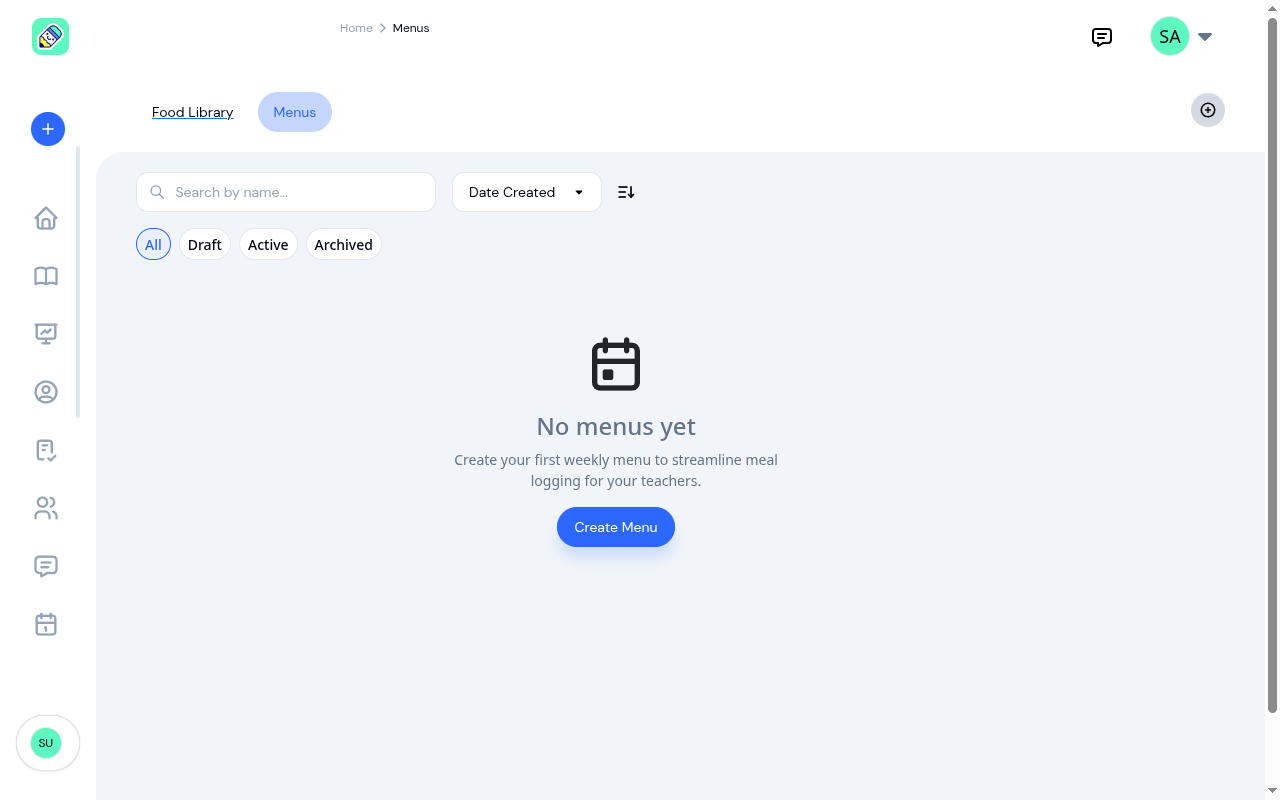
Creating a menu
Click Create Menu (or the + in the top-right). The dialog pre-fills the current month's name and date range.
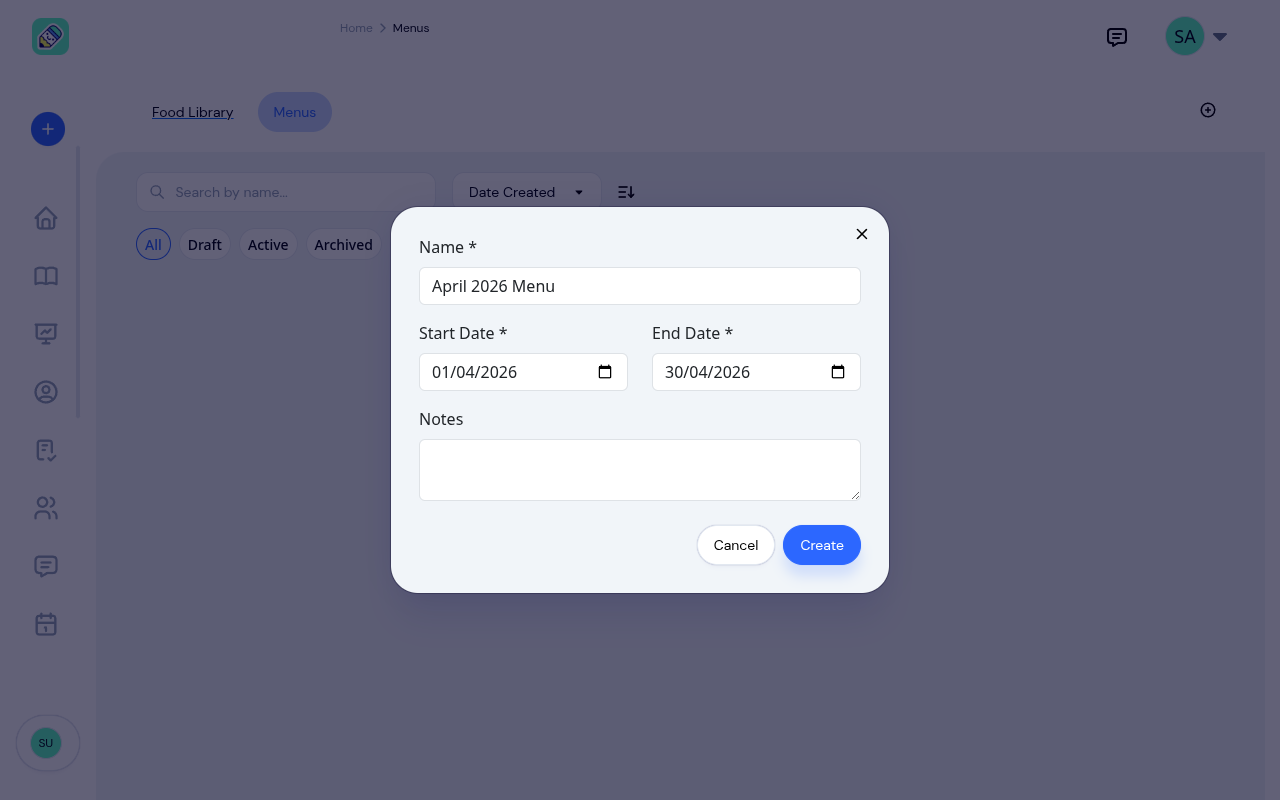
- Name — defaults to "{Month} {Year} Menu" (for example, "April 2026 Menu")
- Start Date / End Date — default to the first and last day of the current month
- Notes — optional context (for example, "Spring rotation — vegetarian alternatives available on request")
- Who this menu is for — Whole center, or Specific classrooms
You can change any of these later. Click the pencil next to the menu's name at any time, whatever its status, to rename it, move its dates, edit the notes, or change who it's for.
Who a menu is for
A menu is either for the whole center or for particular classrooms.
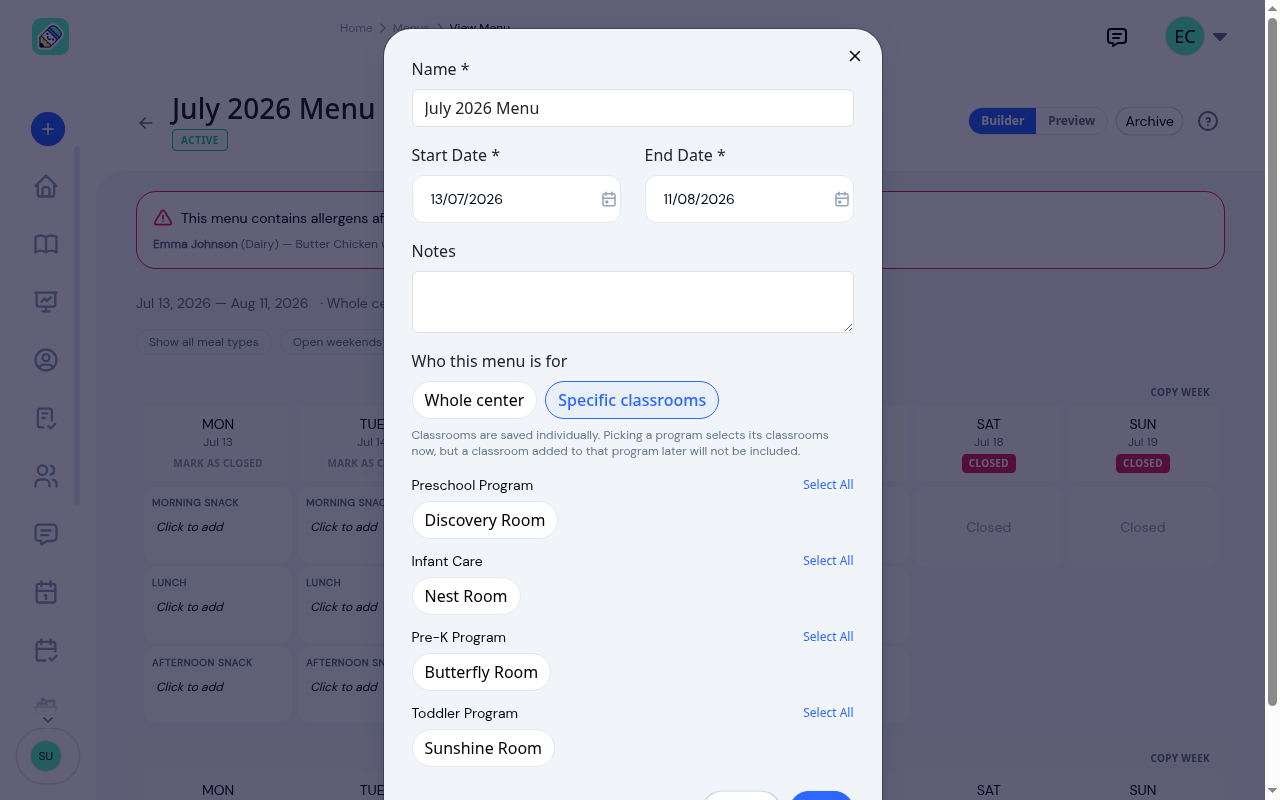
Choose Specific classrooms and the rooms appear grouped under their programs, with a Select All link beside each program. That link is a shortcut for ticking that program's rooms right now. Only the rooms themselves are saved, so a classroom added to that program later is not picked up automatically. Go back and tick it when that happens.
Parents see the menus for their child's classroom plus any whole-center menus. A child with no active enrolment still sees the whole-center menus rather than an empty month.
Only your active classrooms are offered here. If you archive a room, it stops appearing in this picker. A menu that was already scoped to that room keeps its scope and stays editable, so archiving changes what you can pick, not what's already set. See Classrooms.
Building the menu
The builder shows the full month as a weekly grid. Each day has three cells by default — Morning Snack, Lunch, and Afternoon Snack — the three meal types most centres plan for.
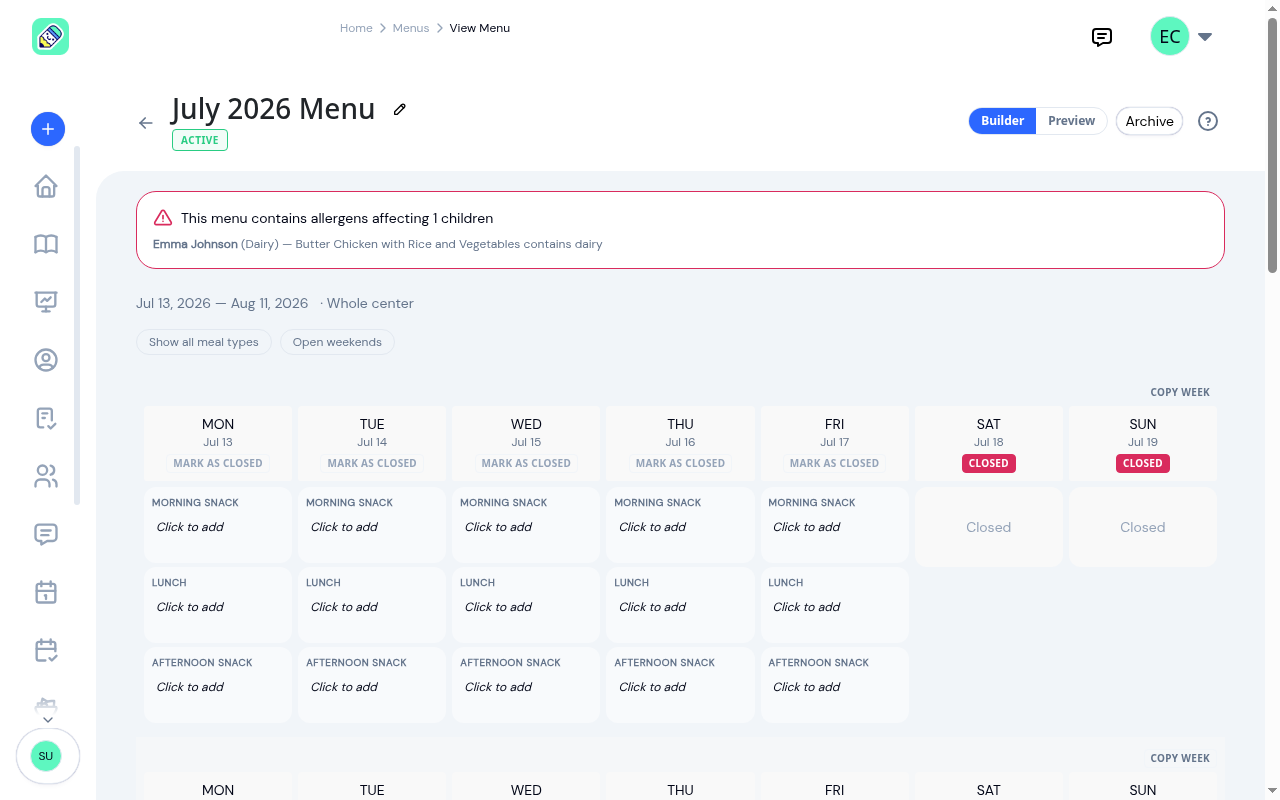
Above the grid you'll find the menu's dates and who it's for, a Show all meal types toggle, and a Close weekends / Open weekends shortcut for marking every Saturday and Sunday at once.
Click any Click to add cell to pick food items for that meal.
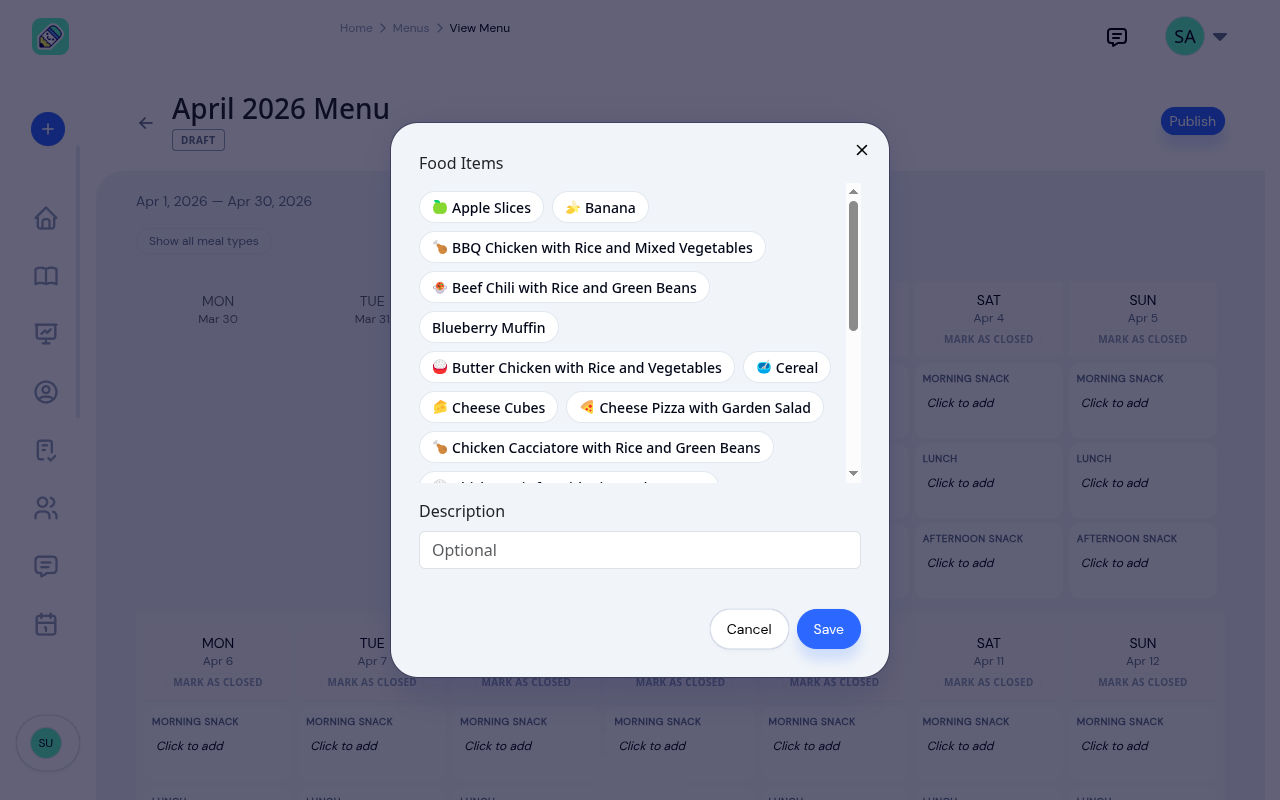
Pick one or more food items from the library. You can also add a free-text Description for meals that aren't in your library yet (for example, "Parent-provided birthday cake"). Click Save.
As you fill in days, the grid populates with food chips — complete with the same icons you chose in the library.
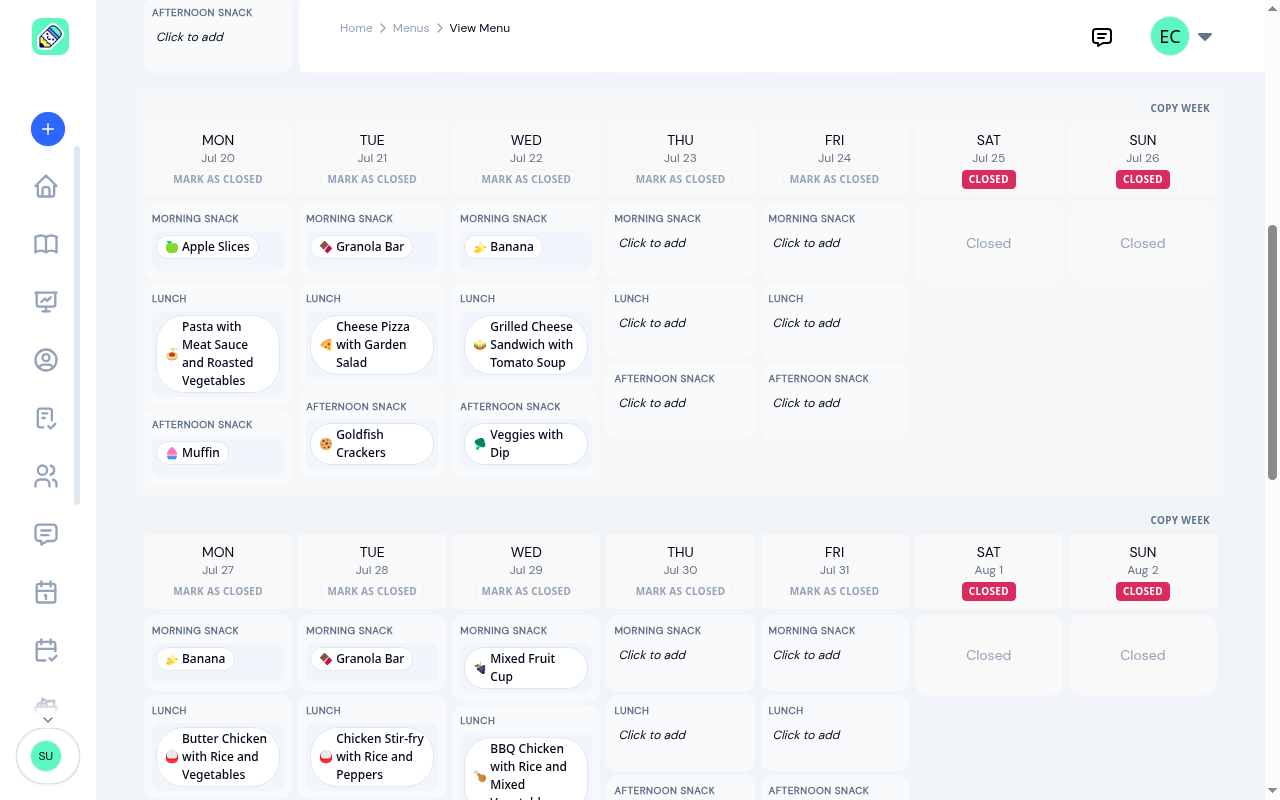
The current day is highlighted with a Today badge so you always know what teachers and parents are looking at right now.
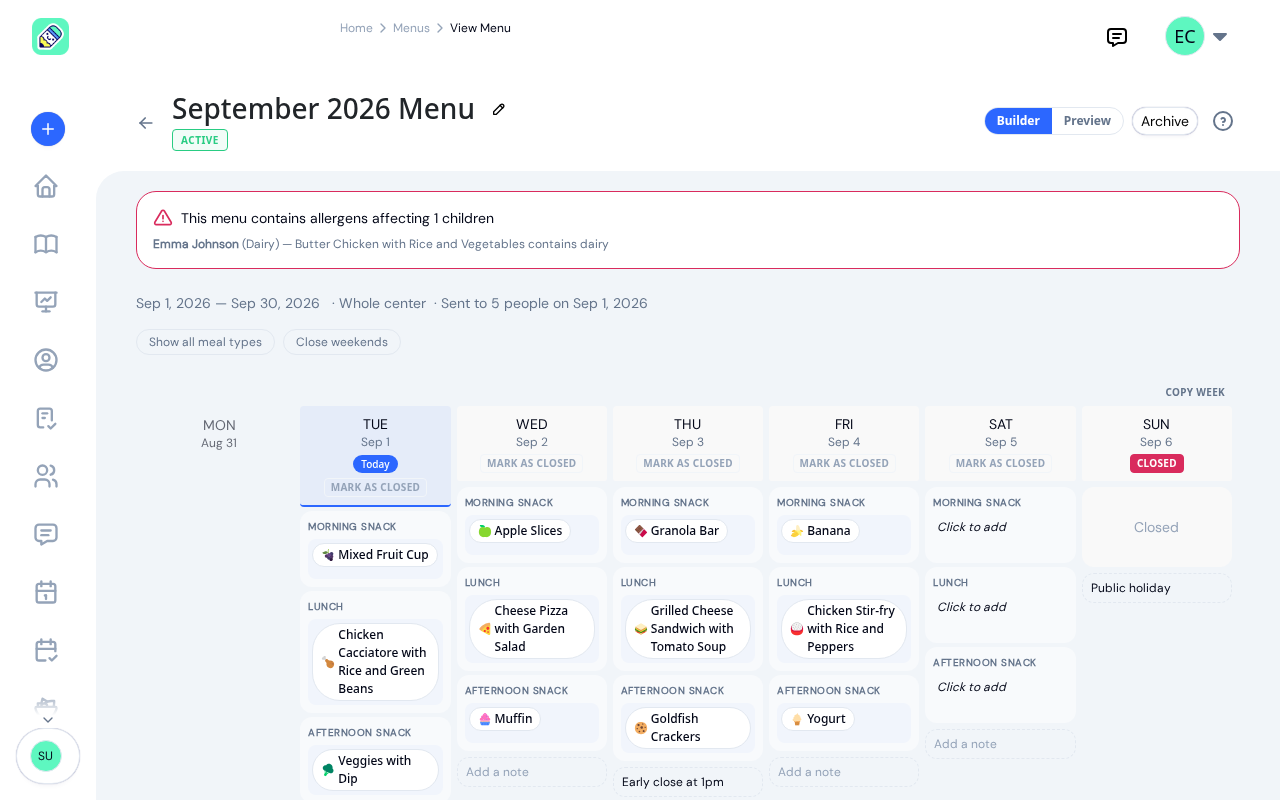
Saving your changes
Nothing you do in the builder is saved as you go. Your edits are held as a draft, and a bar appears at the bottom of the screen reading Unsaved changes with Discard changes and Save Changes buttons. Click Save Changes to commit the whole set in one go, or Discard changes to go back to the last saved version.
If you try to leave the page with changes outstanding, KidzLog asks first so you don't lose them. Publish, Archive, and Unarchive are unavailable until you save, because a status change publishes what's saved rather than what's on screen.
Copying a week
Once one week is the way you want it, click Copy week on that week's row. Tick the other weeks you want it copied into, then click Copy week again.
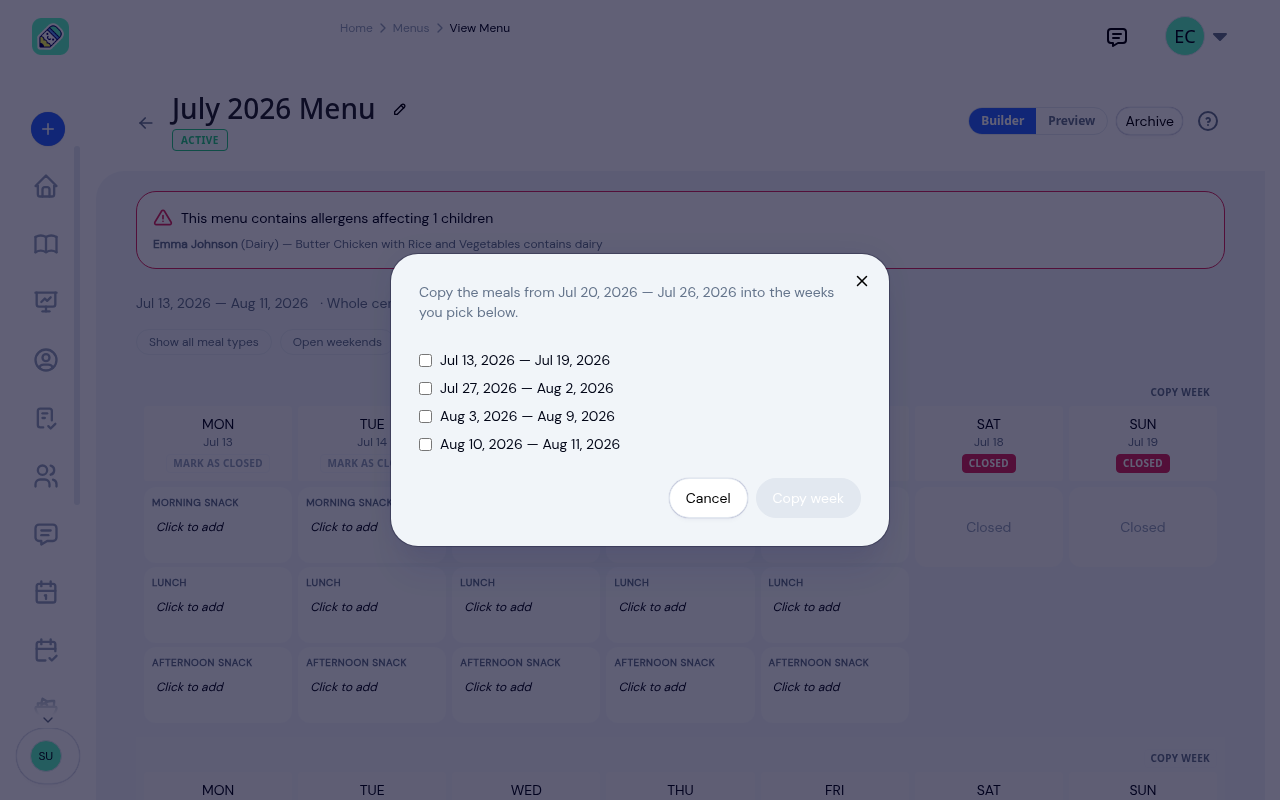
The copy lands in your unsaved draft like any other edit, so you can adjust the days that differ before saving.
Showing all meal types
By default the builder shows three meal types. If your centre also serves breakfast, a late snack, or dinner, click Show all meal types to expand every day to six slots.
Closed days and holidays
Click Mark as Closed above a day to flag it as a holiday or closure. The day's meal slots disappear and a Closed label takes their place, which is what you want for statutory holidays and PD days. Click the label again to reopen the day.
Adding a note to a day
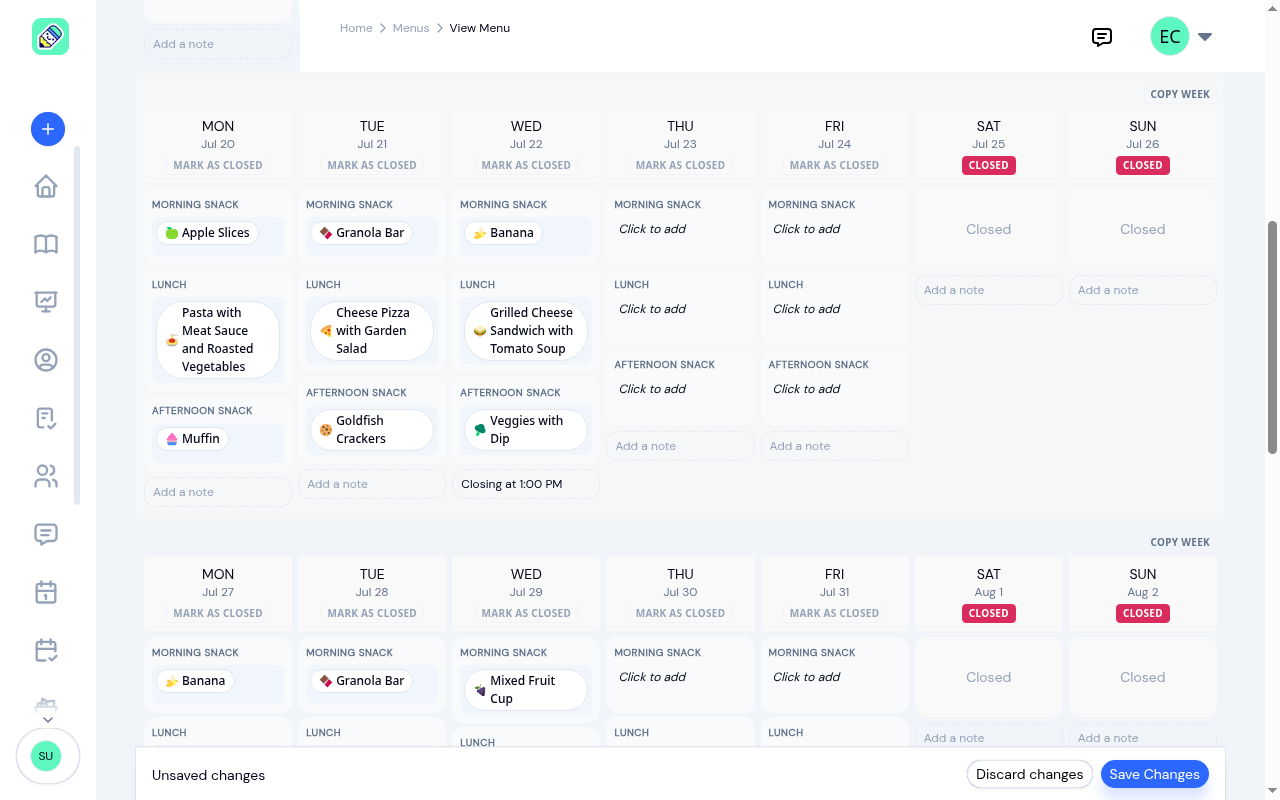
Every day in the builder has an Add a note box under its meals. Type a short line there when something about that day needs saying: "Closing at 1:00 PM", "Pizza party — no lunch service", "Staff training, center closed".
The note belongs to the day, not to a meal, so you can add one whether the day is open or closed. A closure is often exactly when a family wants to know why, so the box stays available on closed days too. Notes save with the rest of your changes when you click Save Changes, and parents and teachers see them on the day in their month view.
Publishing, archiving, and duplicating
A menu moves through three statuses:
- Draft — visible only to admins; not yet shared with teachers or parents
- Active — published and visible to teachers and parents; integrated into meal logging
- Archived — marked as a past menu. Teachers and parents can still look it up for reference
Click Publish on a draft to make it active. Click Archive on an active menu when the month ends, and confirm. An archived menu has an Unarchive button to bring it back.
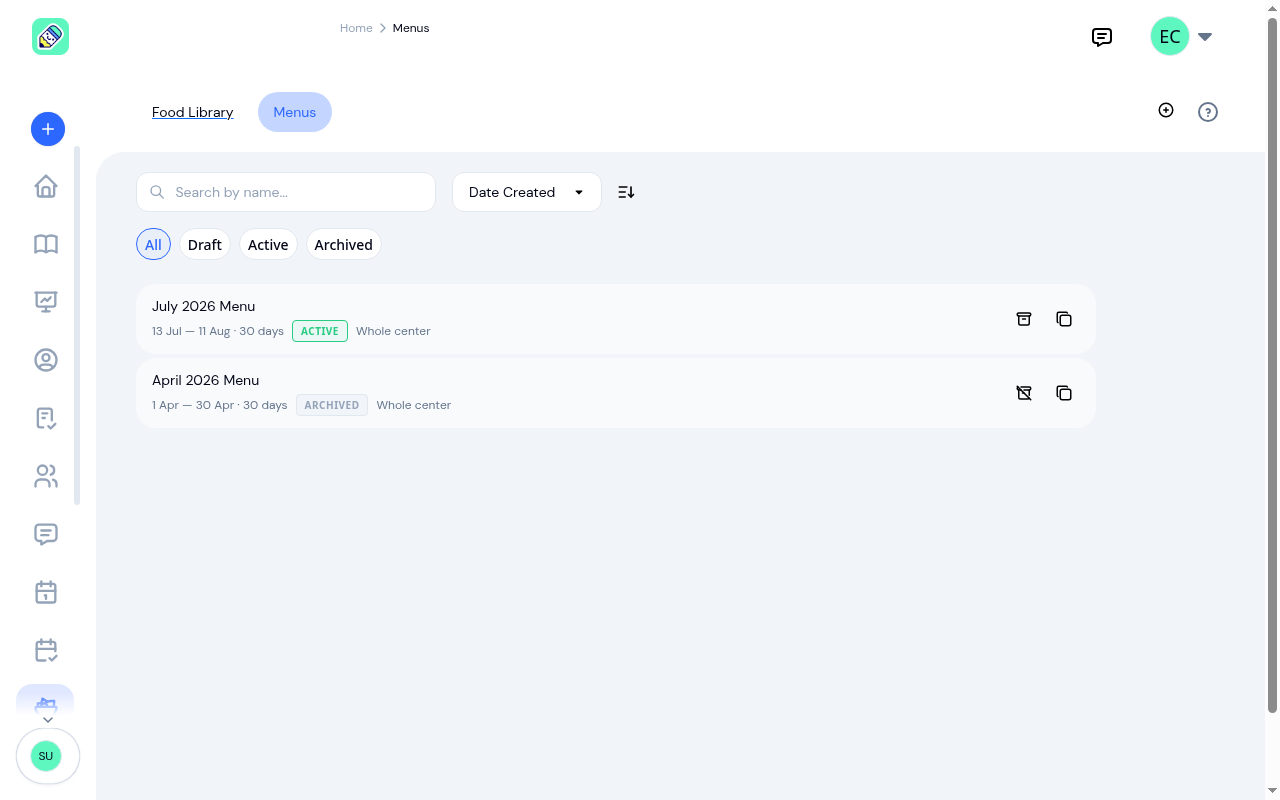
Use the All / Draft / Active / Archived filter above the list to narrow it down, and the search box to find a menu by name.
Letting families know
Publishing a menu emails your families and staff. Who it reaches depends on the menu: a classroom menu goes to the families of children in those rooms, and a whole-center menu goes to everyone. Your staff receive every menu either way.
Once a menu has been sent, its header keeps a record of it, reading something like "Sent to 24 people on Jul 13, 2026".
The email links to the menu in your center. Admins and Owners land on the menu itself. Teachers and parents land on their Menu page at the month the menu starts, which may not be the current month. Anyone who is signed out signs in first and then lands in the same place.
If you correct a menu that's already gone out, saving on its own never re-sends it. KidzLog asks whether you want families to know it changed, and you choose Send an update or Not now. Unarchiving a menu doesn't email anyone.
Duplicating a menu
Click the copy icon next to any menu to start a new one from it. This opens the builder on an unsaved copy: name it, set its dates, and adjust the meals before anything is created. Closed days and any notes come across with the meals. Nothing exists until you click Create.
A weekly snack pattern that's working well can be carried into next month this way — just change the lunches.
Allergy report
If any children enrolled at your centre have allergies matching items in the menu, a banner at the top of the builder shows exactly which children are affected and on which items.

The banner checks your unsaved draft, so a conflict shows up while you can still change the meal rather than after it's published. It lists one line per child per allergen, and children whose enrolment has ended are not included.
Teacher View
Teachers with the Menu Management module enabled see a Menu item in their sidebar. They open it to see the same month grid parents see — minus the child-specific allergy highlights. It's a quick reference for what's being served today and the rest of the month.
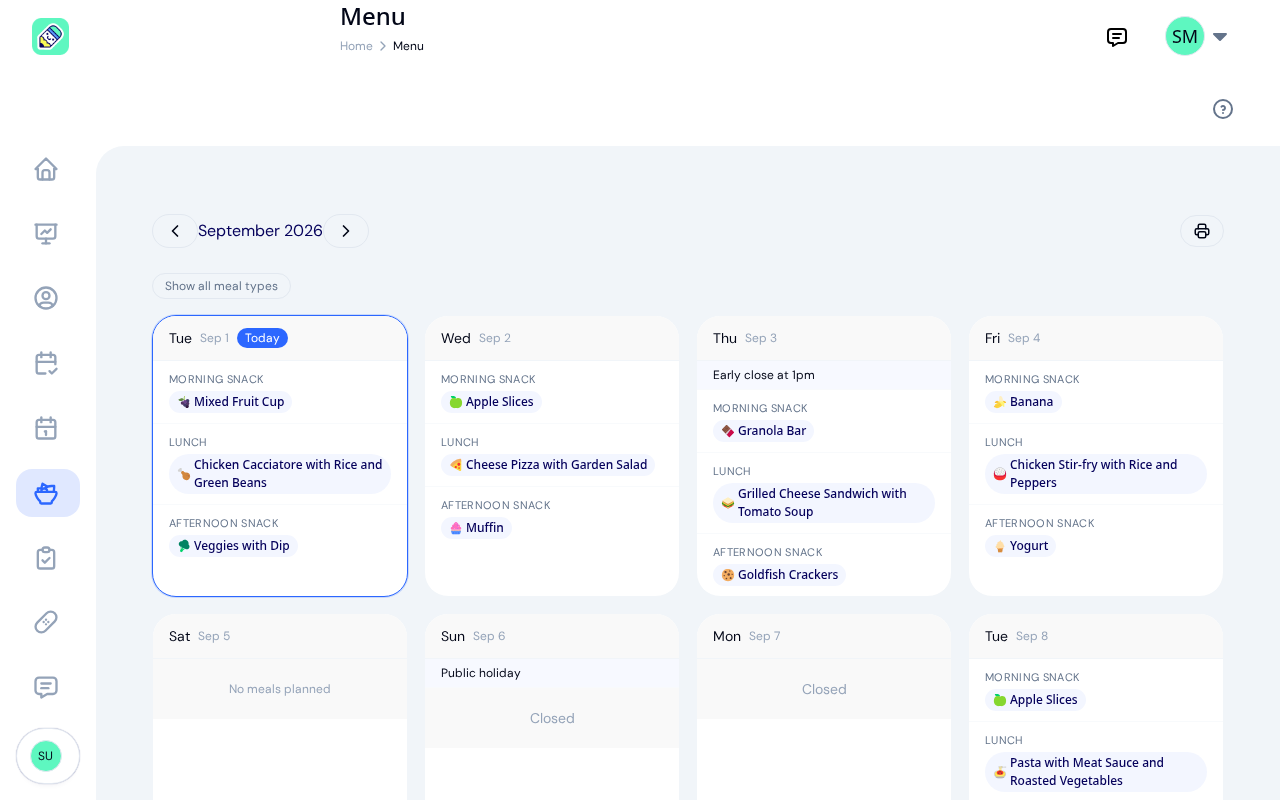
Teachers can navigate between months, toggle all six meal types, and print a hard copy for the kitchen or classroom noticeboard.
Parent View
Parents see a Menu item in their sidebar when the Menu Management module is enabled. They see this month's menus for the child they're viewing, with the foods that child is allergic to highlighted in red. Switching to another child re-reads the menus for that child's room.
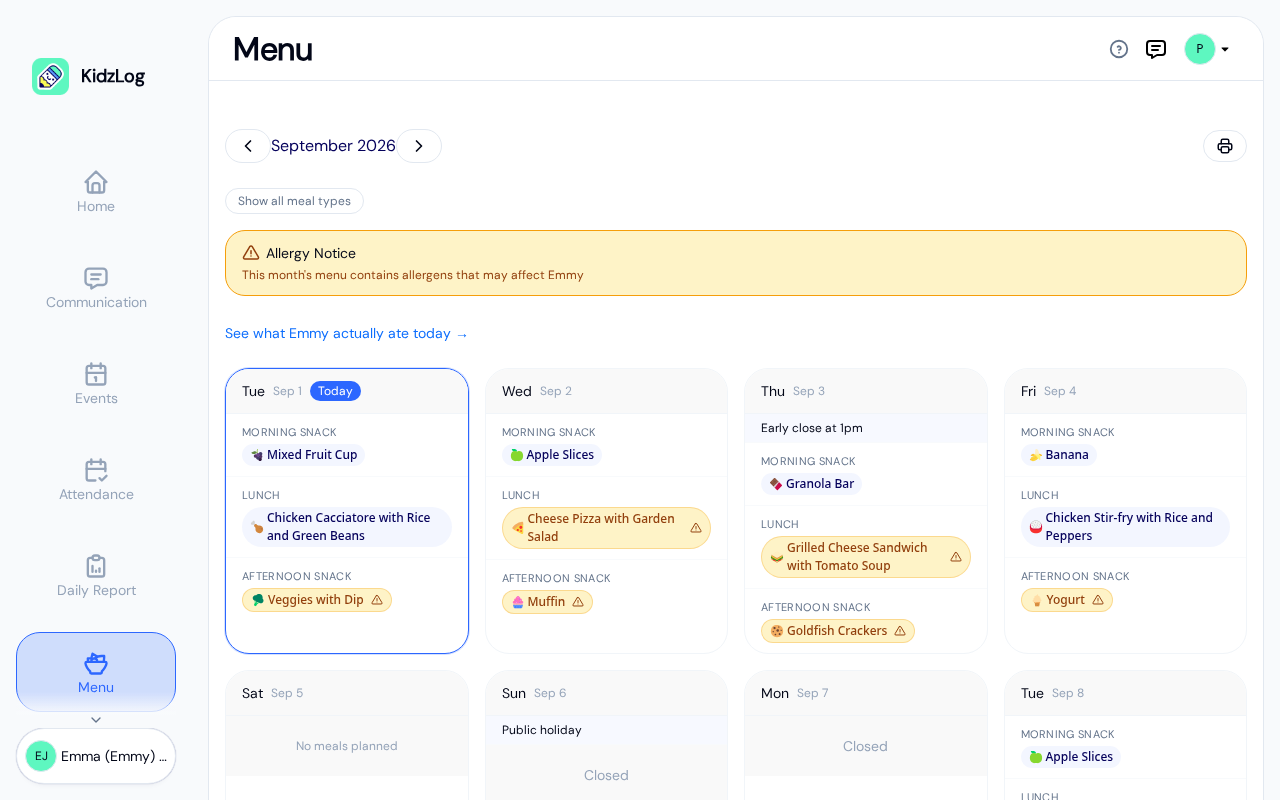
Parents can:
- Navigate to previous or future months using the arrows next to the month name
- Toggle between the three main meal types and all six with Show all meal types
- Click Print (printer icon) for a printer-friendly version
- Click the See what {child} actually ate today link to jump to the child's daily report
If today's menu contains an allergen that matches something on the child's profile, an amber warning banner appears above the grid — and those specific food items are flagged on the day.
If more than one menu applies to the child that month, each one is shown in turn under its own name, so families can tell a room menu from a center-wide one.
Browsing to a month you haven't planned yet shows "No menu available for this month", with the back and forward arrows still there so families can carry on looking around. An archived menu still shows up when a family browses back to the month it covered, labelled as a menu from a previous month.
Common Tasks
Carry a menu forward to next month
Open the Menus tab and click the copy icon next to the menu you want to reuse. The builder opens on an unsaved copy. Give it a new name and dates, adjust any meals, then click Create. It's created as a draft, ready to publish when you are.
Add a missing food item while building a menu
In the meal editor, click + Add Food Item to create a new food item without leaving the builder. It's saved to your library immediately and added to the meal you're editing.
Hide breakfast or dinner slots
By default the builder and viewer show only the three primary meal types (morning snack, lunch, afternoon snack). If you don't serve breakfast or dinner, you don't need to do anything — those slots stay hidden. Click Show all meal types only if you want to plan them.
Mark a week of public holidays
Click Mark as Closed on each closed day. The day is flagged for teachers and parents with a Closed label — they'll know in advance not to expect a meal log for that day.
Frequently Asked Questions
Yes. Any number of menus can run over the same dates, and publishing one doesn't take the others out of rotation. Teachers and parents see every menu that applies to them for the month they're looking at. This is how you run a room menu alongside a center-wide one, or two center-wide menus such as a standard and a vegetarian rotation. Give them names that tell them apart, since the list and the menu header both show who each one is for.
Check who it's for. A menu set to specific classrooms only reaches families with a child in those rooms. Open the menu and look at the line under its name, which reads either "Whole center" or the classrooms you picked, and change it with the pencil next to the menu name if it's wrong.
The Menu Management module must be enabled in Center Settings → Modules. If it's disabled, the sidebar item is hidden for all roles at your centre.
Food items on active menus are preserved as chips — you'll see them in the parent and teacher views even after deletion. However, you can't add a deleted item to new meals. The builder warns you if you try to delete an item that's in use.
No. Each parent only sees allergens matching their own child's profile. The admin-only allergy report in the builder shows every affected child across the centre.
No — meal logging works with or without a menu. When a menu is active, teachers can tap-to-log from the day's menu instead of typing descriptions. Without a menu, they use the food library directly (or a free-text description).
The meal logger offers the food from every menu that applies to that classroom. When more than one applies, it asks the teacher which menu the child ate from, so the record says what was actually served.