

Exporting Your Data
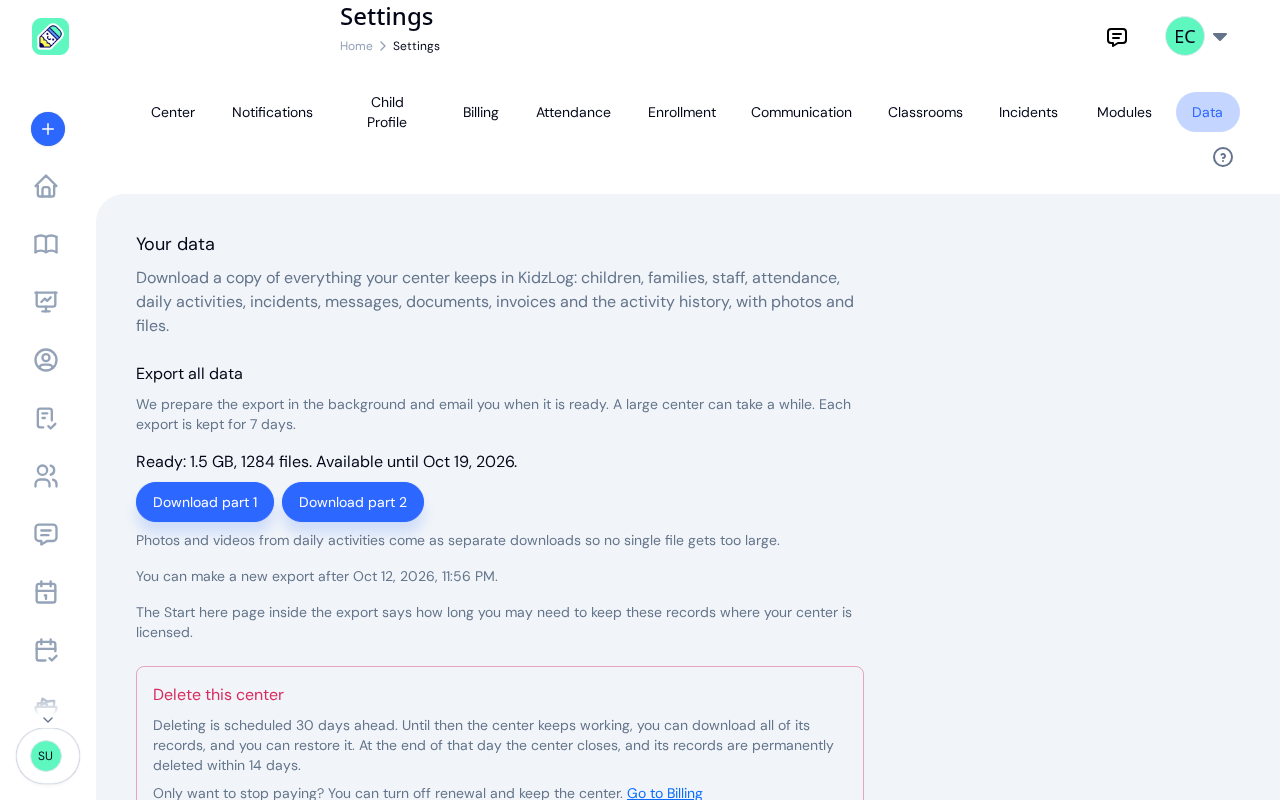
The Data tab lets a center owner download a copy of everything the center keeps in KidzLog: children, families, staff, attendance, daily activities, incidents, messages, documents, invoices and the activity history, with photos and files. The download opens without KidzLog, so it is your own copy of your records, whether you want one for your files, an inspector, or a move to other software.
How to Access
Navigate to Settings → Data tab. It is the last tab in the row.
Making an Export
Start the export
Under Export all data, click Export all data. KidzLog confirms with "Export started. We'll email you when it's ready."
Leave it to run
The export is prepared in the background. While it runs, the tab reads "Preparing your export. Started" with the time you started it. You can leave the page; a large center can take a while.
Download it when the email arrives
KidzLog emails you when the export is ready, or if it could not be finished. For your security, the email does not contain the file: it has an Open Settings button that takes you to the Data tab, where you download it after signing in.
The tab shows the size, the number of files and the date the export is available until. Click Download, or Download part 1, Download part 2 and so on when it comes in several parts.
Several parts
Photos and videos from daily activities come as separate downloads, so no single file gets too large. The first part holds everything else. Download every part and unzip them into the same folder: the photos and videos land beside the rest of your files.
What Is in the Download
- Start here — a guide to the export, as a web page and as a text file. It explains what each folder holds, lists every spreadsheet with its number of rows, and links to the readable pages.
- Spreadsheets of every record (the
datafolder) — one file per kind of record: children, guardians and emergency contacts, allergies, medical conditions and immunizations, staff, programs, classrooms and enrollments, attendance and health screenings, daily activities, incidents, announcements and messages, documents and their requests, invoices, menus, calendar events, and the activity history. Each comes as a CSV file that opens in Excel, Numbers or Google Sheets, and as a JSON file with the same rows for other software. In the CSV files statuses and types read as words, such as "Check-in"; the JSON files keep the codes KidzLog stores. - Files (the
filesfolder) — documents, signed copies, signatures, attachments and profile photos, with an index listing every file and the record it belongs to. - Readable pages (the
reportsfolder) — one page per child, with their guardians, emergency contacts, allergies, medical conditions and immunizations, and one page per incident report. They open in any browser and print to PDF.
Messages include only the private conversations you are part of, as in the app. If other conversations between staff and families were left out, the Start here guide says how many.
The export is a copy. Nothing in KidzLog changes when you make or download one.
How Long an Export Is Kept
- 7 days — each export is deleted 7 days after it is ready. The tab then reads "Your last export has expired." and offers Make a new export.
- One a day — you can make one new export a day. Until then the tab reads "You can make a new export after" with the time. An export that could not be finished does not count, so you can try again straight away.
- Your own exports only — if your center has more than one owner, each owner makes and downloads their own export and sees only their own.
Whatever Your Plan
The export works whether or not your subscription is active, and whichever modules are switched on. Your records are yours to take with you.
Closing Your Center
If you are closing your center, the Delete this center section sits on the same tab, below the export. Make your export first: once the center closes, nothing more can be downloaded from it. See Closing Your Center.
Frequently Asked Questions
Click Make a new export to try again; a failed export does not use up your export for the day. If it fails again, write to [email protected] and we'll make it for you.
You have made an export in the last day. The tab tells you the time you can make the next one, and the export you already made stays available to download for 7 days.
No. The export holds every child's records, so only owners can make or download one. An admin who needs a copy should ask an owner.
Unzip the download, then open Start here in your browser. It links to the readable pages and lists every spreadsheet. The CSV files open in Excel, Numbers or Google Sheets.