

Announcements
Announcements let you share news, updates, and important information with parents and staff at your center. You can target announcements to specific programs or classrooms, attach files, and optionally send an SMS alert when published. Owners and admins can announce to anyone at the center, and teachers can announce to the families and staff of their own classrooms.
How to Access
Open the Communication hub and click the Announcements tab (selected by default for admins). Owners and admins create a new announcement with the + button in the top-right corner. Teachers use the Create New button above the list.
Announcements List
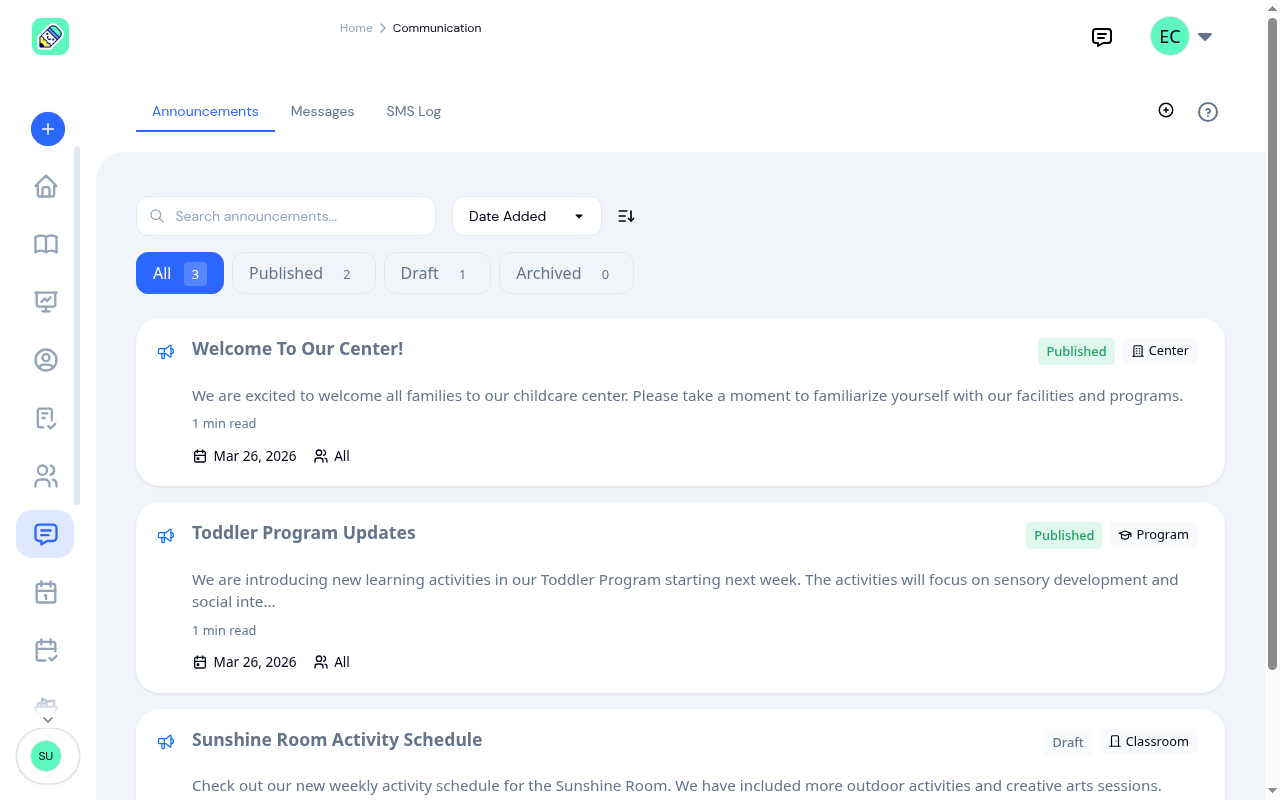
For owners and admins, the announcements list shows all announcements at your center. Teachers see the announcements they wrote, plus colleagues' published announcements that include staff. Each card displays the title, a content preview, the date created, the audience, and scope badges (Center, Program, or Classroom).
Filtering and sorting:
- Status tabs — Filter by All, Published, Draft, or Archived. Each tab shows a count, and both the tab and its count cover every announcement at your center, not just the ones on screen. Longer lists page in the standard way. See How lists work.
- Search — Type in the search bar to find announcements by title or content.
- Sort — Sort by Date Added (default), Title, or Status. Toggle ascending/descending with the arrow button.
Creating an Announcement
Owners and admins click the + button on the Announcements tab to open the create form. Teachers, see Announcements from teachers below.
Recipients and Scope
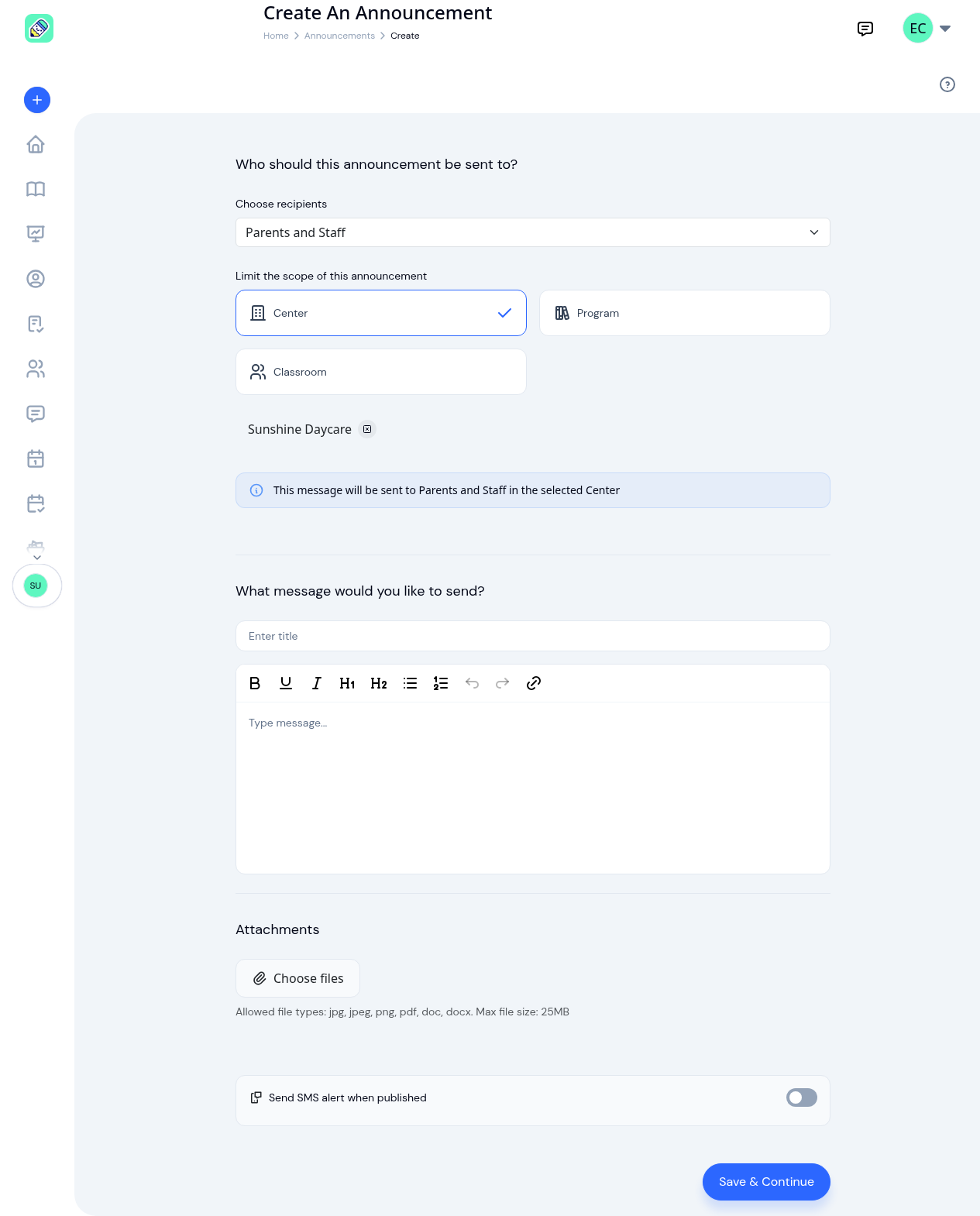
- Choose recipients — Select who should receive the announcement: Parents and Staff (default), Parents, or Staff.
- Limit the scope — Choose how broadly to send:
- Center — Everyone at your center (default)
- Program — Only people in a specific program
- Classroom — Only people in a specific classroom
- An info banner confirms the targeting: "This message will be sent to recipients in the selected scope"
Message Content
- Title — A short headline for your announcement (required)
- Message — Use the rich text editor to write your announcement. The toolbar supports bold, underline, italic, headings, lists, and links.
Attachments
Click Choose files to attach documents or images. The form tells you what it takes: jpg, jpeg, png, pdf, doc, docx, up to 25 MB per file. Anything else is refused when you save.
SMS Alert
Toggle Send SMS alert when published to also notify parents via text message. When enabled, a text area appears where you enter the SMS body (up to 480 characters). A counter shows the character count and number of SMS segments.
Click Save & Continue to save the announcement as a draft and go to the detail page, where you can publish it. Saving a draft doesn't notify anyone. Recipients hear about it only when you publish.
Announcements from Teachers
Teachers can write announcements for the classrooms they are assigned to. On the Announcements tab, click Create New.
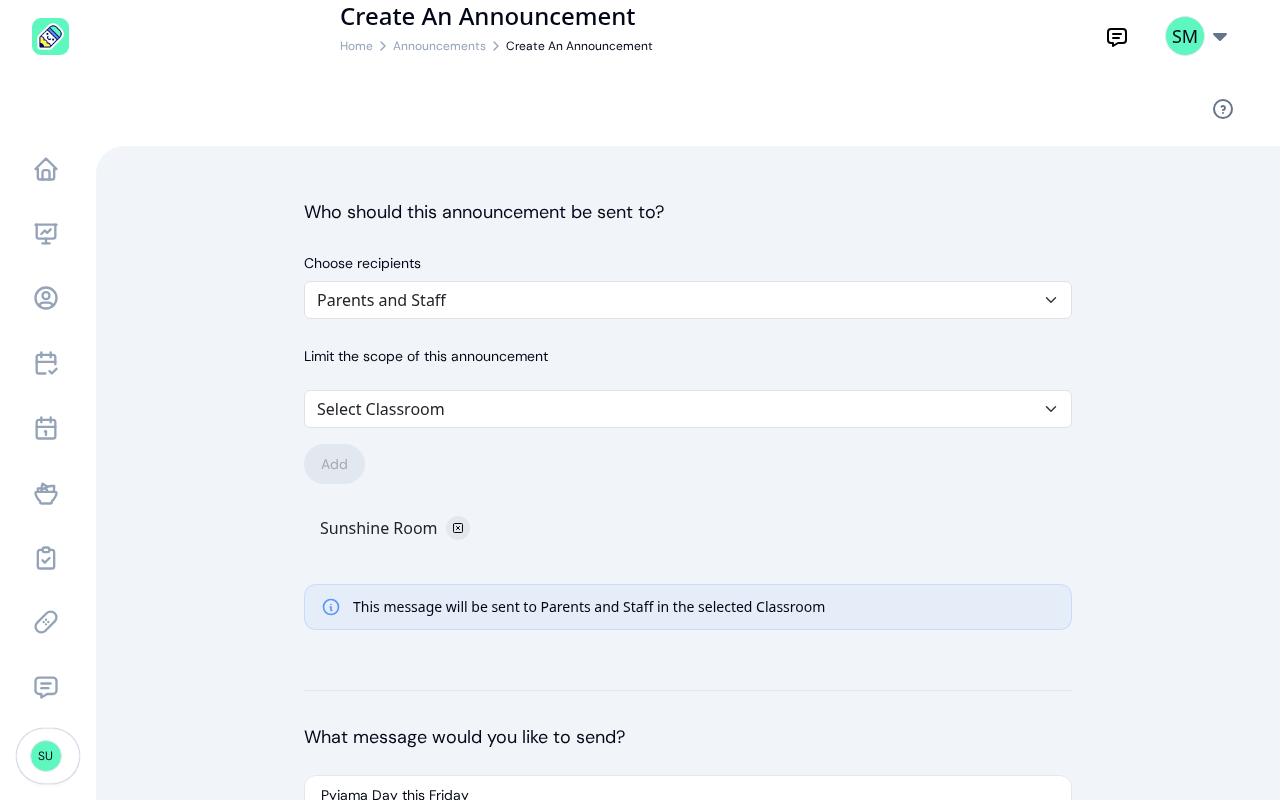
The form is the same as the one owners and admins use, with one difference: a teacher can only send to their own classrooms. There is no Center or Program option. The first of their classrooms is already selected, and Select Classroom lists only the rooms they teach, so a teacher with more than one room can pick another and click Add to include it. Choose recipients works as usual: Parents and Staff, Parents, or Staff.
Click Save & Continue to save it as a draft. The teacher's announcement page then offers the same actions an admin has: Publish (with the same confirmation), Edit, Send Test, Archive or Republish, and Delete.
A few things to know as a teacher:
- You manage what you wrote. A colleague's announcement opens read-only, right on the Announcements tab.
- Your classrooms decide what you can change. You can edit, publish, or archive your announcement while every classroom it's for is still yours. If you move out of a room, you can still delete what you wrote for it.
- No classroom, no announcements. A teacher who isn't assigned to a classroom yet doesn't see Create New. If they reach the form, it reads: "You are not assigned to a classroom yet, so there is nobody you can send an announcement to. Ask an administrator to assign you to one."
- The SMS option depends on your center. Send SMS alert when published appears only if your center lets teachers send SMS in Communication Settings.
Viewing an Announcement
Click any announcement in the list to open its detail page.
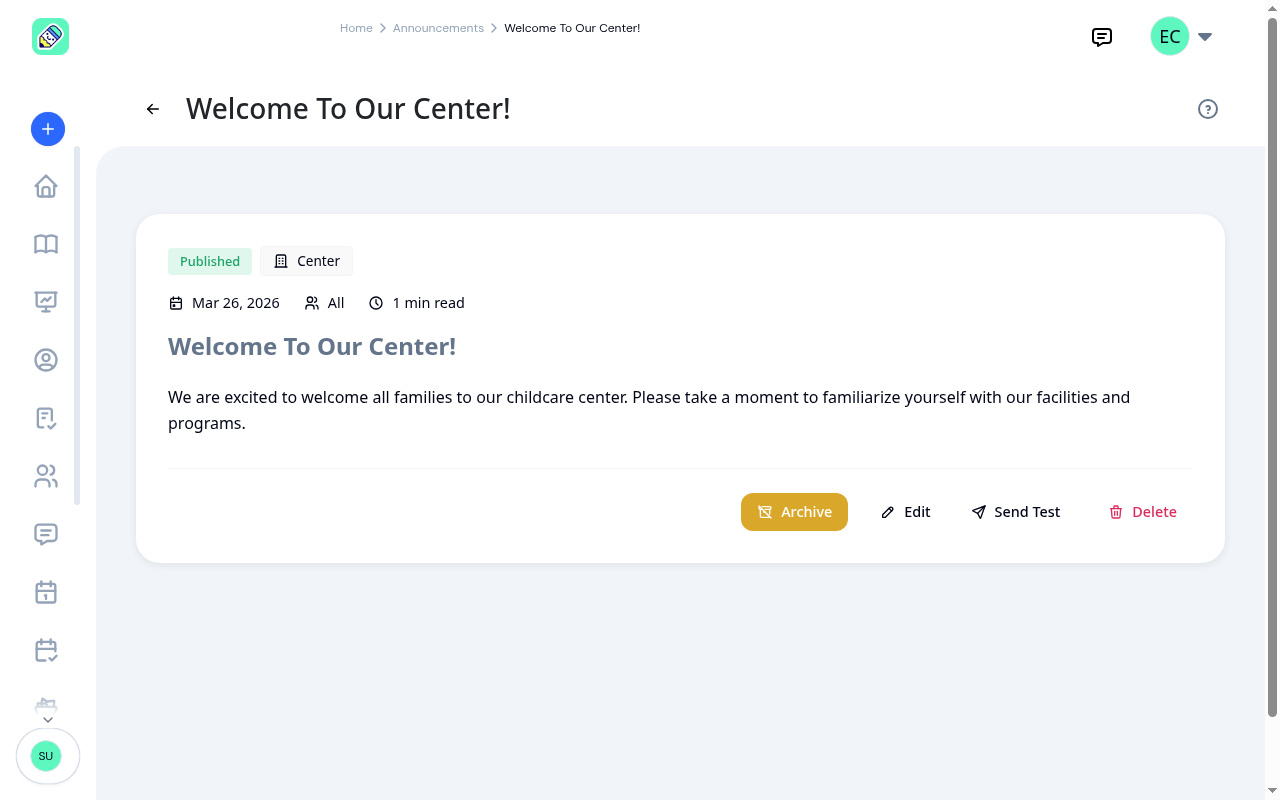
The detail page shows:
- Status badge — Draft, Published, or Archived
- Scope badge — Center, Program, or Classroom
- Metadata — Date created, audience (All, Parents, Staff), and reading time
- Full content — The complete announcement with rich text formatting
- Attachments — Download any attached files
- SMS delivery status — If SMS was enabled, shows the count of sent, failed, and pending messages (visible only after publishing)
Status Lifecycle
Announcements follow a status lifecycle with actions available at each stage:
- Draft — Not visible to recipients. You can Publish, Edit, or Delete it.
- Published — Visible to recipients. You can Archive, Edit, or Delete it.
- Archived — Hidden from recipients. You can Republish, Edit, or Delete it.
Send Test is available at every stage. It sends a test version of the announcement to your own account only, so you can check how it looks before (or after) it goes out.
Publishing asks you to confirm first, because it notifies everyone the announcement is for.
Who Receives an Announcement
An announcement reaches the people you chose under Choose recipients, within the scope you set:
- A Center announcement goes to everyone at the center in the chosen group.
- A Program or Classroom announcement goes to the staff of that program or classroom and the families of children currently enrolled in it. Once a child's enrollment there is completed or cancelled, their family stops seeing that room's or program's announcements in the app and isn't emailed about new ones.
What a family reads in the app matches who is emailed: they see center-wide announcements plus those for a classroom or program their child is enrolled in now, and nothing aimed at other rooms.
Announcement Emails
When you publish, everyone the announcement is for gets an email, unless they have turned announcement emails off in their profile. The email links straight to the announcement:
- Owners, admins, and teachers land on the announcement's own page. A teacher reading a colleague's announcement sees it read-only.
- Parents land on the Announcements tab of their Communication page with the announcement open.
The link always opens the announcement in its own center, even for someone who belongs to more than one. If the reader is signed out, they sign in and then arrive at the announcement.
The SMS alert, when used, links to the app rather than to the announcement itself.
What Parents See
Parents see published announcements in the Announcements tab of their Communication page: those for the whole center, and those for a classroom or program their child is currently enrolled in. They can read the full content and download attachments, but cannot see draft or archived announcements, status badges, or scope information.
Frequently Asked Questions
Yes. Click Edit on the detail page to change the title, content, attachments, and who it's for (recipients and scope). Click Save to keep your changes.
Archived announcements are hidden from parents and staff but not deleted. You can republish them at any time.
No. Teachers can announce only to the classrooms they are assigned to. For a center-wide or program-wide announcement, ask an owner or admin.
No. SMS alerts are only sent on the initial publish. Republishing restores visibility but does not re-send SMS.