

Events
The Events calendar is your center's shared schedule. Use it to publish holidays and closures, parent-teacher meetings, field trips, and special days so staff and parents always know what's coming up. Each event can be aimed at your whole center or just one program or classroom, and families can add any event to their own personal calendar.
Two Ways to View the Calendar
The Events page opens in Calendar view, with a month grid on the left and a detail panel on the right. Use the Calendar / List toggle in the top-right to switch views.
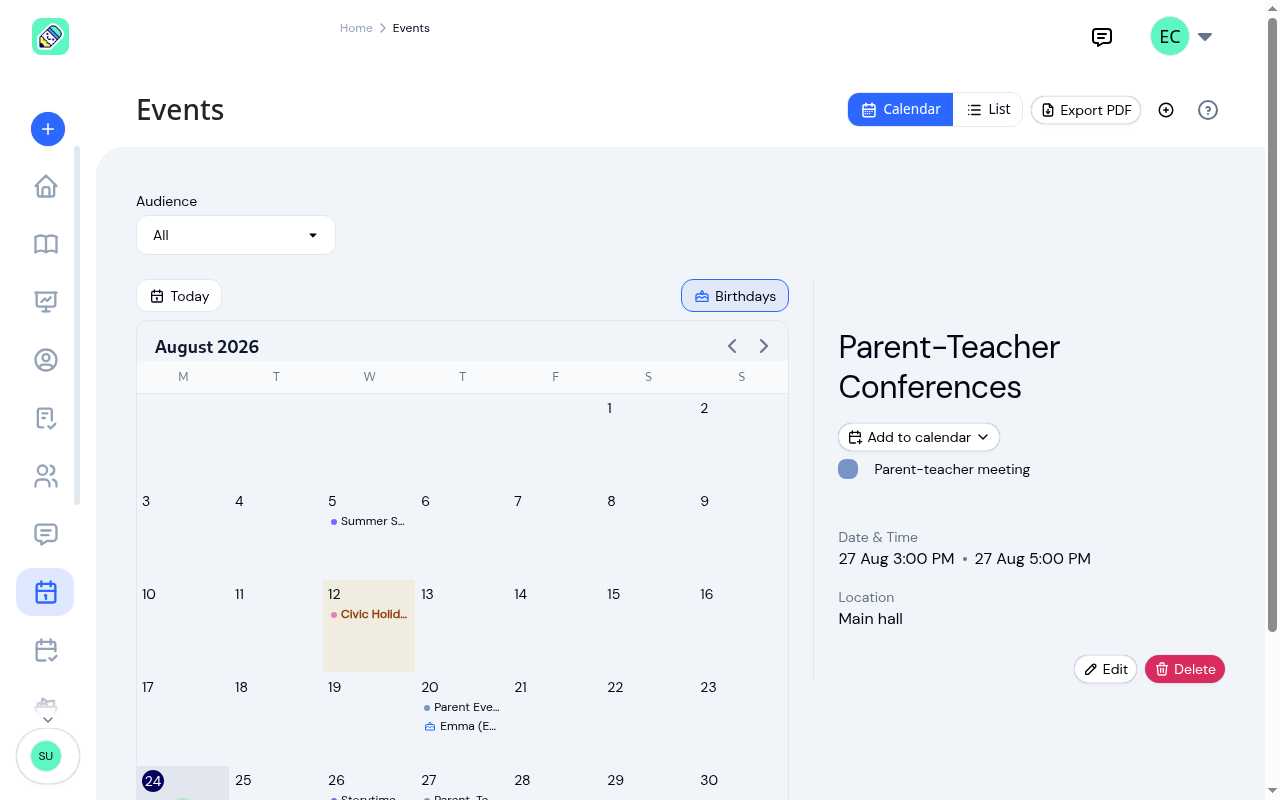
- Calendar view shows each event's name right in the day cell. Click an event to see its full details in the side panel, or click a day to see everything happening that day.
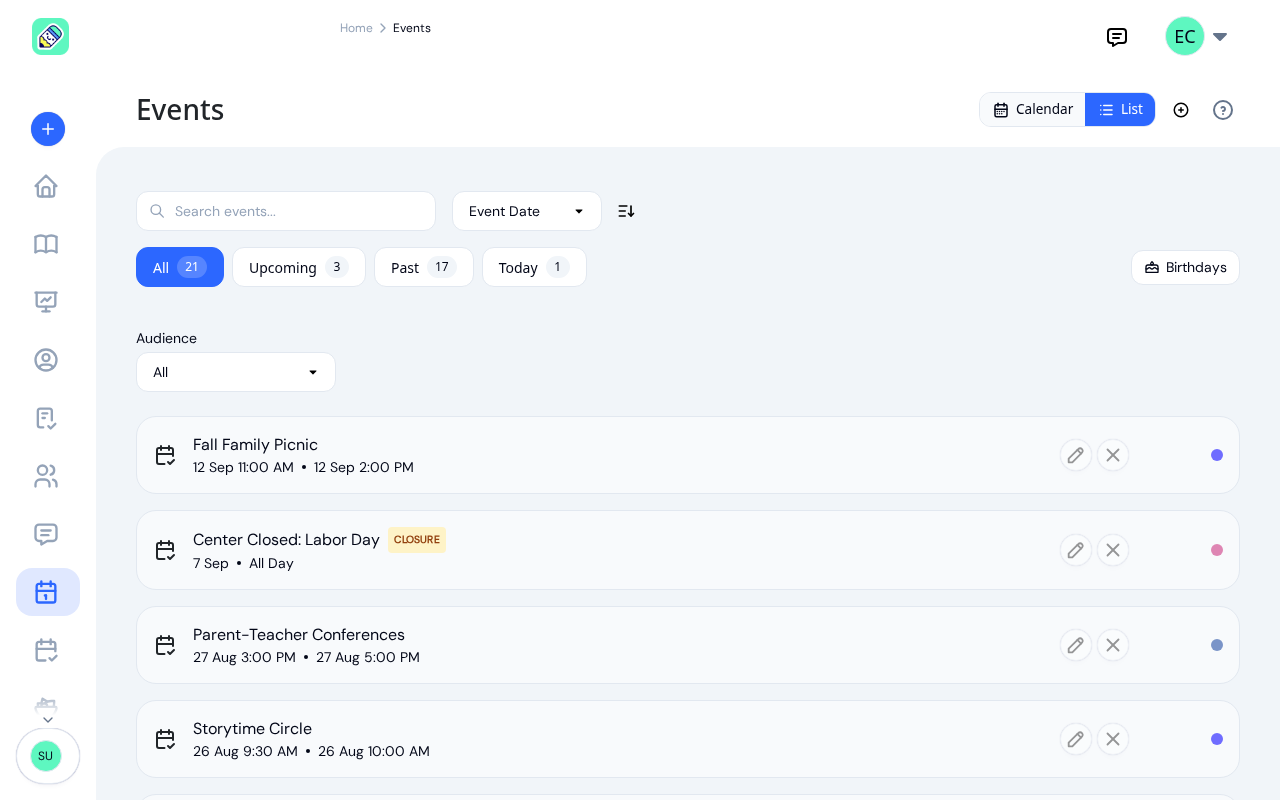
- List view shows your events as a scrollable list with search and sorting.
Use the Today button to jump back to the current month, and the arrows next to the month name to move between months.
Searching, Sorting, and Filtering the List
In List view you get extra controls:
- Search by event name
- Sort by Event Date, Title, or Date Added, and flip the direction with the arrow button
- Status tabs — All, Upcoming, Past, and Today, each showing a count, so you can focus on what's still to come
Showing Birthdays
Click the Birthdays button to overlay children's birthdays on the calendar (or the list). Birthdays are worked out automatically from each child's date of birth, so you don't need to create them as events.
Choosing the Audience
The Audience filter sits above the calendar in both views. It controls which events you're looking at:
- All — every event you have access to
- Center — events for the whole center
- Program — events for one program (a second dropdown lets you pick which)
- Classroom — events for one classroom (again, pick which)
This is handy when a classroom teacher only wants to see their own room's events, or when you want to review everything aimed at a particular program.
Exporting the Calendar to PDF
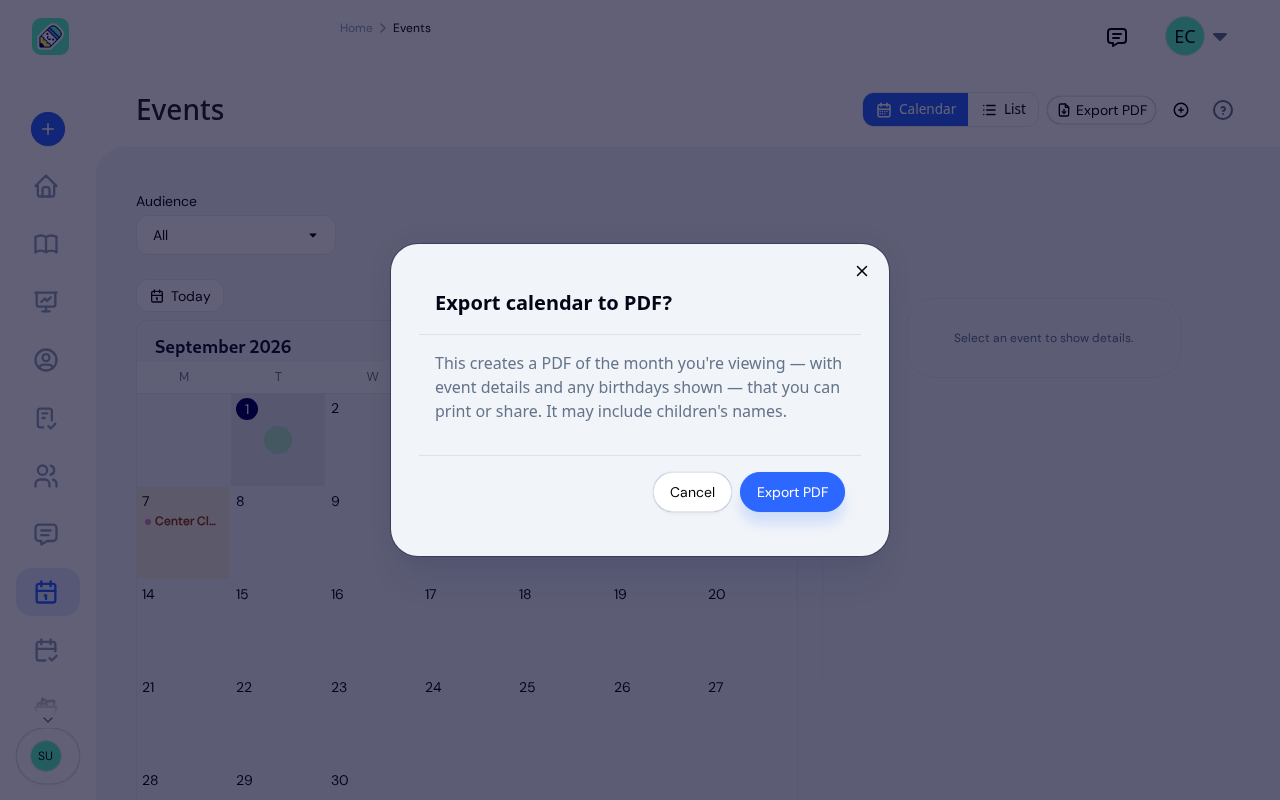
From Calendar view, click Export PDF in the top-right to save a printable copy of the month you're looking at. KidzLog asks you to confirm first, since the file can include children's names.
The PDF is a landscape, print-friendly version of the month:
- It covers the month currently on screen, with each day's events.
- It respects the Audience filter, so a PDF made while viewing one program or classroom only includes that group's events, and the group's name appears at the top.
- Birthdays are included when the Birthdays overlay is on.
- Days the center is closed are marked CLOSED, and the layout stays clear in black and white so it prints well without colour.
Creating an Event
Open the new event form
Click the + button in the top-right of the Events page.
Fill in the details
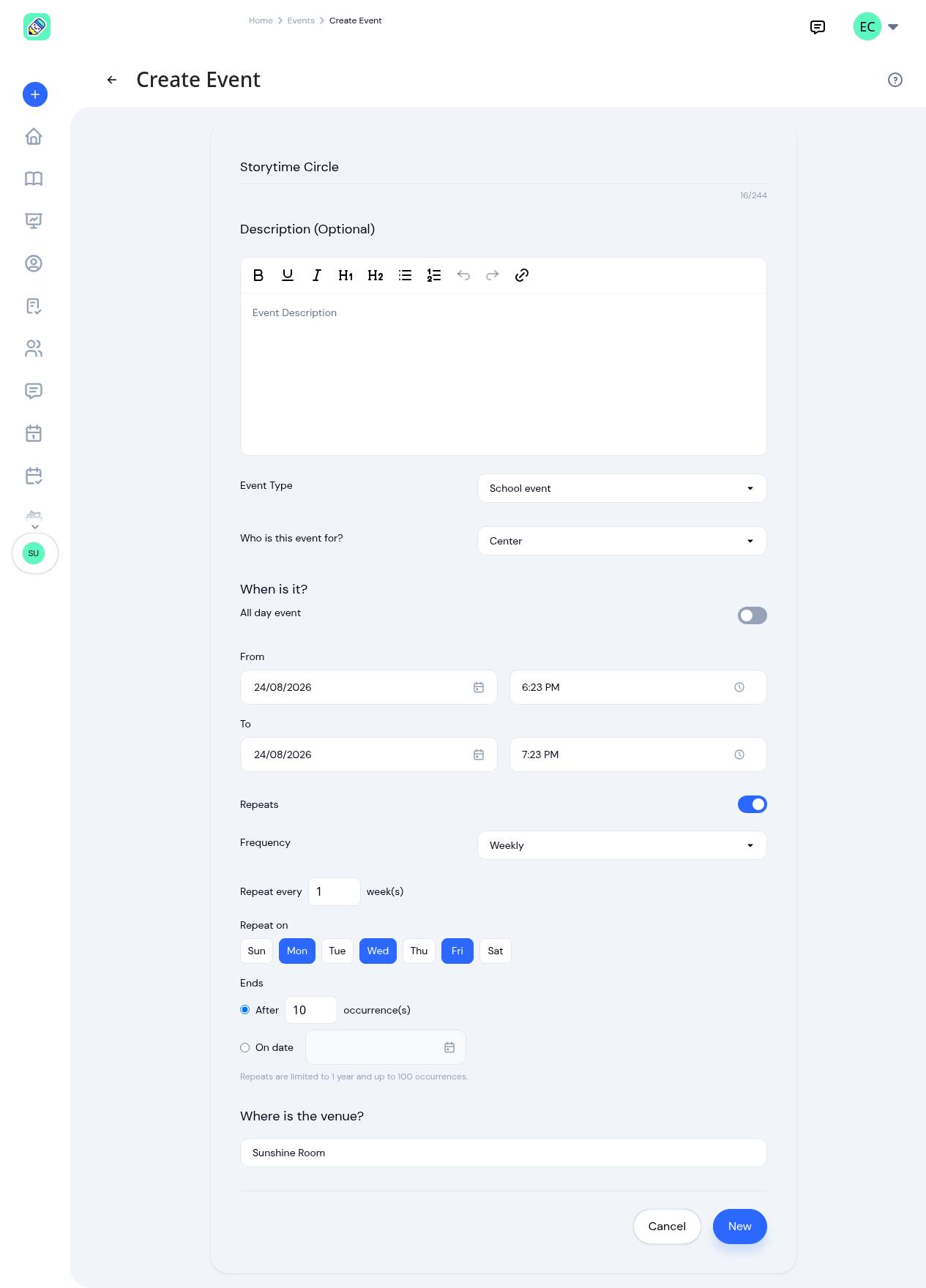
- Event Title (required)
- Description (optional) — supports basic formatting like bold, lists, and links
- Event Type (required) — choose from School holiday, Statutory holiday, School closure, Professional development day, Parent-teacher meeting, School event, Special day, Birthday, or Custom event. Each type has its own colour on the calendar
- Who is this event for? — pick Center, Program, or Classroom. Choosing Program or Classroom reveals a second dropdown to pick the specific one
- All day event — turn this on for holidays and closures that don't need a start and end time
- From and To — set the start and end date and time (the times are hidden when "All day event" is on)
- Where is the venue? — an optional location
Make it repeat (optional)
To create a series, such as a weekly story time, turn on Repeats and set how often it recurs.
- Frequency — Daily, Weekly, or Monthly
- Repeat every — the interval (for example, every 2 weeks)
- Repeat on — for weekly events, pick which days of the week
- Ends — finish the series After a number of occurrences, or On date to stop on a specific date
A series can run for up to one year and up to 100 occurrences.
Save
Click New to create the event. Repeating events are added across the calendar in one step.
Event Details and Adding to a Personal Calendar
Click any event to open its details: the date and time (or "All day"), location, description, and event type. A repeating event shows a Repeats badge, and a holiday or closure shows a Closure badge.
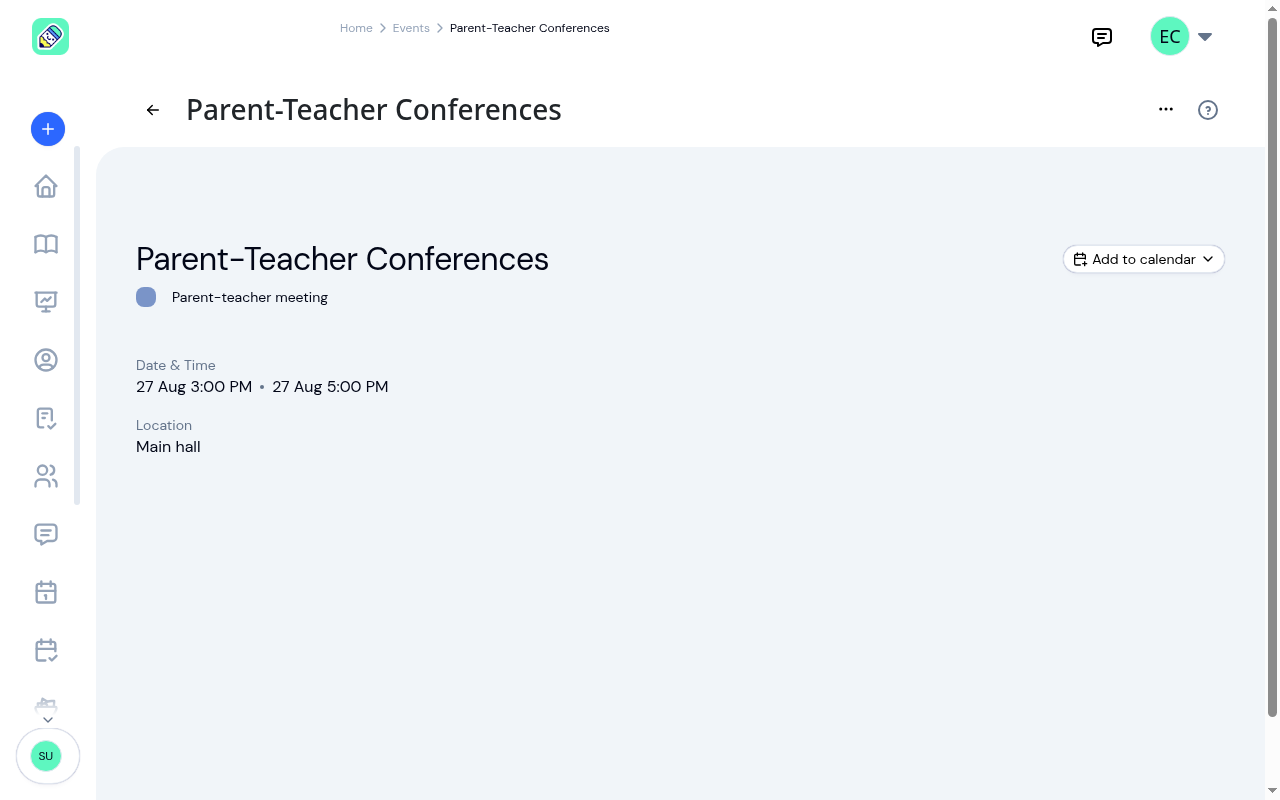
Use the Add to calendar button to save the event to a personal calendar app:
- Download .ics file — opens in Apple Calendar, Outlook, and most other calendar apps
- Google Calendar — opens Google Calendar with the event details prefilled
- Add series to calendar — for a repeating event, downloads the whole series at once
Parents see this same Add to calendar button on their events, so they can keep your center's schedule alongside their own.
Editing an Event
Open an event and click Edit, make your changes, and save.
When the event is part of a repeating series, KidzLog asks how widely the change should apply:
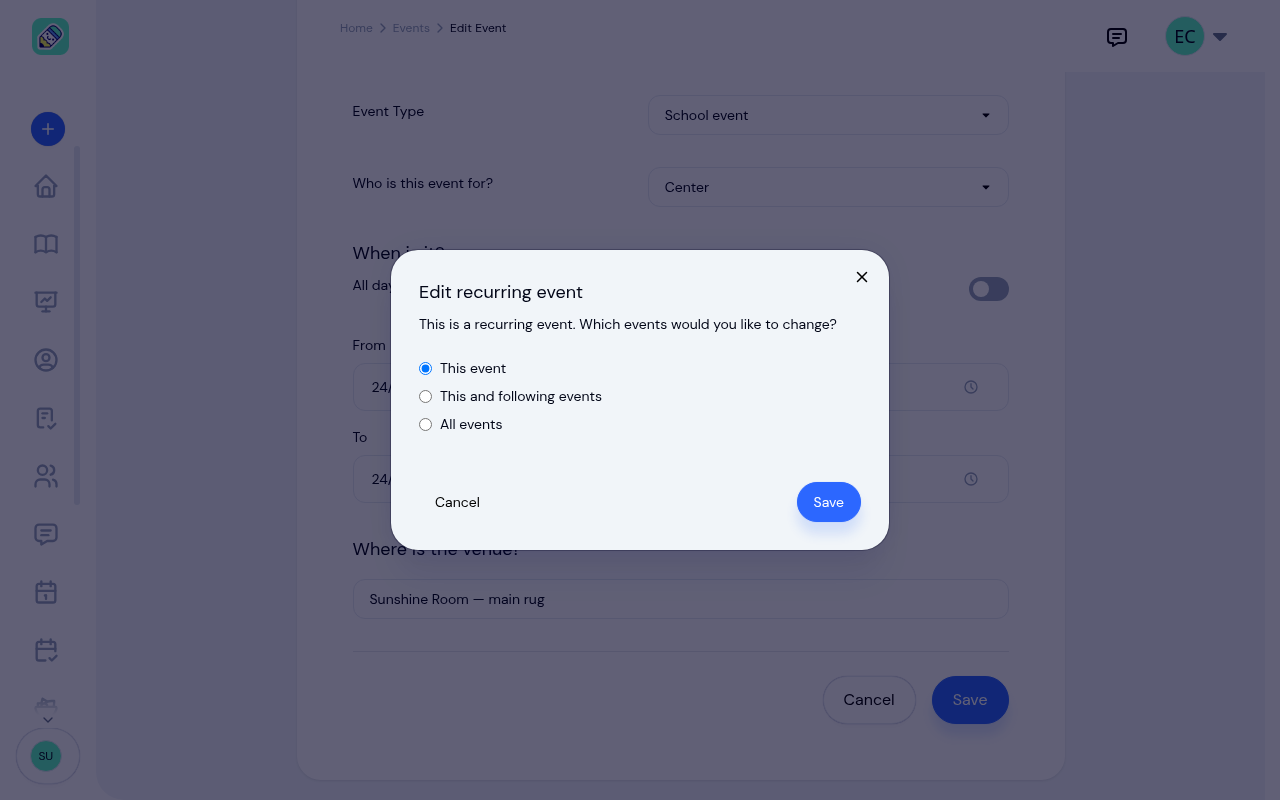
- This event — only the one occurrence
- This and following events — this occurrence and every one after it
- All events — the entire series
A one-off event saves straight away without asking.
Deleting an Event
Open the event and click Delete. For a repeating event, you choose whether to remove:
- This event — just the one occurrence
- All events in series — the whole series
Holidays and Closures
Three event types mark days the center is closed: School closure, Statutory holiday, and School holiday. KidzLog gives these extra visibility:
- They carry a Closure badge on the event details.
- On a closure day, a reminder banner appears on the Attendance page so staff don't check children in by mistake.
- When an email notification goes out for a closure, the closure is called out in the email subject line.
Event Emails
When an event is created or changed, and when an event reminder goes out, the people it's for get an email (unless they've turned calendar event emails off in their profile). The link in the email goes straight to the event:
- Owners, admins, and teachers land on the event's own page.
- Parents land on their Events page with the event open.
The link opens the event in its own center, even for someone who belongs to more than one. If the reader is signed out, they sign in first and then land on the event. An email telling people an event was deleted has no link, since there is nothing left to open.
Staff also get a weekly email listing the birthdays coming up: owners and admins for the whole center, teachers for their own classrooms. Its link opens the events calendar at that month with birthdays shown. That only applies to the visit from the email; it doesn't change whether Birthdays is switched on for you.
Who Can Manage Events
Parents see events from their own dashboard. For the parent experience, see Events & Announcements.
Frequently Asked Questions
It depends on the audience you choose. A Center event is visible to everyone at your center. A Program or Classroom event is visible to the staff and families connected to that program or classroom. Teachers and parents only ever see events that apply to them.
The repeat settings are fixed once a series is created. If you need a different schedule, delete the series and create a new one with the repeat options you want.
No. Turn on the Birthdays toggle and KidzLog shows each child's birthday automatically, based on their date of birth.
They open the event and use Add to calendar to download an .ics file or open it in Google Calendar. For a repeating event, Add series to calendar brings in every occurrence at once.
Closure-type events (School closure, Statutory holiday, School holiday) show a reminder banner on the Attendance page for that day, and closures are highlighted in the subject line of any email notification.