

Applying Online (for Families)
Your center can take enrolment applications online. Families open your application link, usually from your own website, fill in one short form for their children, and submit it. They don't need a KidzLog account or a password. Each submission arrives in your team's review queue alongside the applications staff enter.
This page walks through the form as a family sees it, so you know what you're asking of them and what they're told afterwards.
Filling In the Form
The form opens with your center's name and logo and a short line: "Tell us about your child and we'll be in touch about next steps." It has three parts.
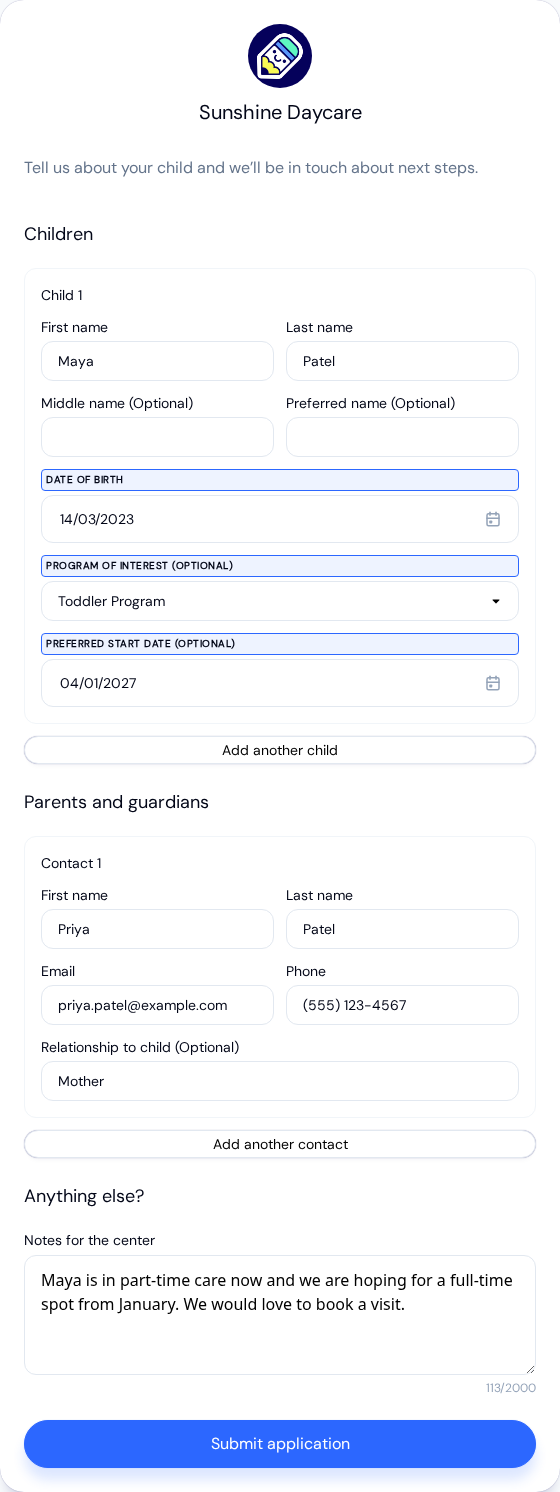
Children
For each child, the family enters:
- First name and Last name
- Middle name and Preferred name, both optional
- Date of birth, picked from a calendar
- Program of interest, optional, chosen from your programs. It only appears when your center has programs set up
- Preferred start date, optional
Add another child adds a second set of fields, so siblings go in one submission. A Remove button appears on each child once there's more than one. Up to ten children fit in one form.
Parents and guardians
For each contact, the family enters First name, Last name, Email, Phone, and an optional Relationship to child (for example, Mother or Guardian). Email and phone are both required, since they're how your team gets back to the family.
Add another contact adds a second parent or guardian, up to six. The first contact listed is the main one: the confirmation email goes to them.
Anything else?
Notes for the center is an optional free-text box for anything the family wants you to know, such as allergies, a sibling already enrolled, or a request for a tour. It holds up to 2,000 characters.
The family then taps Submit application. If anything required is missing, the form points to the field instead of submitting.
After Submitting
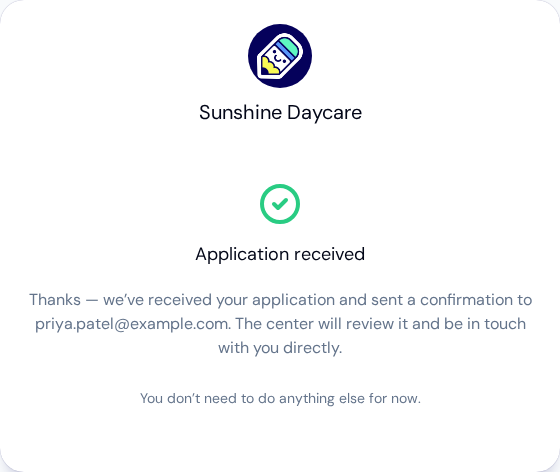
The family sees Application received, with a note that a confirmation has gone to the main contact's email address and that your center will review the application and be in touch. Nothing else is asked of them.
Behind the scenes:
- The family gets one confirmation email for the whole submission, naming every child on it. If the family submits exactly the same details again within a few minutes, for example by tapping submit twice, they aren't emailed a second time.
- Your team is told. The people who review applications get a "New enrollment application" email that opens the application in KidzLog. If you've set up approval steps, it goes to whoever signs off first.
- Each child becomes their own application in the review queue, marked Online and grouped as one submission, so you can decide on siblings separately. The family's note is shown on each one as Note from the family.
Nothing on the form or in the confirmation promises a place. Whether the answer is yes, no, or a waitlist is your team's decision in the review queue. If you decline and Email families when an application is declined is on, the family receives a short notice that the application wasn't accepted, without the reason. See Declining, and telling the family.
When the Form Isn't Available
- Not accepting applications online. A family who opens the link while Accept applications online is off, or while your center enrols children directly without a review queue, sees "This center isn't taking online applications right now. Please contact them directly to apply." Nothing is submitted.
- Center not found. The link doesn't match a center, usually because the center was renamed after the link was published. The family is asked to check the link or contact you directly. Copy the new link from Enrollment Settings and update your website.
Frequently Asked Questions
No. The form is open to anyone with the link, and submitting it doesn't create a KidzLog account for the family.
No. Every submission is accepted, and KidzLog flags a likely repeat as Possible duplicate in the review queue for your team to look at. Withdraw or delete the extra one once you've checked it.
Not from the form. Your team can correct details such as a missing date of birth or a mistyped email by editing the application in the review queue.