September's updates focus on getting the record right: correcting an incident report after it's filed, keeping families informed about enrollment decisions, and printing a child's full record when an inspector or doctor asks for it.
Correct an Incident Report, Even After Approval
Submitting an incident report now opens a confirmation step. For an owner or admin, that step carries the decision that matters most: Approve now and email the parents is ticked by default, and unticking it saves the report as pending so you can look it over before the family hears about it. Approve it later from the report page, like any report a teacher files. Teachers see the same confirmation, with a note that the report goes to an owner or admin for approval.
When an approved report needs a correction, an owner or admin can reopen it from the report page or the child's activity feed. The report returns to pending, you make the edit, and it needs approval again. Once a parent has signed a report, it stays as signed, because the parent signed that exact text.
A pending report can be deleted from its own page, behind a confirmation. Owners and admins can delete any pending report in the center, and teachers can delete the ones they filed. Approved reports stay on file, which keeps the record your licensing body expects to see. Our guide to incident reports you can defend covers what a complete report needs.
Each incident form also asks only for the fields it needs, so a form without a cause or assistance section never asks you to fill one in. On the copy parents receive, staff involved in an incident are named, and other children are listed as "Child #1", "Child #2" and so on. More about the incident tools is on the incident reporting page.
New Features
Decline Notes for Families
When you decline an application, the family can get a short email letting them know. It names the child and your center and never includes the reason you recorded. The decline dialog shows the address the note will go to, and you decide each time whether to send it. The default comes from Settings > Enrollment > Email families when an application is declined, which is on to start.
Delete and Restore Applications
Every application in your review queue, except an approved one, can be deleted behind a confirmation. A Deleted filter lists what you removed, and Restore puts an application straight back where it was, notes included. An approved application stays, because it is the record of the enrollment it created. This builds on the public application page from August.
Child Records Print in Full
Child records print across as many pages as they need, with every section intact: allergies, medications, immunizations, emergency contacts, address and health care provider. Opening the export for a single child shows a preview with Print and Cancel. Exporting from the Active tab includes only active children. A complete printed record is what a doctor or licensing inspector expects, and it helps you stay compliant with record-keeping requirements. See child information management for everything a child record holds.
Manage Every Notification
Your center's Notifications settings have a switch for every email KidzLog sends, including calendar events, document requests, enrollment approvals and cancellations, and emergency contact updates. Parents can turn document request emails on or off, and owners and admins can choose whether to hear about new applications and enrollments waiting for their approval. The link at the bottom of every KidzLog email opens the reader's own notification preferences.
Also Improved
- Invoices: Editing an invoice keeps the prices it was issued at, overdue invoices can be edited, and removing a fee line removes only the line you clicked. A discount can't be larger than its fee.
- Document requests: Each signing step offers only the actions that person can complete, and staff can countersign a document.
- Attendance and kiosk: The date shown is your center's date, whatever the tablet's clock says. The Kiosk Mode button appears whenever kiosk mode is on in your settings.
- Your center's calendar: Invoice due dates, monthly revenue, health screenings and safe-arrival deadlines all follow your center's day.
- Health screening: Each child has one screening response per day, even after a double-tap on the kiosk.
- Module switches: Turning off Incidents or the Activity Feed hides them on every screen, daily reports included.
- Access controls: Signatures and billing records have tighter access controls.
- Public pages: Your application and check-in pages show your center name cleanly if a logo can't load.
Ready to Simplify and Organize your Daycare?
Get started with KidzLog today!
KidzLog Team
Related Articles
August Update: Enrollments and Fillable Forms
Families apply from your center's own page, parents complete a whole PDF on their own device, and the attendance report...
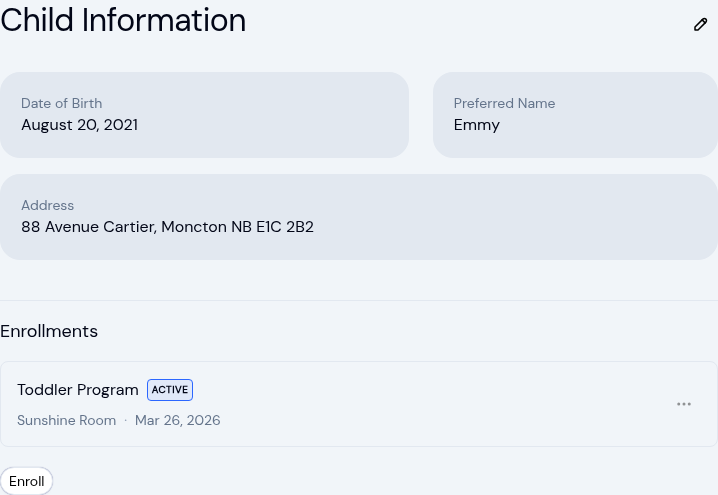
New: A Child's Address and Health Care Provider
The child record now holds the child's own address and their health care provider. Both show on the profile, in Health...
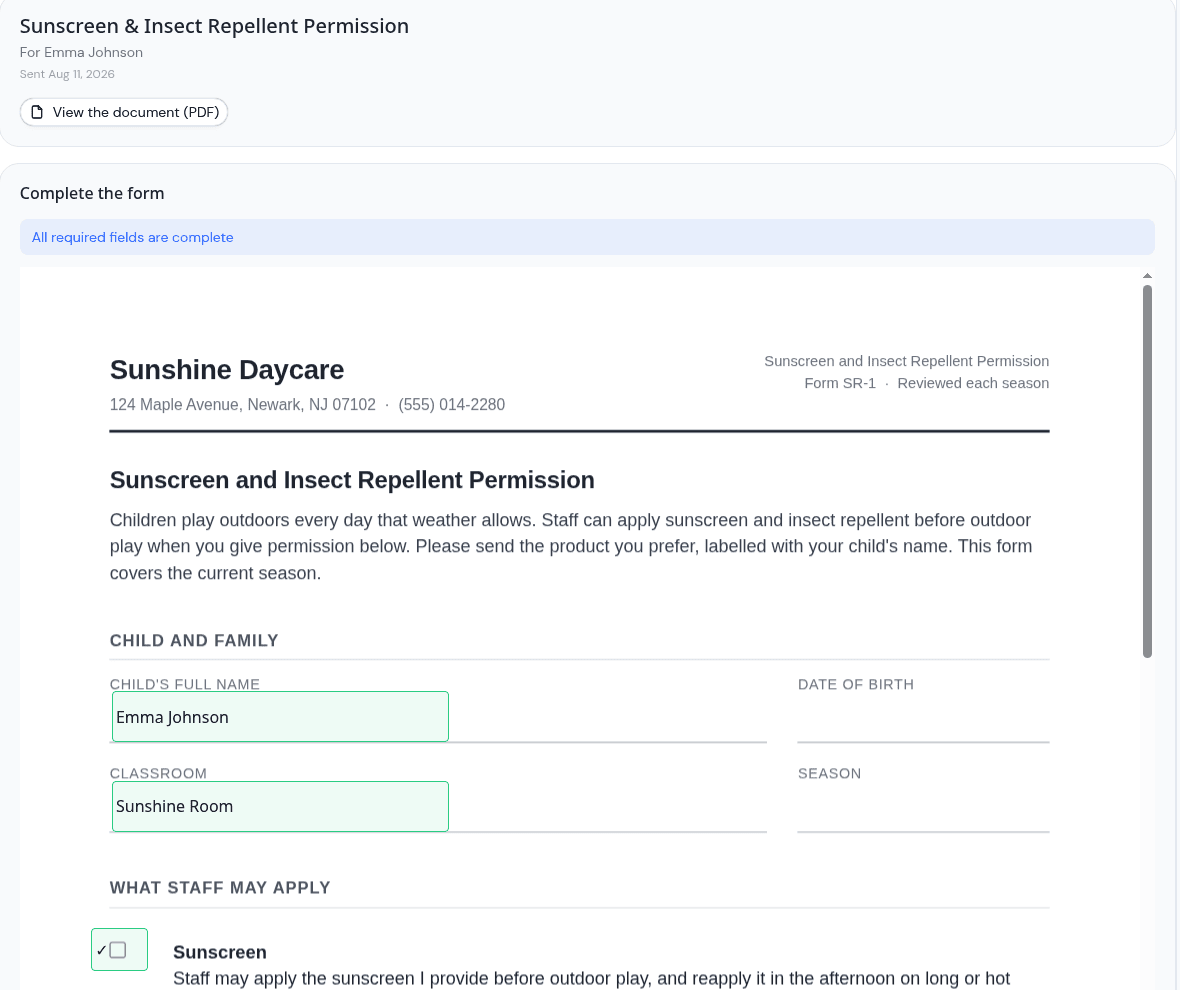
Parents can now fill in the form, not just sign it
Place signature, date, text and checkbox fields anywhere on a PDF, and parents complete the whole form on their own...