New: Archive a Classroom, and Hide the Ratio Panel
Reenrollment leaves a trail. The toddler room you ran last year is empty now, the children have moved up, and the room sits on your dashboard with no staff and no children, next to the rooms you actually use. Do it two years running and half your list is rooms nobody walks into.
Deleting the room is not the answer. Delete a room and its name disappears from every record that referenced it: last September's attendance report stops saying which room a child was in. Leaving the room alone keeps your records intact and leaves you scrolling past it every day.
You can now archive a classroom instead.
What archiving does
An archived room steps out of the way without taking its history with it.
It leaves the places you pick from and look at day to day:
- the staff-to-child ratio panel on your dashboard
- classroom dropdowns when you are enrolling a child, planning a menu, posting an announcement or starting a roll call
- the classroom filters on your reports
It stays in the places that are a record of what happened:
- past enrolments still name the room each child was in
- old roll-call reports and attendance reports still read the same as they did
- the activity history still shows who archived it and when
A room you have finished with stops appearing in tomorrow's work, and last year's paperwork still reads the way it did.
How to archive a room
Go to Classrooms, open the actions menu on the room's row, and choose Archive. You can also archive from the room's own page, next to Edit and Delete.
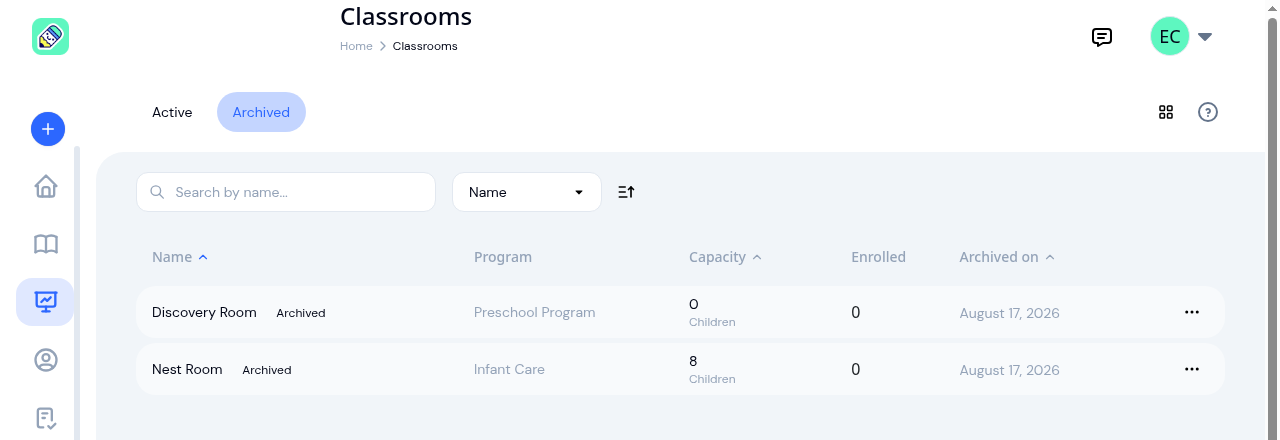
The list now has Active and Archived tabs. Archived rooms live on the second tab with the date they were archived, and Unarchive on the same menu puts a room straight back where it was. Nothing is lost in between, so archiving is a safe thing to try.
A room with children in it stays put
If children are still enrolled in the room, archiving is refused and the confirmation tells you which children. Move them to their new room first, then archive.
An archived room leaves your ratio panel, and a room with children in it belongs on that panel. Reenrollment already means moving children before you are done with a room, so this is the order you were going to work in anyway.
Clearing the sample room
New centers start with a sample classroom named DEMO Sunshine Room, along with a few sample children so the dashboard has something to show you on day one. That room is yours to remove whenever you like.
Because the sample children are enrolled in it, clear them first: open Children, archive each sample child (their names end in DEMO), then archive the room. If the setup checklist is still on your dashboard, Reset sample data does the first step for you in one go.
Hiding the ratio panel
The staff-to-child ratio panel is useful if you have set a max children per staff figure on your rooms. If you have not, it is a list of rooms saying "ratio not set" sitting at the top of your dashboard.
There is now a Classrooms tab in Settings with a switch for it. Turn it off and the panel goes; turn it back on and it returns. It is on by default, and it only affects that one panel. Your classrooms, your attendance summary and everything else on the dashboard are untouched.
Only the center owner can change it, and it applies to the whole center rather than to one person's view.
If you manage more than one center
Switch centers and the ratio panel now follows you, so the rooms and staff numbers you see belong to the center you are actually in. No reload needed.
Archiving is on the Classrooms page now, and the settings switch is under Settings, Classrooms. Both are available to every center on every plan.
Ready to Simplify and Organize your Daycare?
Get started with KidzLog today!
KidzLog Team
Related Articles

September Update: Incident Reports and Records
Reopen and correct an approved incident report, choose when parents get the email, send families a note on declined...

August Update: Enrollments and Fillable Forms
Families apply from your center's own page, parents complete a whole PDF on their own device, and the attendance report...
Parents can now fill in the form, not just sign it
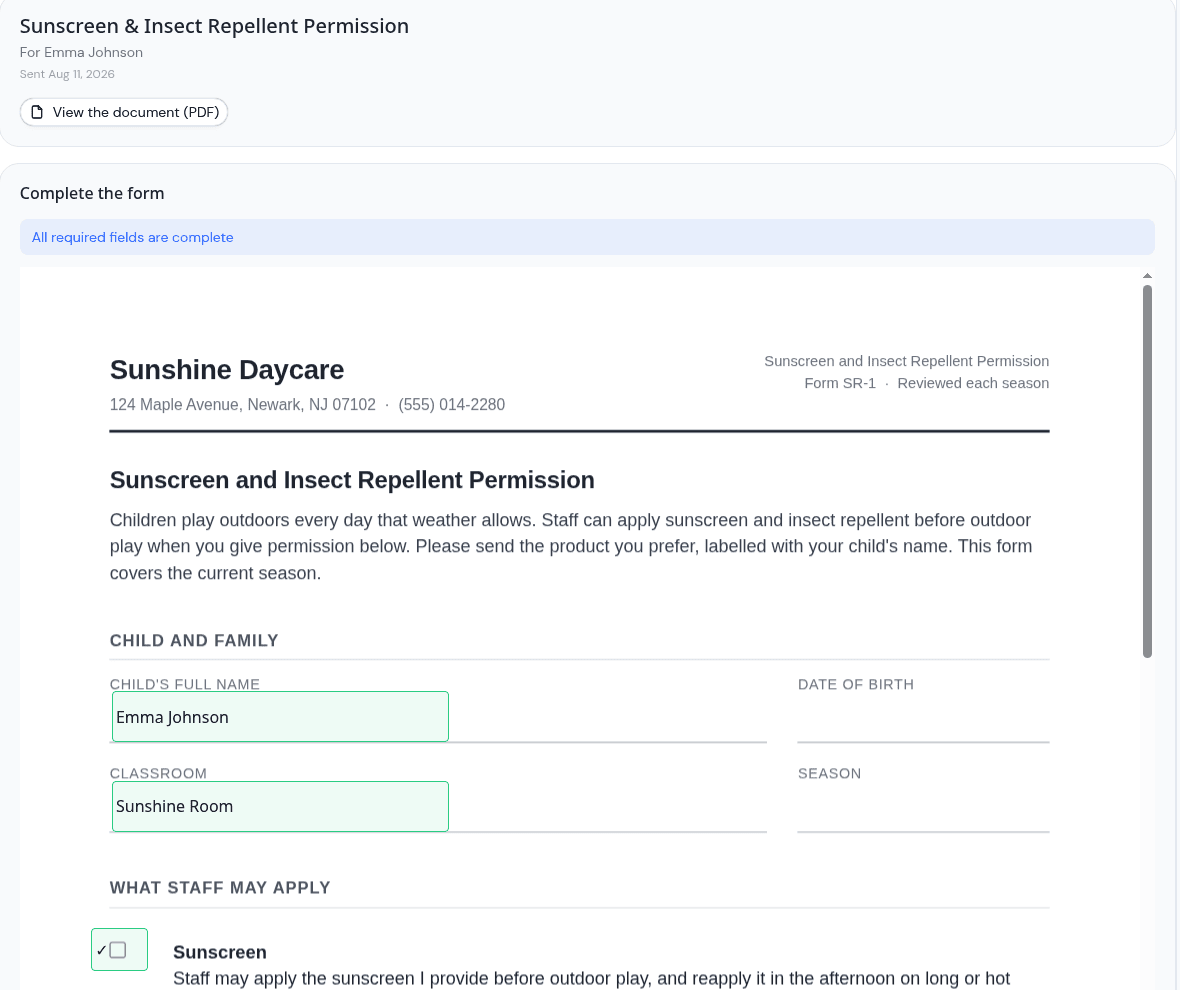
Place signature, date, text and checkbox fields anywhere on a PDF, and parents complete the whole form on their own...